Chapter 4 Adding Memory to Your MacBook Pro 89
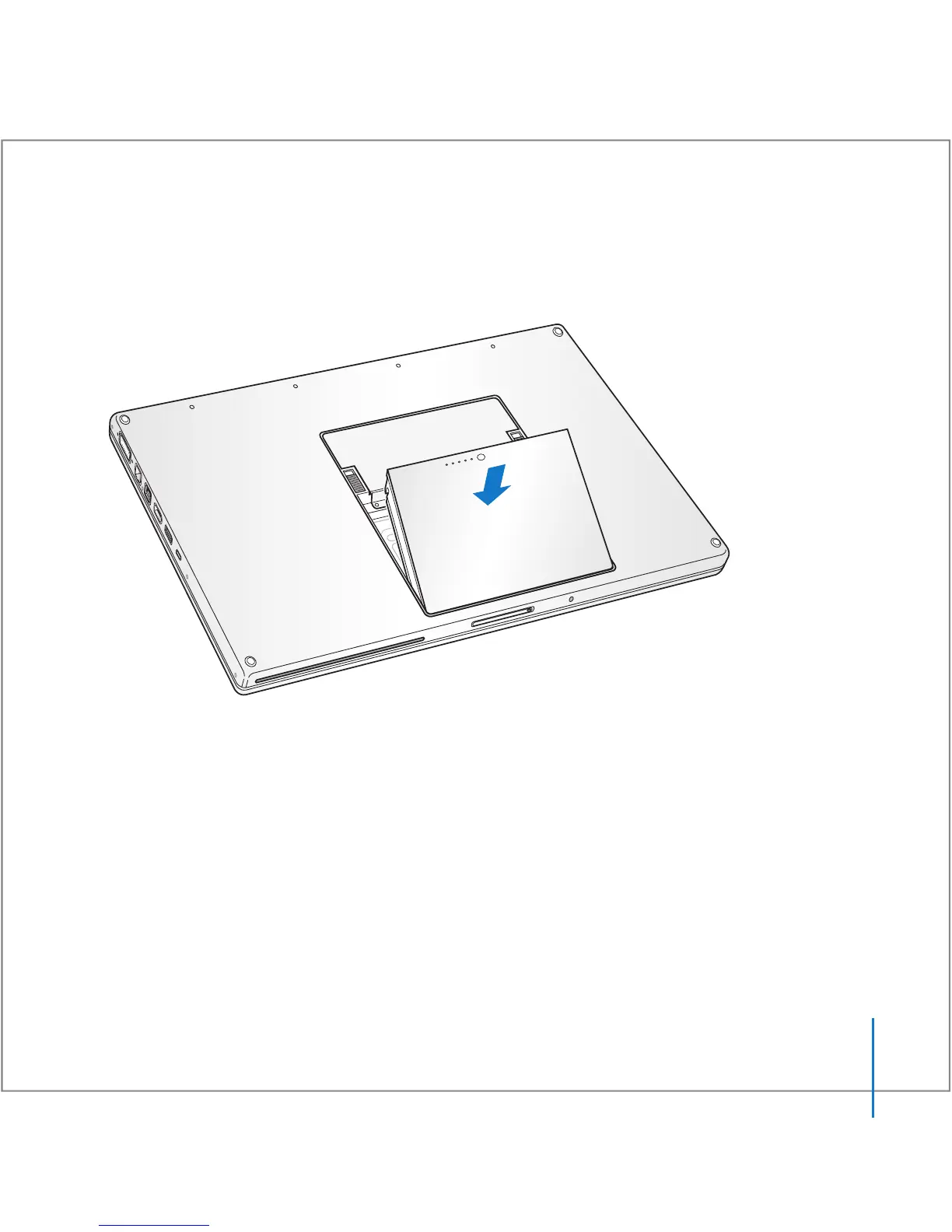
Step 3: Replacing the Battery
1 Place the bottom edge of the battery in the battery compartment. Gently press the top
edge of the battery down until the battery latch locks into place.
2 Reconnect the power adapter and any other cables that were attached.
Making Sure Your MacBook Pro Recognizes the New Memory
After installing additional memory in your MacBook Pro, check whether the computer
recognizes the new memory.





 To Next Page