26 Chapter 2 Life with Your MacBook Pro
Using the Multi-Touch Trackpad
Use the trackpad to move the cursor and to perform a variety of Multi-Touch gestures.
Unlike typical trackpads, the entire MacBook Pro trackpad is a button, and you can click
anywhere on the trackpad. To enable Multi-Touch gestures, view instructional videos of
the gestures, and set other trackpad options, choose Apple () > System Preferences,
and then click Trackpad.
Here are ways to use your MacBook Pro trackpad:
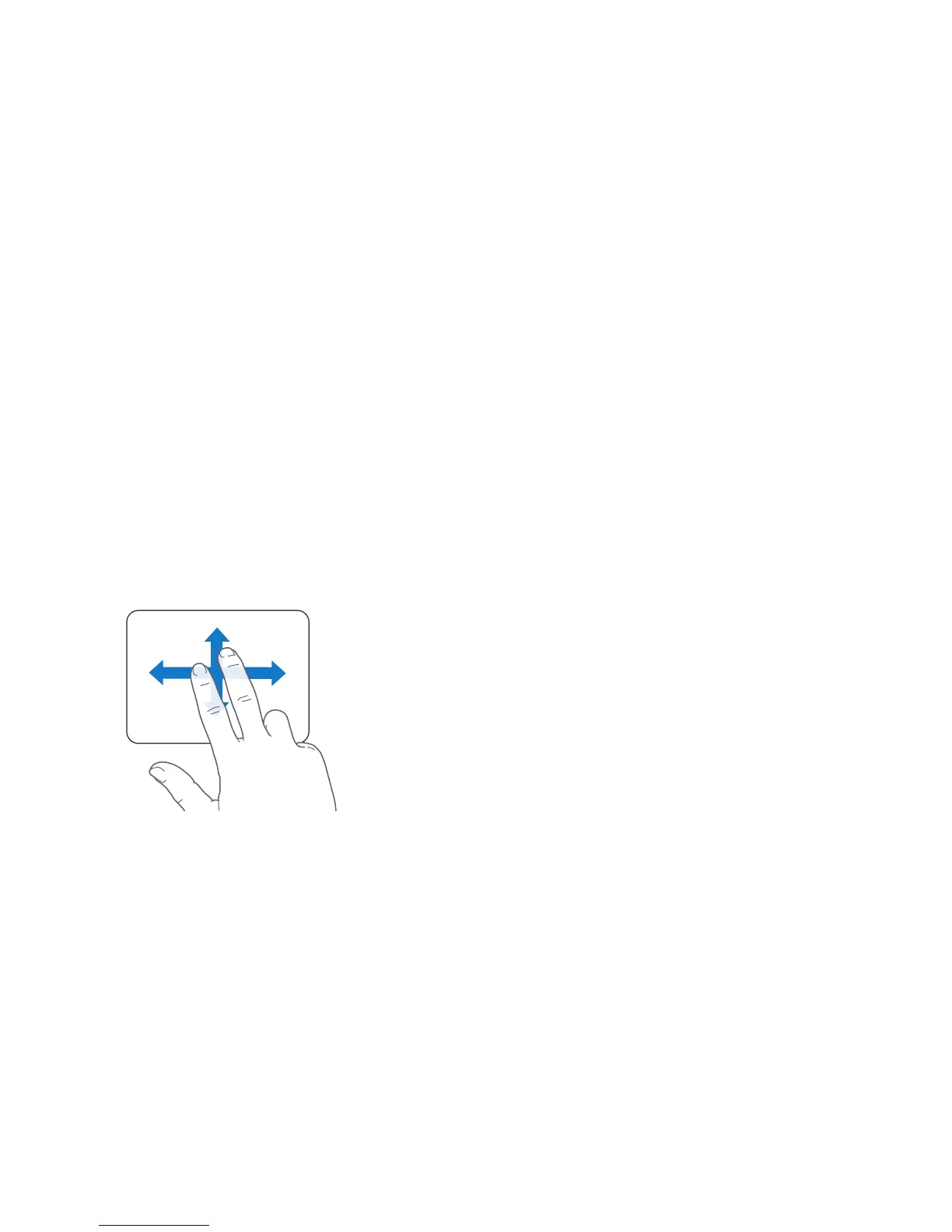
 Two-finger scrolling lets you drag to scroll quickly up, down, or sideways in the active
window. This option is on by default. You can also set the option to scroll with or
without momentum. If you scroll with momentum, the screen continues to scroll
a little longer after you lift your fingers from the trackpad, which is helpful for
navigating long documents and lists.



 To Next Page