Chapter 3 Basics 24
Tap Shift to type uppercase, or touch the Shift key and slide to a letter. Double-tap Shift for
caps lock. To enter numbers, punctuation, or symbols, tap the Number key or the Symbol
key . To quickly end a sentence with a period and a space, just double-tap the space bar.
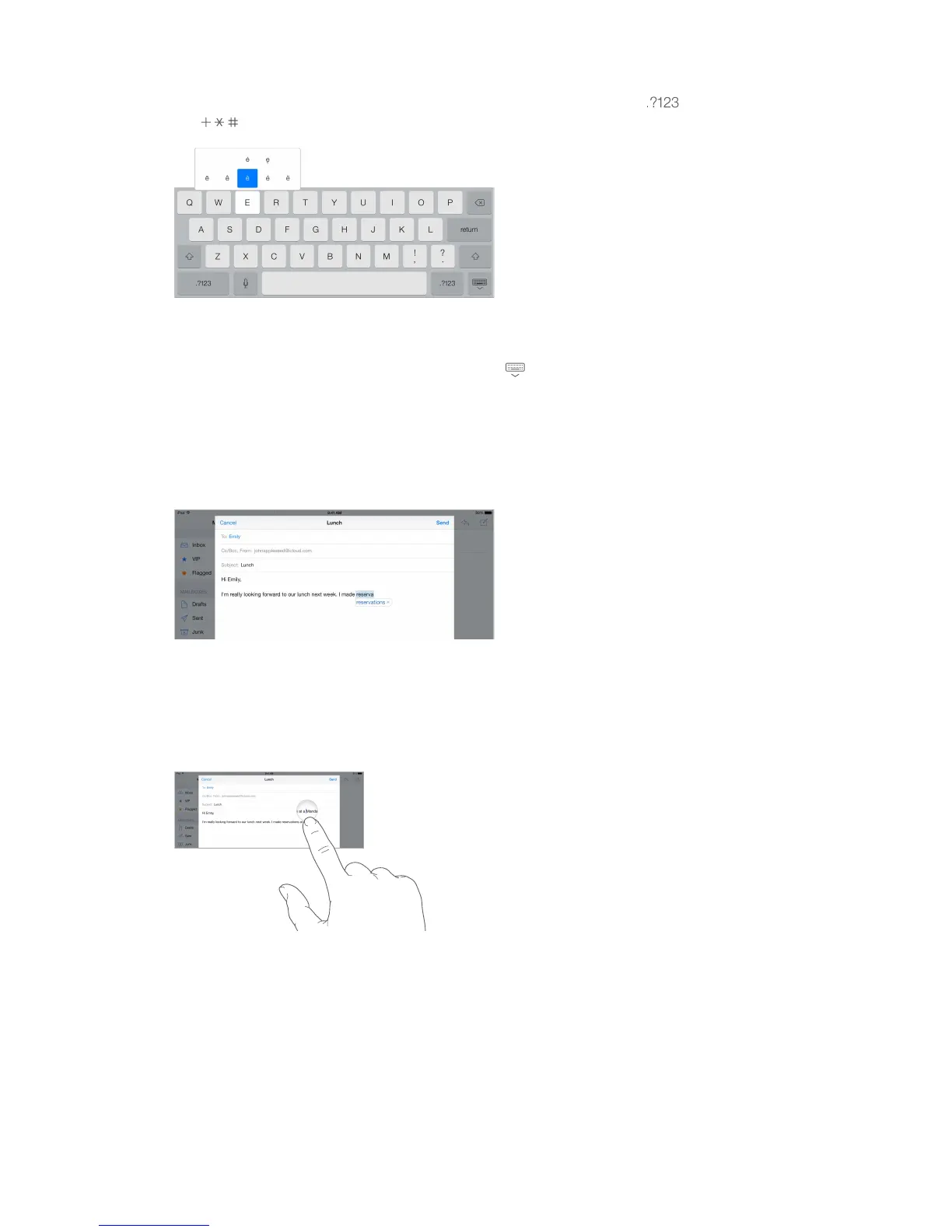
Enter accented letters or other alternate characters. Touch and hold a key, then slide to choose
one of the options.
Hide the onscreen keyboard. Tap the Keyboard key .
Depending on the app and language you’re using, iPad may correct misspellings and anticipate
what you’re typing. Accept a suggestion by entering a space or punctuation, or by tapping
return. To reject a suggestion, tap the “x.” If you reject the same suggestion a few times, iPad
stops suggesting it. If you see a word underlined in red, tap it to see suggested corrections. If the
word you want doesn’t appear, type the correction.
Set options for typing. Go to Settings > General > Keyboard.
Edit text
Revise text. Touch and hold the text to show the magnifying glass, then drag to position the
insertion point.



 To Next Page