English
3
3
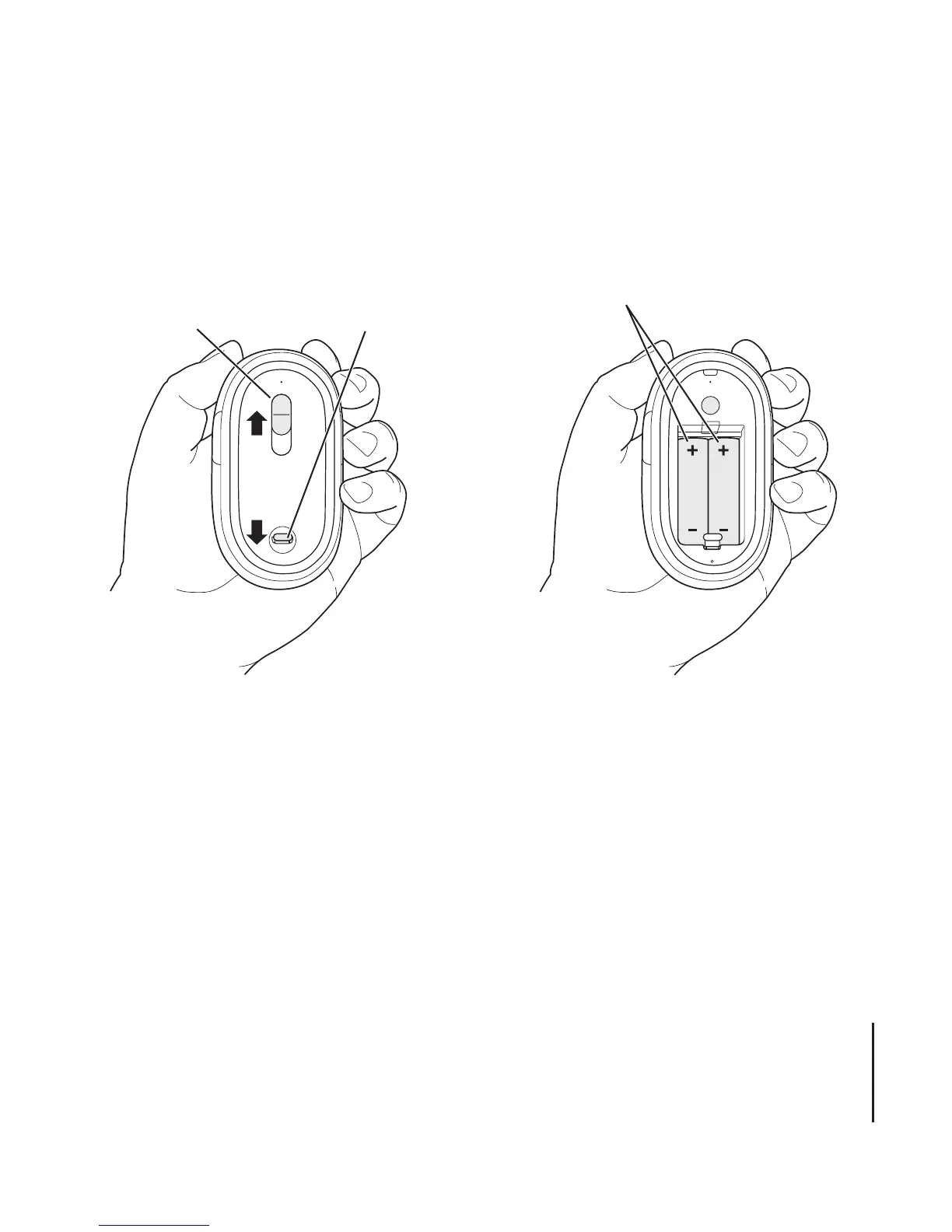
Replace the bottom cover and leave the mouse turned off.
Step 2: Setting Up Your Mac
Follow the instructions in the user’s guide that came with your Mac to set it up.
Because you have a wireless mouse, skip the instructions for connecting a USB mouse.
Wait to start up your Mac until instructed to do so in step 3.
Slide the switch
up to turn the
mouse off.
Push the latch
down to remove
the bottom cover.
Insert one or both AA batteries
with the positive (
+
) end up.



 To Next Page