4
English
Step 3: Pair Your Keyboard
Before you can use your keyboard, you have to pair it with your Mac. Pairing allows
your keyboard to communicate wirelessly with your Mac. You only have to pair once.
The first time you start up your Mac, Setup Assistant guides you in setting up your
Apple Wireless Keyboard and pairing it with your Mac.
1
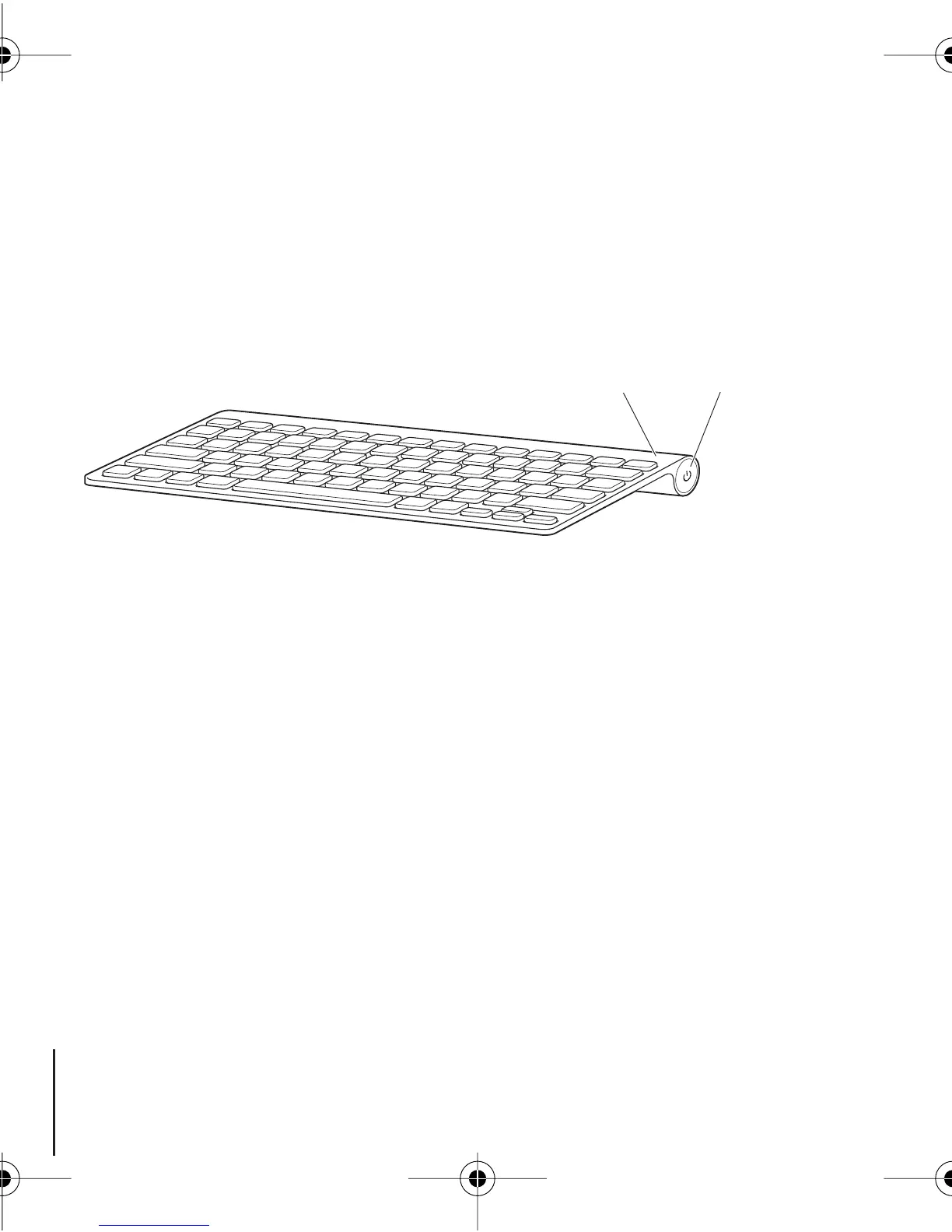
Push and release the On/off (®
) switch to turn on the Apple Wireless Keyboard.
2
Turn on your Mac.
3
When your Mac starts up, follow the onscreen instructions in Setup Assistant.
Step 4: Install Software
To use your keyboard and take advantage of the full range of features, you need to
update your Mac to Mac OS X v10.4.10 or later and install the keyboard software
update.
To update to the latest version of Mac OS X and install the keyboard software update,
choose Apple (
) > Software Update from the menu bar and follow the onscreen
instructions.
On/off switch
Power On light
2A4319.book Page 4 Wednesday, August 8, 2007 8:52 PM



 To Next Page