17
2.4G mode (with pairing devices without Bluetooth, support XP/
WIN7/WIN8/WIN10)
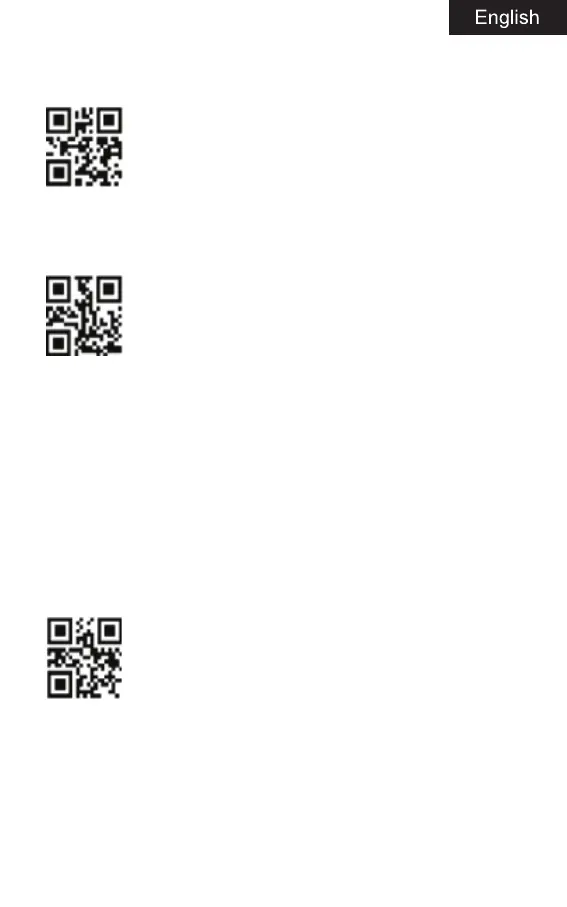
A: Start scanner scanning code entering 2.4G mode.
2.4G mode
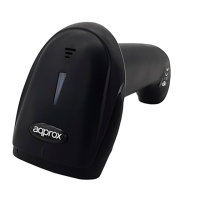
B: Scanning the code of forcing pairing with receiver, blue and green light
flashing alternately.
Force pairing with receiver
C: After plug the receiver, you will hear “Di” sound, pairing successfully,
green light is on.
Real-time mod
In real-time mode, the scanned data is directly transmitted to the computer
by wire or wirelessly. After the transmission is successful, the scanner will
emit a low-frequency short tone, and the green indicator will flash once.
If the transmission fails, 3 low frequency short tones are issued to alert.
The green light flashes 3 times.
In real-time mode, if the transmission fails, the scanned barcode will be
lost.
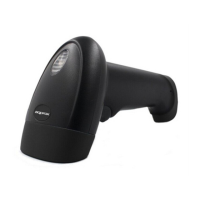
Enter real-time mode
Warehousing mode
Warehousing mode is recommended if the scanner is operating outside
of the wireless transmission range. In warehousing mode, the scanned
data is stored in the scanner’s internal storage. In the storage mode, after
scanning a bar code, the scanner will emit a short tone (the frequency
is low first and then high), and the green light flashes once, and the


 To Next Page