Plug one end of the cat5 cable into a spare ethernet port
on the wireless router/bridge and the other end into the
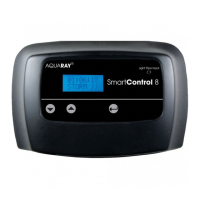
LAN port on the SmartControl 8 unit.
Wait for 10 seconds and then navigate through the menu
system on the SmartControl 8 to view the IP address (See
the Menu Guide sheet).
Please note: the IP address may change each time the
controller is connected to the network.
Ensure that your internet-ready device is also connected
to the same network, then enter the IP address into the
web browser on your internet-ready device. You will then
see the controller’s settings displayed on the device. You
can also change and save those settings.
Please note: for your security the settings are password
protected. The default username is ‘admin’ the password is
‘icontrol’. You can change these if you wish, and the
password can be reset to ‘icontrol’ via the push button
menu system should you forget your own password (see
the Menu Guide sheet).
Accessing the SmartControl 8 from outside the
local area network (LAN)
To do this you must have the controller connected to your
network via a wireless router or wireless bridge (not
supplied). You may need to change settings on your router
and firewall to allow port forwarding. Please ask your
internet service provider or router manufacturer to
explain how to open port 80 to allow port forwarding.
Always ensure that you keep your network secure - seek
advice from an IT professional if you are in any doubt.
Once this is set up, you will be able to use your router’s
public IP address in the address bar of your browser in
order to access the SmartControl 8 from anywhere in the
world, provided you have internet access.
8


 To Next Page
 Loading...