UK
LUMENIZE PRODUCT AND APP INSTRUCTIONS
DO NOT INSERT LAMPS OR LINK FURTHER KITS WITH THE POWER SWITCHED ON. RISK OF
FAILURE NOT COVERED BY WARRANTY.
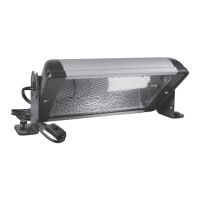
T5 lamp install. With the power cable removed unclick lamp locks and remove the rubber lamp-holders by gently pulling upwards. Plug these directly onto the T5
lamp taking care that the pins line up with the sockets inside of the lamp holders (do not force). When both lamp holders are fully pressed onto the lamp push
them both into the LumenIZE T5 fitting together fully, being sure that the pins are lined up and pushed into the bar fully. Replace the lamp locking clips into the
locked position.
Do not place heat lamps over or very closely to these lamps. Ensure adequate airflow around the lamps. This will help prolong life and running programmes.
The IP65 standard. IP65 denotes the tested level of water resistance that will protect the lamp and fitting from usual humidity, condensation, and dust. Arcadia Reptile
T5 and JungleDawn-LED Bar ‘LumenIZE’ products have been tested to the IP65 standard and are classified as being ‘water resistant’. Direct powerful spraying of the
fittings must be avoided; However, the usual use of sprayers, humidifiers and rain systems is possible. Be careful to not place rain or fogging devices so that they emit
over or directly onto the fittings. Do not submerge the fitting, protect from direct jets of water).
DO NOT USE WITH TIMERS IF THE PRODUCT IS CONNECTED TO THE APP, LumenIZE products when connected to the LumenIZE app have an inbuilt clock that has a
battery back-up. If timers* are used this will remove all power from the fitting when off and needlessly drain the battery. *#thermostat light sockets, #smart, #mechanical,
# digital. Connect directly to mains. Surge protectors are advised.
We advise that you open the app and open each lamp within the app monthly. This will send to the lamp up to date running data and also refresh the clock.
Open the app and connect to each kit if changing time zones, or for seasonal time changes. In doing so the app will send new data to the clock to each bar as
you connect to them all individually.
Sunrise/sunset cycles can be programmed to suit your species locality. A good sample could look like this. 06.00 = 0%, 11am 100%, 3pm 100%, 7pm 0%. It is essential
to bookend each cycle at 0%. In this way, between 6am and 11am the output of the lamp will increase from being off at 0% and 100% output very slowly until 11am. At
11am the lamp will be running at full power. We must then add in a stabilising time to maintain the midday sun output of 100%. It is by adding in a second time at 3pm
of 100% we instruct the lamp to maintain 100% output between 11am and 3pm. From 3pm and until 7pm the output of the lamp will start to reduce very slowly until
it finally reaches 7pm and the lamp will turn off fully. It is within a programme such as this that we find the most naturalistic sunrise sunset pattern, but also greatly
reduce energy spend. If we programmed 05.59 at 0% and 6am 100% and 5.30pm 0% we would be programming an unnatural cycle. In this way the lamp would go
from 0% to 100% between 06.00 and 06.01am. Then it would start to come down again from 100% at 6.01am and 0% at 5.30pm very slowly. There would be no sunrise
and a very brief period of 100% output from 6am but decreasing from 06.02am.
LumenIZE uses true dimming, not stepped output, this process is more fluid in LED than T5 due to the nature of fluorescent lamps and the requirement for constant element
heating. Internal clocks are accurate to 2 mins in average and should be refreshed by opening the lamp on the app monthly.
T5 lamps require a certain amount of energy to start safely. Therefore, with LumenIZE control we have programmed into the function of the fitting a ‘safe start’ mechanism.
This is to protect the lamp, reduce rolling and ensure a long lamp and kit life. It is therefore advised that if programming a T5 lamp to run at a low % of output that you
select a % that is over 20% of total output. This is automated when the programme is running. I.e you can programme a 0% to 100% reduction, and this will be operated
safely by the internal programming via our safe-start function. It is not advised to run a time schedule that instructs a lamp to turn on and off again fully within a half an
hour period or shorter. This may confuse the programming and the lamp will remain illuminated.
Linking; Both ProT5 and JungleDawn-LED Bar with LumenIZE ability can be linked with the addition of a suitable linking cable (sold separately). LumenIZE branded fittings
cannot be mixed with non-LumenIZE ProT5/JungleDawn-LED Bar. LumenIZE ProT5 and JungleDawn-LED Bar use differing plugged connectors, the design is different due to
IP65 waterproofing. As such 3 differing link cables are available separately. This will offer connection between T5 to T5 or LED to LED and T5 to LED. Please see data printed
on the bar for the maximum number of bars that can be linked in a chain. Linking does NOT transfer LumenIZE programming from lamp to lamp. Each lamp is controlled via
internal memory and as set via the Arcadia Reptile LumenIZE App. In this way, every lamp in a linked chain can have a different programme of function.
BASIC LUMENIZE APP CONTROL
The LumenIZE APP has been specifically designed to offer ease of control. The APP is very intuitive and does not have any wasteful or unrequired function. LumenIZE can
be used with most phones and tablets. Use the QR code on the product box, links from our website or visit the App provider store on your device.
1. Download the LumenIZE APP via the QR code or search within your APP providers store.
2. Accept the pop up message that allows Bluetooth to function. Ensure that Bluetooth is switched on for your device before trying to connect to a lamp.
3. After installing the Arcadia Reptile LumeniZE lamp and with the power on, the APP should automatically display your lamp by wattage and type under ‘Device name’.
Press the screen within the lamp box and this will select the lamp for control and the APP screen will fill with data. If you ‘press and hold’ the lamps name, a pop-up
will appear to allow you to change the lamp name. (you can add up to 50 lamps to one App). If your lamp does not automatically appear, please press the ‘My Devices’
button which will start a new scan.
4. If you press the ‘full power test’ button the lamp will dim to 0% and come back on again. This can help you find a lamp where many are used and can also be used to
refresh lamps.
5. Next to the ‘full power test’ button is a ‘cog’. Press this to set a password per lamp* may not be available on all devices.
6. You will see a slider central to the page. This allows you to both turn your LumenIZE cycle programme on/off but also to obtain manual control of a lamp. If the green
button says ‘on’ this means that your pre-selected programme of dimming is running, and that the dimming slider is not operable. If the button says ‘off’ it means that
the auto-run programme is ‘off’ and that the lamp is being controlled by hand by the slider. (please also see point 15)
7.
LumenIZE has 2 pre-set ‘Light cycles’ should you wish to use them. Or you can create up to 5 custom settings of your choice for easy lamp control. Further to this, each lamp can
have its own cycles programmed also should you so wish, (programming is internal to the lamp, not the device).
8. Setting up a bespoke programme is easy. Select the lamp that you wish to control. Press Custom mode 1-5. Press ‘Add time slot’. Use the wheels to select your first
time in the AM. This should be set via the slider to 0%. Press ok. Press ‘Add time slot’ and add in the time that you wish the lamp to be running at 100% (this maybe 12
midday or similar). Move the slider up to 100% in this time slot. Again, press ‘add time slot’ and repeat at 0% for lights out. You can have any variation and as many ‘time
slot’ function commands as you wish. As example, you may wish to run at 50% out for a certain time, or to prolong periods of lower energy to provide seasonality. The
choice is always yours with LumenIZE.
9.
When you have set up the daily function that you wish to run it is easy to ‘copy and paste’ this to other lamps. Simply press ‘Save schedule’, select another lamp and press
‘apply schedule’.
10. If you wish to delete a ‘time slot’, simply press and hold that time slot over the ‘clock’ and a ‘delete time slot’ button will appear.
11.
Pressing ‘brightness’ at the bottom of the screen will show you a graph of your lighting pattern.
12. The ‘My devices’ button will scan for LumenIZE devices.



 To Next Page
 Loading...