EasyManua.ls Logo

Arcam AVR390 - User Manual

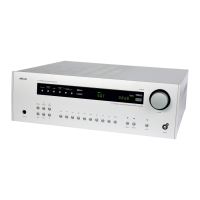
Arcam AVR390
384 pages
Print Icon
To Next Page IconTo Next Page
Loading...
AVR850
HANDBOOK AVR surround amplifiers
MANUEL Amplificateur surround AVR
HANDBUCH AVR Surround Verstärker
HANDLEIDING AVR surroundversterker
MANUAL AVR amplificadores surround
РУКОВОДСТВО AVR объемного усилители
MANUALE Amplificatori Surround AVR
手册AVR环绕声放大器
AV860/AVR850/AVR550/AVR390/SR250

Table of Contents

Other manuals for Arcam AVR390

Questions and Answers

  • T
    Timothy BakerSep 8, 2025
    Why is the internet radio station sound quality poor on my Arcam Amplifier?
    • M
      Margaret HoganSep 9, 2025
      If the internet radio station sound quality is poor or broken on your Arcam Amplifier, check if the radio station has a low bit rate (use the INFO key to find this or look on the OSD) and ensure your network is not slow or congested.
  • N
    Nathan BrownAug 23, 2025
    Why is there no sound coming from my Arcam Amplifier?
    • C
      Charles BrooksAug 23, 2025
      To resolve no sound issues with your Arcam Amplifier, ensure the correct input is selected, the ‘Audio Source’ is correctly set in the ‘Input Confgi.’ menu, the source equipment is on and operating in ‘play’ mode if needed, and the volume is at a reasonable level while the Receiver is not muted.
  • A
    Ann AndersonAug 25, 2025
    What to do if no picture is being produced by my Arcam Amplifier?
    • S
      Sara BradfordAug 26, 2025
      If no picture is showing on your Arcam Amplifier, verify that your viewing device is on and set to display your Receiver. Press the MENU button on the Receiver or remote to check for the main menu screen. Also, ensure the correct video input is selected on the Receiver, and the video source is on, working properly, and in ‘play’ mode if needed.
  • E
    Erika HamiltonAug 26, 2025
    Why is the sound poor or distorted on my Arcam Amplifier?
    • S
      Shannon MilesAug 27, 2025
      If sound from your Arcam Amplifier is poor or distorted: * Make sure you haven't excessively increased the input sensitivity in the Input Configuration menu if using an analogue input. * Ensure you've selected the correct speaker size for your system in the setup menu.
  • U
    ugonzalezAug 27, 2025
    Why does the source switching change randomly or freeze on one source on my Arcam Amplifier?
    • K
      Kathleen VaughnAug 28, 2025
      To address random source switching or freezing on one source with your Arcam Amplifier: * Ensure there are no static or impulse interference problems from nearby power equipment. If there are, switch the Receiver off, wait ten seconds, then switch it back on. * Make sure there's no direct sunlight shining on the infra-red detector behind the front panel display.
  • P
    parksusanSep 22, 2025
    What to do if files on a USB memory device cannot be played on my Arcam Amplifier?
    • D
      Dylan RobinsonSep 22, 2025
      To ensure files on a USB memory device can be played on your Arcam Amplifier, verify that the USB device is formatted in FAT16 or FAT32, does not have multiple partitions, and the files are in a compatible format.
  • O
    ohughesSep 16, 2025
    What to do if files on a computer cannot be played on my Arcam Amplifier?
    • W
      Willie PerkinsSep 16, 2025
      If files on a computer cannot be played on your Arcam Amplifier, ensure the files are in a compatible format and that the computer is connected via a network, not USB, as the Receiver USB port cannot be used for direct computer connections.
  • M
    Michael WangSep 18, 2025
    Why is 'USB' not shown in the network client’s list of folders when a USB memory device is connected to my Arcam Amplifier?
    • A
      Alex BoyleSep 18, 2025
      To ensure a USB memory device is recognized by your Arcam Amplifier, verify that the device conforms to the mass storage class and that a USB hub is not being used. When a USB memory device is connected, ‘USB’ is shown in the network client’s list of folders
  • C
    Chris FieldsSep 7, 2025
    Why is there hum on the analogue input of my Arcam Amplifier?
    • G
      Gregory StantonSep 7, 2025
      To address hum on the analogue input of your Arcam Amplifier: * Ensure all cables are making a good connection by withdrawing and re-plugging them fully (after turning the power off). * Check for broken or badly soldered connections inside the source cable connector. * If the hum occurs only with a specific source, ensure that the aerial cable or dish connection to this source is ground isolated.
  • K
    Kyle RamirezSep 4, 2025
    How to fix no lights on my Arcam Amplifier?
    • M
      Miss Tracy LarsonSep 4, 2025
      To resolve the issue of no lights on your Arcam Amplifier, ensure the power cord is plugged into both the Receiver and a switched-on mains socket, and that the power button is pressed in. If a red LED is present, the Receiver is in standby mode; press any button on the front panel or remote control.

Summary

Safety Precautions

Important Safety Instructions

Essential guidelines for safe operation and handling.

Customer Compliance and Recycling

Unit Placement and Power

Power Connection Details

Instructions for connecting the power cord and selecting voltage.

Rear Panel Connectivity Overview

HDMI and Digital Audio Ports

Description of HDMI and digital audio connectors.

Speaker and Power Connections

Information on speaker terminals, power inlet, and voltage select.

Audio and Video Connection Guide

General Connection Advice

Tips for connecting source components and inputs.

HDMI Input Connections

Connecting HDMI video outputs from sources.

HDMI Output for Display

Connecting the Receiver's HDMI output to a display.

Digital and Analogue Audio Connections

Connection Diagrams

Speaker Configuration and Placement

Subwoofer Placement Guide

Advice for optimal subwoofer placement.

Centre Speaker Setup

Guidelines for positioning the centre speaker.

Height Speaker Installation

Information on height speaker setup.

Front and Surround Speaker Placement

Recommended placement for front and surround speakers.

Surround Back Speaker Placement

Recommended placement for surround back speakers.

Connecting Speakers and Amplifiers

Speaker Connection Procedure

Step-by-step guide to connecting speakers.

Receiver Operation Basics

Switching the Receiver On;Off

Procedures for powering the unit on and off.

Standby Mode Functionality

Entering and exiting standby mode.

Front Panel Display Information

Understanding the front panel display readouts.

Source Selection Methods

How to choose audio/video input sources.

Volume and Headphone Controls

Using volume controls and headphone output.

Front Panel Controls Explained

Information and Selection Buttons

Function of INFO, OK, and Input buttons.

Mode, Direct, and Display Controls

Buttons for mode selection, Stereo Direct, and display brightness.

Zone and Power Controls

Buttons for zone selection and power management.

Menu, Mute, Volume, and Aux Inputs

Menu access, mute, volume, and front Aux input.

Headphone Socket and IR Receiver

Front panel headphone jack and IR receiver details.

Universal Remote Control Guide

Remote Control Features

Overview of the universal remote's capabilities.

Remote Operation Best Practices

Tips for effective remote control usage.

Essential Setup Procedures

Speaker Type Configuration

Setting speaker types (Large, Small, None).

Crossover Frequency Setting

Defining crossover frequency for 'Small' speakers.

Speaker Distance Measurement

Measuring and inputting speaker distances.

Speaker Level Adjustment

Calibrating speaker output levels.

Automatic Speaker Setup with Dirac Live

Dirac Live for Arcam Functionality

Overview of the automatic speaker setup system.

Troubleshooting Auto Speaker Setup

Solutions for common issues during setup.

Subwoofer Setup Guidance

Advice for setting up subwoofers with the system.

Navigating Setup Menus

Setup Menu Structure

Understanding the menu panel, adjustment panel, and help screen.

Input Configuration Settings

Detailed Input Configuration Settings

Speaker Configuration Types

Settings for different speaker types.

Speaker Distance Calibration

Calibrating speaker distances to the listening position.

HDMI Settings and Zone Configuration

Decoding Modes Explained

Dolby Volume and Atmos Features

Tuner Operation Guide

Network and USB Playback

Troubleshooting Common Issues

Power, Display, and Remote Control Problems

Solutions for no lights, erratic remote response, blank display.

Picture and Sound Output Issues

Troubleshooting no picture, ghosts, no sound, or poor sound.

Advanced Troubleshooting Scenarios

AV860 Technical Specifications

Stereo Line Input Specifications

Input sensitivity, impedance, S/N ratio, frequency response.

Preamplifier and Headphone Output Specs

Specifications for preamplifier and headphone outputs.

General Specifications and Accessories

Power, dimensions, weight, and supplied accessories.

AVR850 Technical Specifications

AVR550 Technical Specifications

AVR390 Technical Specifications

SR250 Technical Specifications

Product Guarantee and Support

Arcam AVR390 Specifications

General IconGeneral
Receiver typestereo
Frequency range20 - 20000 Hz
Audio output channels7.1 channels
Signal-to-Noise Ratio (SNR)110 dB
Power output per channel (20-20KHz@8 Ohm)80 W
Package weight20000 g
Power consumption (standby)0.5 W
HDMI in7
AC (power) inYes
Remote (IR) input2
Digital audio optical in-
Ethernet LAN (RJ-45) ports1
HDCP version2.2
Product colorBlack
Audio decodersDTS-ES (Discrete 6.1), DTS-ES (Matrix 6.1), DTS-HD Master Audio, Dolby Atmos, Dolby Surround
USB 2.0 ports quantityUSB 2.0 ports have a data transmission speed of 480 Mbps, and are backwards compatible with USB 1.1 ports. You can connect all kinds of peripheral devices to them.
Supported radio bandsDAB, DAB+, FM
Optical drive includedNo
Phono inputs (RCA)6
Connectivity technologyWired
Speakers connectivity type3.5mm
Number of HDMI outputs3
Weight and Dimensions IconWeight and Dimensions
Depth425 mm
Width433 mm
Height171 mm
Weight16700 g

Related product manuals