EasyManua.ls Logo

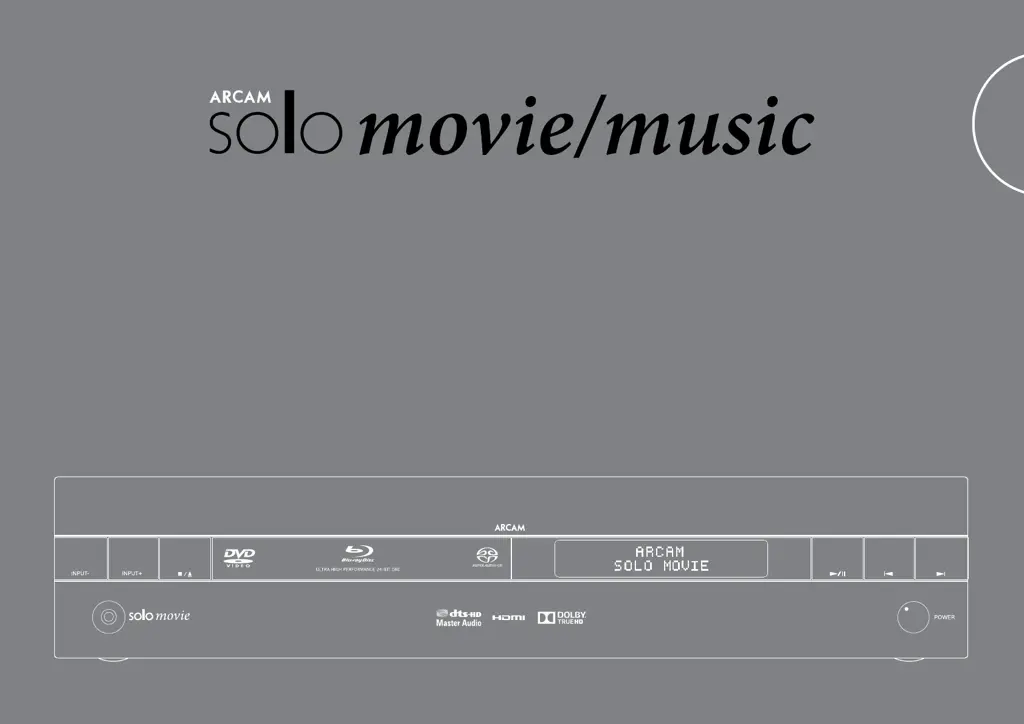
Arcam SOLO MUSIC - User Manual

Arcam SOLO MUSIC
41 pages
Print Icon
To Next Page IconTo Next Page
Loading...
Handbook Solo movie / music
English

Other manuals for Arcam SOLO MUSIC

Questions and Answers

  • W
    williamskarenAug 20, 2025
    What to do if no sound is produced by Arcam Receiver?
    • A
      Amber BurnettAug 20, 2025
      First, ensure that you have selected the correct input on your Arcam Receiver. Then, check that your source equipment is on, operating normally, and in 'play' mode, if applicable. Finally, verify that the volume level is turned up to a reasonable level and that the receiver is not in mute mode.
  • D
    delacruznatalieAug 22, 2025
    Why does my Arcam Receiver respond erratically to the remote control?
    • A
      Andrew MayAug 22, 2025
      If your Arcam Receiver responds erratically or not at all to the remote control, ensure that there are fresh batteries in the remote. Also, make sure that the front panel window is visible and that you are pointing the remote control towards it.
  • G
    Gregory CookAug 25, 2025
    What to do if I can't connect to a wired network with my Arcam Receiver?
    • S
      Steven EscobarAug 25, 2025
      First, check that the Ethernet cable you are using is correctly connected between the Arcam Receiver and the network hardware. If the network is set up for fixed IP addressing, ensure that the receiver is also set to use fixed IP addressing. Conversely, if the network is set up for DHCP, make sure the receiver is set to use DHCP.
  • D
    Debbie WatsonAug 26, 2025
    What to do if there is radio interference with my Arcam Receiver?
    • Z
      zobrienAug 26, 2025
      To address radio or television reception interference with your Arcam Receiver: First, determine the source of the interference by switching off each source component in turn, as well as any other electronic equipment. Then, try re-arranging the cabling from the source of the interference away from other cabling. Also ensure that the cabling used is high quality, specified for its purpose, and properly screened. If the problem persists, contact your dealer.
  • S
    Susan DyerAug 27, 2025
    What to do if no picture is being produced by Arcam Receiver?
    • K
      Kathryn MaynardAug 27, 2025
      If no picture is being produced by your Arcam Receiver, first ensure that your viewing device is turned on and switched to display your receiver. You can test this by pressing the HOME button on the receiver or the remote. Also, verify that the source is on, operating normally, and in 'play' mode if appropriate.
  • B
    Bailey EwingAug 29, 2025
    What to do if the source switching changes randomly on Arcam Receiver?
    • R
      ramosalexisAug 29, 2025
      If the source switching on your Arcam Receiver changes randomly or freezes on one source, first ensure there are no static or impulse interference problems caused by nearby power equipment switching, such as heating or air conditioning control. You can try switching the receiver off, waiting ten seconds, and then switching it back on to clear an operating problem. Also, make sure there is no direct sunlight shining on the infra-red detector behind the front panel display. Contact your installer if the problem returns or persists.
  • K
    Kyle JohnsonAug 31, 2025
    Why is the front panel display blank on my Arcam Receiver?
    • S
      Summer SaundersAug 31, 2025
      If the front panel display on your Arcam Receiver is blank, ensure that the display hasn’t been turned off. Press the DISPLAY button on the front panel or remote control.
  • S
    Sean DeanSep 2, 2025
    Why does sound only come from some speakers with my Arcam Receiver?
    • W
      Whitney DavisSep 2, 2025
      If sound only comes from some of the speakers when using your Arcam Receiver, make sure you have an appropriate surround speaker to decoding format selected, and the correct format has been selected in the disc start menu. Verify that the disc you are playing is a multichannel recording (you may need to press the INFO key several times to see the appropriate information). Also, check that all the speakers in your system are connected properly.
  • A
    arobertsSep 4, 2025
    What to do if I can't play files on a USB memory device with my Arcam Receiver?
    • S
      steven57Sep 4, 2025
      If files on a USB memory device cannot be played on your Arcam Receiver, verify that the USB device is formatted in FAT16 or FAT32. Also, ensure that the USB device does not have multiple partitions and that the files are in a compatible format.
  • K
    kayleecollinsSep 6, 2025
    How to fix bright edges on Arcam Receiver picture?
    • R
      Robert FrederickSep 6, 2025
      To fix bright edges or ‘ghosts’ on the picture with your Arcam Receiver, ensure the ‘sharpness’ control on your display device is switched off or set to a low setting. You can also try using a shorter cable or a different brand.

Summary

Safety Instructions and Compliance

Important Safety Instructions

Read all safety and operating instructions before operating the product.

Correct Product Disposal

Guidance on environmentally responsible disposal of electrical and electronic equipment.

Safety Compliance Standards

Ensures the equipment meets international electrical safety standards.

Installation Cautions and Regulatory Information

Installation Cautions

Guidelines for safe and proper installation, including heat dispersal and ventilation.

FCC;IC and European Regulatory Information

Details on FCC, IC, and European safety regulations and recycling guidelines.

Getting Started

Whats Included and Initial Setup

Lists box contents, unit placement, power connection, and standby mode.

Cabling and Interference Management

Recommendations for interconnect cables and managing radio interference.

Arcam Solo Overview

Product Overview and Capabilities

Description of the Arcam Solo's features for music and movie experiences.

Front Panel Controls

Front Panel Controls Explained

Detailed explanation of buttons, ports, and indicators on the Solo's front panel.

Top Panel Controls

Top Panel Controls Explained

Details on the rotary control, navigation keys, and display controls on the top panel.

Rear Panel Connections

Rear Panel Connections Guide

Diagram and explanation of all input/output ports on the rear panel.

Audio;Video Connections

Connecting Digital Sources via HDMI

How to connect digital sources like Blu-ray players and consoles using HDMI.

Audio Connections

Digital and Analogue Audio Inputs

Instructions for optical, coaxial, and analogue audio connections.

Other Connections

Bluetooth, USB, and Network Connectivity

Connecting Bluetooth devices, using USB, and setting up network connections.

Infrared Remote Control Input

Using external IR receivers for remote control when the front sensor is obstructed.

Antenna Connectors

Aerials for Radio Reception

Connecting DAB/DAB+ and FM aerials for optimal radio reception.

Bluetooth;Wi-Fi Antenna Installation

How to connect the supplied antennas for Bluetooth and Wi-Fi functionality.

Speaker Setup

Connecting and Positioning Speakers

Guide to connecting speakers, choosing cables, and optimal placement for sound.

Subwoofer and Room Acoustics

Advice on subwoofer positioning and how room acoustics affect sound.

Disc and File Formats

Supported Disc and File Formats

Details on playable disc types and supported audio/video file formats.

Video Formats and Region Coding

Supported video formats and Blu-ray/DVD region coding details.

Basic Operation

Operating Your Solo Unit

Introduction to basic operations like switching on, standby, and using the home screen.

Source Selection and Volume Control

How to select audio/video sources and adjust volume using the unit or remote.

Headphone Usage

Instructions for connecting and using headphones with the Solo unit.

Remote Control Basics

The Solo Universal Remote Control

Overview of the remote's capabilities and how to insert batteries.

Remote Operation and FCC Compliance

Tips for effective remote use and its FCC compliance information.

Remote Control Features

Remote Control Features Explained

Details on backlight, LED indicators, timeouts, device modes, and navigation.

Volume Control and Customisation

Using volume controls, including punch-through, and customising the remote.

Remote Device Modes (Part 1)

AMP and SAT Device Mode Operations

Using the remote in AMP mode for the Solo and SAT mode for satellite receivers.

Remote Device Modes (Part 2)

PVR, STB, TV, and AUX Device Modes

Controlling PVR, STB, TV, and AUX devices using the remote control.

Remote Customisation Methods

Remote Code Learning Methods

Step-by-step guides for setting up the remote using direct codes, library search, or learning.

Remote Learning Setup Notes

Key points for successful remote code learning and function assignment.

Managing Remote Data

Deleting Learned Remote Data

Instructions for erasing learned data for specific keys or entire devices.

Reading Codes and Locking Device Modes

How to read stored codes and lock/unlock specific device modes on the remote.

Advanced Remote Functions

Controlling Other Devices Volume

Configuring remote volume keys to control other connected devices like TVs.

Hidden Commands and Factory Reset

Using special commands and performing a factory reset on the remote control.

Playing Discs

Disc Information, Menus, and Playback

How to view disc info, access menus, select soundtracks, and subtitles.

Blu-ray Advanced Features

Utilizing Bonusview, BD-Live, Virtual Package, and BD-Live connectivity.

Network and USB Operation

Playing Media Files via Network;USB

How to play media files from USB devices, network sources, or CD/RW discs.

MusicLife App and Downloading

Using the MusicLife app to control the Solo and stream music from iOS devices.

Listening to Radio

Tuning and Selecting Radio Stations

Guide to tuning FM and DAB/DAB+ radio, including RDS information.

Saving and Deleting Radio Presets

How to save favorite radio stations as presets and delete them.

Settings Menu Navigation and Display

Navigating the Settings Menu

Instructions for navigating menus using remote control cursor keys.

Display Settings Configuration

Adjusting TV aspect ratio, resolution, and HDMI colourspace settings.

Audio Settings

Audio Configuration Settings

Adjusting Audio DRC, speaker levels, Pro Logic II, and subwoofer settings.

Language and Network Settings

Language Settings Configuration

Setting the OSD, Disc Menu, Disc Audio, and Subtitle languages.

Network Connection Setup

Configuring wired or wireless network connections for internet access.

Advanced Network Settings

Advanced Network Configuration

Setting up IP addresses, subnet masks, gateways, DNS, proxy, and network tests.

BD-Live Connection Settings

Configuring access levels for BD-Live websites and online content.

System Settings

System Configuration Options

Adjusting screen saver, auto standby, disc auto play, and firmware updates.

System Information and Defaults

Viewing system info, managing BD-Live storage, and loading factory defaults.

Security and Parental Control

Password and Parental Control Setup

Changing passwords and setting parental control levels for disc playback restrictions.

Cinavia Notice and Usage Restrictions

Information about Cinavia technology and its role in limiting unauthorized copy usage.

Troubleshooting Common Issues

Troubleshooting Unit and Remote Issues

Solutions for problems like no power, erratic response, or blank display.

Troubleshooting Picture and Sound Issues

Resolving issues with no picture, poor picture quality, no sound, or distorted sound.

Troubleshooting Network and USB

Troubleshooting Network and USB Playback

Resolving network connection, USB issues, and file playback problems.

Technical Specifications

Solo Movie 5.1 Technical Specifications

Detailed technical specs: power output, inputs, digital interfaces, and general info.

General Specifications and Accessories

Mains voltage, power consumption, dimensions, weight, and supplied accessories.

Technical Specifications (Continued)

Solo Movie 2.1; Solo Music Specs

Technical specifications for the Solo movie 2.1 and Solo music models.

Product Guarantee

Worldwide Product Guarantee Details

Details on the two-year warranty, claim procedures, and online registration.

Online Registration and Support

Information on registering the product online and contacting Arcam customer support.

Trademarks and Licenses

Trademarks and Copyright Notices

List of trademarks, logos, and intellectual property rights for the product.

GNU General Public License Information

Terms and conditions for using software distributed under the GNU General Public License.

Arcam SOLO MUSIC Specifications

General IconGeneral
Supported radio bandsDAB, DAB+, FM
Headphone outputs1
Headphone connectivity3.5 mm
Dynamic power per channel (4 Ohm)125 W
Dynamic power per channel (8 Ohm)80 W
Power output per channel (20-20KHz@8 Ohm)- W
HDMI in4
Line-inYes
Card reader integratedNo
Optical drive typeCD player
Weight and Dimensions IconWeight and Dimensions
Depth414 mm
Width420 mm
Height90 mm
Weight11500 g

Related product manuals