3
3
1 ARCHOS
™
DIGITAL MINI-CAM
and Camera controller
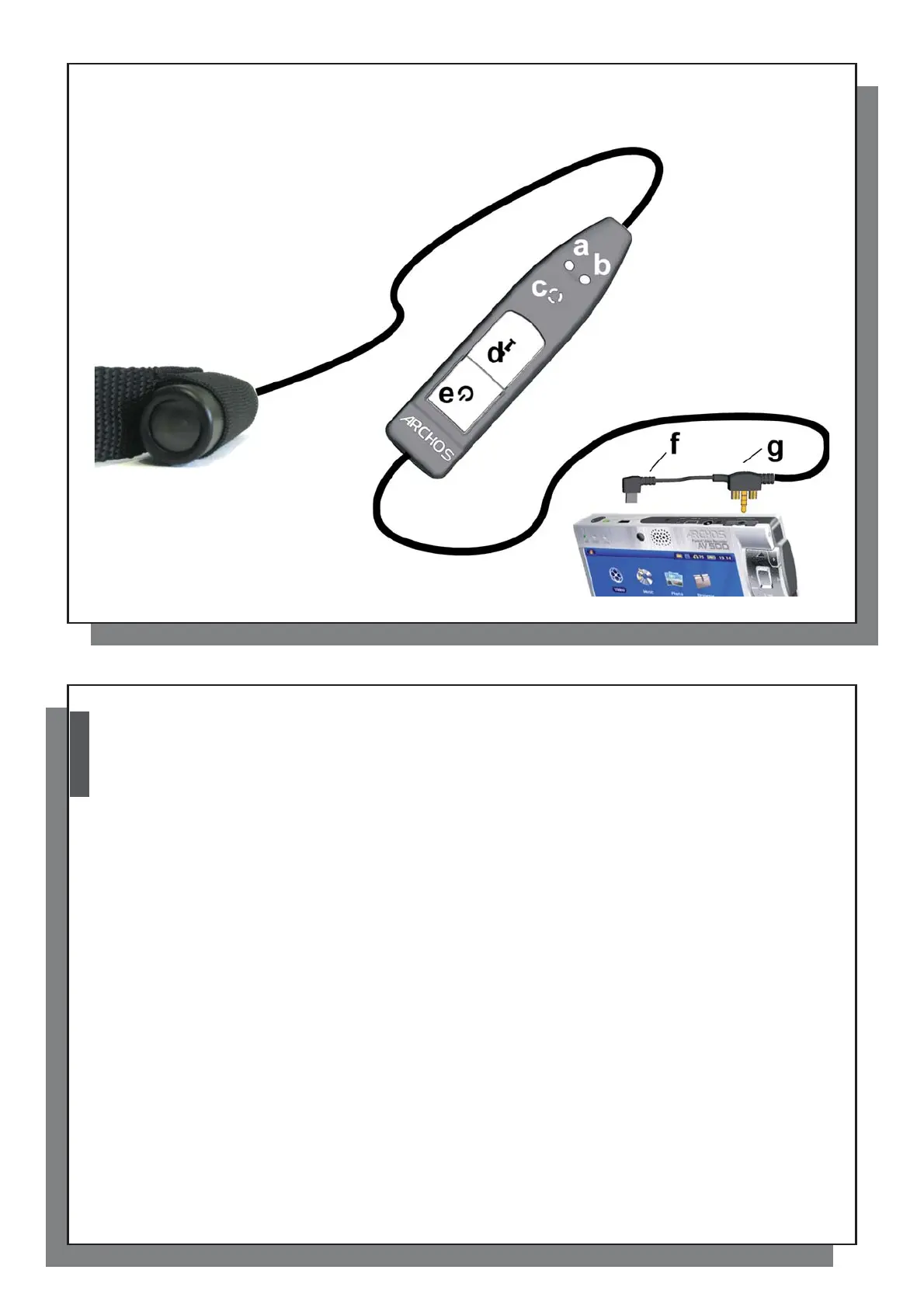
Camera controller
a Red light - Recording status
b Green light - Connection status
c Microphone
d Status/Information button
e Start/Stop recording button
Connectors
f USB Host connector plug
g Multi-connect plug
4
English
4
2 Recording with your ARCHOS
2 Recording with your ARCHOS
™
DIGITAL MINI-CAM
2.1 Connecting your ARCHOS
™
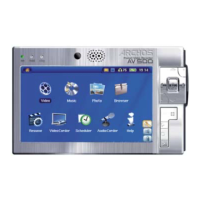
DIGITAL MINI-CAM to your AV 500
You can connect your camera to your AV 500 before switching on the device or once it is running.
Plug the USB connector plug into the USB host port of your AV 500 and the multi-connect plug into its multi-
connect jack. Your ARCHOS
™
DIGITAL MINI-CAM will be powered through your AV 500, so be sure to charge it
fully when intending to make longer recordings.
You can clip the controller of your ARCHOS
™
DIGITAL MINI-CAM for example onto your shirt pocket. The
camera itself is typically fi tted into the headband and worn so that you record what you see.
The next two sections explain the two options for making a recording:
1. Making the recording using the camera controller.
2. Making a recording using the VideoCorder application of your AV 500.
Using the Camcorder application lets you set a number of parameters.
2.2 Making a recording using the camera controller
Once your camera is correctly connected, making a recording using the camera controller is straight forward.
Press fi rmly on the Start/Stop button on your camera controller. The red light will go on briefl y, and on the screen
of your AV 500, you will see a message indicating that a video signal is detected. The image transmitted from the
camera will then be displayed and the recording will start.
To stop recording, press the Start/Stop button on the camera controller again. This time, the green light will go
on briefl y. This indicates that the recording has stopped. The AV 500 will now save your video fi le and take you
to the folder where the video is saved (see the section Where is the recording saved? for information on the
default location).
Refer to the section Checking the state of the ARCHOS
™
DIGITAL MINI-CAM for information on how to check
whether your camera is making a recording.



 To Next Page