Step 6: Home Connect continued…
1. Download the Arctic Spas app on to your device.
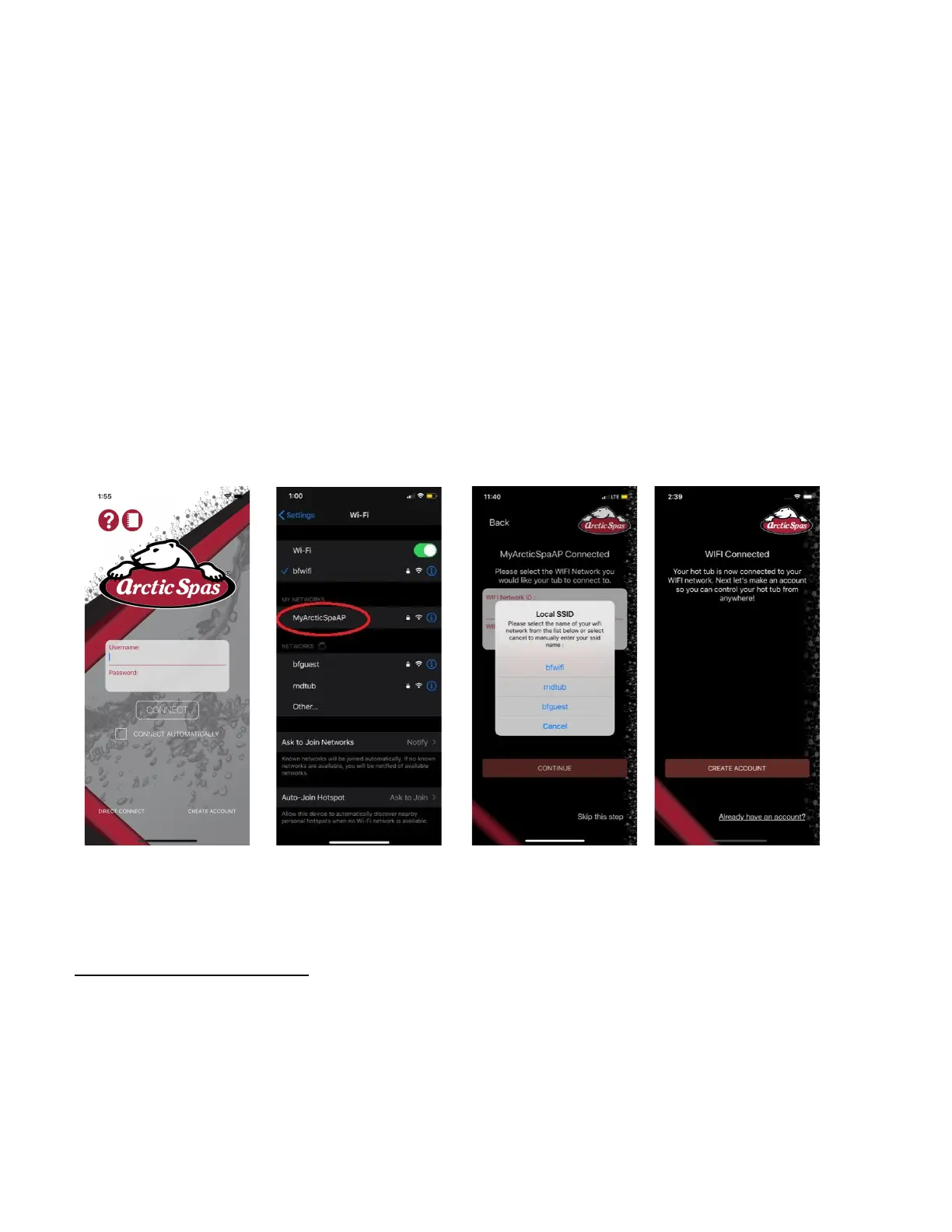
2. In the lower right corner of the main app screen select “SETUP NEW SPA”( img6.1)
3. You will then be asked if the spa is a new connection or has been setup before.
Choose “SETUP NEW CONNECTION”
4. Press and hold pump 3 until you see AP, Once AP appears let go and await AP UP
5. Once you see Ap Up. Go to your devices WIFI settings. Join the hotspot
“MyArcticSpaAP”. Password: 1234567890 (img 6.2)
6. Go back to your app. Find your home network and select it from the list of available
networks. (img 6.3)
7. Ensure the network name is entered and enter your password.
8. Wait for the spa and the device to connect. They are connected when the arrow
appears above the WIFI symbol on the topside panel (img 6.4)
9. WIFI set up is now complete .
img 6.1 img 6.2 img 6.3 img 6.4
If you haven’t yet created a myarcticspa account, please visit
www.myarcticspa.com to setup your account. You will need a login to access
your spa remotely when your device is not connected to the same network as
your spa. Be sure to select Arctic Hot Tubs Whitby/Vaughan as your preferred
dealer.
9


 To Next Page
 Loading...