Create New Account
Click “Register” and follow the prompts to register your account.
Add Device On Your Smartphone: QR Code
Connect the USB cable and turn on the device.
1. From the app homepage, select "Add Device".
2. Select pet feeder from the menu and make sure “QR Code” is selected in the top-right corner of the app.
Confirm that the indicator light on the pet feeder is blinking slowly.
3. Type in the network name and password for the Wi-Fi network you want to connect to.
NOTE: This device only works with 2.4 GHz Wi-Fi networks.
4. Tap next to display a QR Code on your phone. Hold the QR code 6-8 in. (15-20 cm) from the camera on
your pet feeder. Once the pet feeder beeps, press “I heard a prompt” in the app.
5. Allow the device to finish connecting. Once connection is confirmed in the app, press “Done” to begin
using your feeder.
Add Device On Your Smartphone: AP Mode
Connect the USB cable and turn on the device.
1. From the app homepage, click "Add Device".
2. Select pet feeder from the menu and make sure “AP Mode” is selected in the top-right corner of the app.
3. Type in the network name and password for the Wi-Fi network you want to connect to.
NOTE: This device only works with 2.4 GHz Wi-Fi networks.
4. The app will show you a Wi-Fi network called "SL-Arfpets-xxxx" for you to connect to. Select "Connect"
to view your available networks.
5. Select the "SL-Arfpets-xxxx" network, then go back to the app to complete connection.
6. Allow the device to finish connecting. Once connection is confirmed in the app, press “Done” to begin
using your feeder.
Pet Feeder App Homepage Menu
Here are the functions featured in the app to operate your pet feeder.
Feeding Schedule — Set and change feeding times for when feeder will dispense food.
NOTE: Please refer to the Portion Chart to choose your desired number of portions.
Feeding Records — Logs feeding times that occurred so you know your feeder is working.
Manual Feeding — Dispenses food manually and allows you to select how many portions dispense.
Camera — Watch the live camera feed, choose between HD and SD video, and select audio settings.
More Settings — Allows you to access Event List, Firmware Upgrades, and Device information.
4
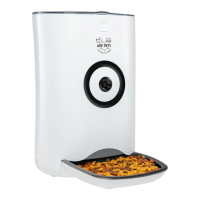
Using Your New Smart Pet Feeder with Video Camera
The Wi-Fi® feature of your new feeder works best when located 3 to 10 feet (1 to 3 meters) from a router,
with no walls or other obstructions between the feeder and the router.
Download the Arf Pets® App
Scan the QR Code with your smartphone to download through the App Store® or
Google Play™.
NOTE: Authorize the app to access network and location services.


 To Next Page
 Loading...