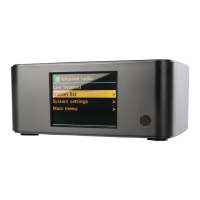
Wireless Internet & FM Radio
2. The radio will now display ‘Auto (DHCP)? YES / NO’. Turn the radio’s rotary encoder to select ‘NO’
and then press SELECT.
3. You will now be able to enter the IP address you wish to give your radio by using the rotary
4. The radio will now prompt you to enter the required network mask for the network. You will be
able to enter this in the same way as before for entering the IP address.
5. You will now need to enter the default gateway’s IP address used by the radio on the network.
6. Finally, you will need to enter the DNS IP address for the radio. On some networks, you may need
to enter your ISP’s DNS IP address, which should be available on your ISP’s support page on
their website.
and then set ‘Auto (DHCP)? YES / NO’ to ‘YES’.
If your radio supports wired networking then you will be able to configure your radio to connect to your
Configure menu
52


 To Next Page