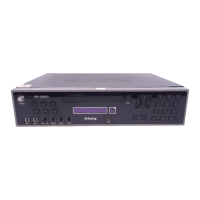
What to do if Arirang DVR doesn't respond when pressing keys?
- CCharles BlankenshipAug 18, 2025
If the Arirang DVR isn't responding to key presses on the device or remote control, try turning the power off and then back on.
What to do if Arirang DVR doesn't respond when pressing keys?
If the Arirang DVR isn't responding to key presses on the device or remote control, try turning the power off and then back on.
Why is my Arirang AR-3600S remote control not working?
If your Arirang DVR remote control isn't working, make sure you've installed the batteries with the correct polarity (+,-). If the batteries are old, replace them with new ones. Ensure that you are using the remote control within 7 meters of the device and that there are no obstructions between the remote control and the device.
What to do if there is no picture on Arirang AR-3600S DVR?
If you're experiencing no picture on your Arirang DVR, check that the disc is placed in the device with the correct surface facing down. Also, verify the connection between the DVR and your display device.
Why is there no audio or sound distortion on my Arirang AR-3600S?
If you're not getting any audio or experiencing sound distortion with your Arirang DVR, check the input connections with your TV. Also, check the connection between the DVR and your TV, and verify the stereo input connections with the TV.
Why Arirang AR-3600S DVR not reading DVD disk?
If your Arirang DVR isn't reading DVD disks, check the zip code of the DVD disk. Also, check the levels of confidentiality in the PARENTAL section of the SETUP menu.
What to do if Arirang AR-3600S not read disc when press PLAY?
If the Arirang DVR is not reading a disc when you press PLAY, and it stops immediately, it may be because the disc is dirty. Also, the device cannot read disks that are not in DVD, VCD, or CD format.
How to fix Arirang DVR icon menu display issues?
If the icons on the menu of your Arirang DVR are not displaying correctly or only partially appear on your TV, select the appropriate screen mode by consulting your TV's user manual.
Why is the picture distorted during fast forward or rewind on Arirang AR-3600S DVR?
If the picture appears distorted when fast forwarding or rewinding on your Arirang DVR, this is normal. The picture signal is slightly distorted at that time.
Why voice-over language and caption cannot be changed on Arirang AR-3600S DVR?
Check the DVD disk to ensure it has caption support.
Why not have caption on the screen of Arirang AR-3600S DVR?
Check the DVD disk to see if it has caption support and ensure that you have turned the caption feature on.
Lists the various disk formats supported by the device.
Details the various karaoke features and operations available.
Describes the audio-visual quality, picture clarity, and decoding capabilities.
Highlights other unique functionalities and benefits of the karaoke system.
Identifies and describes the buttons, ports, and display on the front panel.
Details the various input and output ports on the rear of the device and their uses.
Identifies basic power, playback, and navigation buttons on the remote control.
Details keys for slow play, zoom, song search, and selection functions.
Explains volume, mute, singer, chorus, and other karaoke-specific controls.
Illustrates how to connect the device to a TV for video and audio output.
Shows how to connect to a 5.1 channel or digital amplifier for audio.
Details optimal distance, angle, and environmental factors for remote control operation.
Lists the types of discs and media formats the device can play.
Explains features specific to MIDI Karaoke discs and their compatibility.
Describes functions for fast forward, rewind, stop, pause, slow play, and zoom.
Explains how to play, adjust key, tempo, and select tones for karaoke.
Details methods for selecting songs, including popular and favorite lists.
Covers song modes, singer/chorus control, verse selection, and applause effects.
Explains how to search and select songs directly using the remote control.
Details setup menu options for language, scoring, background music, and other parameters.
Provides step-by-step instructions for installing custom greetings on screen.
Guides users through navigating the main setup menu for various configurations.
Configures picture modes, angle, captions, and screen saver settings.
Adjusts speaker output modes, delays, and bass settings for optimal audio.
Selects SPDIF output, OP mode, dual mono, compression, and pro logic settings.
Enables or disables karaoke mode for adjusting key and other functions.
Sets TV display modes, aspect ratios, and picture preferences.
Configures TV color system, video output types, and audio language.
Sets default captions, disc menu language, parental locks, and passwords.
Addresses issues related to power supply, disc reading errors, and playback failures.
Solves problems concerning no picture, distorted images, sound issues, and frame display.
Resolves problems with remote control reception, menu display, and screen angle adjustments.
| Video Compression | H.264 |
|---|---|
| HDMI Output | Yes |
| Alarm Input/Output | 4/1 |
| Power Supply | 12V DC |
| Mobile Support | Yes |
Loading...