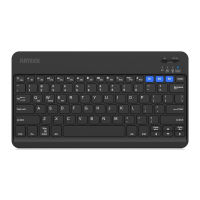
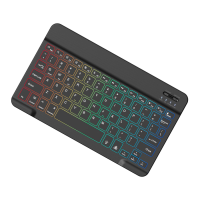
This document is a user manual for the Arteck HB216 Bluetooth Keyboard, designed for use with Surface Go devices.
Function Description
The Arteck HB216 is a Bluetooth keyboard that connects wirelessly to your Surface Go. It provides a full QWERTY layout with additional function keys for various shortcuts and media controls. The keyboard features a built-in touchpad, which can be turned on or off using a dedicated function key combination (Fn+Spacebar). It is designed to physically attach to the Surface Go, though the connection itself is via Bluetooth.
The keyboard includes several indicator lights:
- Left Indicator: Blinks blue when pairing (Fn+c) and turns off once connected to save power. It becomes solid green when Caps Lock is active.
- Right Indicator: Illuminates for 3 seconds when the keyboard is turned on (by unfolding the Surface Go or pressing the power button) and then turns off to save power. It blinks red when the battery is low and turns solid red during charging, becoming solid green when fully charged. It also blinks green three times when the keyboard is turned off.
The keyboard supports an energy-saving sleep mode to conserve battery life. It automatically enters sleep mode after a period of inactivity and can be woken up by pressing any key (except the power key).
Important Technical Specifications
- Connection: Bluetooth
- Modulation System: GFSK
- Operation Voltage: 3.0-4.2V
- Operating Current: <2.5mA
- Standby Current: <0.3mA
- Sleep Current: <40uA
- Charge Current: ≥ 200mA
- Standby Time: >200 days
- Charge Time: <2 hours
- Uninterrupted Working Time: >110 hours
- Lithium Battery Life: 3 years
- Lithium Battery Specification: 3.82035mm
- Charging Port: Micro USB
- Keying Force: 60±10g
- Keying Life: 3 million strokes
- Operating Temperature: -10 - +55°C
Usage Features
Pairing the Keyboard:
- Turn on the keyboard by unfolding the Surface Go or pressing the power button for 3 seconds. The right indicator will light for 3 seconds and then turn off.
- Press the Fn+c button; the left indicator will blink blue, indicating pairing mode.
- On your Surface Go, navigate to Start > Settings > Devices > Add Bluetooth or other device > Bluetooth.
- Select "Bluetooth 3.0 keyboard" from the list of available devices to complete the pairing process.
Function Keys (Fn+F1-F12):
To use the shortcut functions (F1-F12), press and hold the Fn key, then press the desired function key. Alternatively, press Fn+Esc to toggle Fn lock, which switches the default behavior of F1-F12 keys between standard function keys and their shortcut functions.
The function keys provide shortcuts for:
- Fn Lock/Unlock
- Mute
- Volume up/down
- Previous/Next Track
- Play/Pause
- Web Browser
- Brightness Increase/Decrease
- Switch Windows
- Scroll Lock
- Insert Lock
- Turn on/off the touchpad
- Move cursor to top/bottom/beginning/end
Power Management:
- The keyboard automatically turns on when the Surface Go is unfolded and turns off when folded.
- To manually turn off the keyboard, press the power button for 3 seconds. The right indicator will blink green three times.
- To manually turn on the keyboard, press the power button for 3 seconds. The right indicator will be solid green for 3 seconds and then turn off.
- The keyboard enters sleep mode when idle. Press any key (except the power key) to wake it up.
Maintenance Features
Charging the Battery:
- The right indicator blinks red when the battery is low.
- To charge, connect the Micro USB charging cable to the keyboard and plug the USB end into a computer or USB power adapter.
- Charge for 1-3 hours, or until the right indicator turns from red to steady green, indicating a full charge.
Energy-saving Sleep Mode:
- The keyboard automatically enters sleep mode when not in use to extend battery life.
- To wake it up, press any key (except the power key) and wait a second or two.
Troubleshooting:
- Touchpad not working: Press Fn+Spacebar to turn on the touchpad.
- Keys not working: Turn off the keyboard by pressing the power button for 3 seconds (right indicator blinks green 3 times), then turn it back on by pressing the power button for 3 seconds (right indicator is solid green for 3 seconds).
- Ensure battery has power.
- Ensure Bluetooth is enabled on Surface Go.
- Ensure the keyboard is correctly paired with Surface Go via Bluetooth.
Safety Caution:
- Keep the keyboard away from sharp objects.
- Do not place heavy objects on the keyboard.
- Keep away from microwave items.
- Do not force or distort the keyboard.
- Keep away from oil, chemicals, or other organic liquids.
Warranty and Support:
- The product comes with a 24-month warranty.
- For inquiries or comments, contact support@arteck.com. For quality-related issues, a replacement or refund can be requested via the same email.
Package Contents:
- Arteck HB216 Bluetooth Keyboard *1
- Micro USB charging cable *1
- User manual *1
- 2 Years Warranty Card *1

 Need help?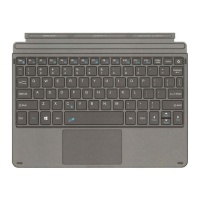

 To Next Page
 General