ARTURIA – PROPHET V - MANUAL
42
When you click on this button, a window will appear allowing you to choose the preset bank file
for the Prophet V (.minibank extension). Choose the file that you want to import, and click on
«Open». The new bank of presets will automatically appear among the available banks.
The Prophet V equally offers the option to export your own sounds to save them, to use them on
another machine, or to make them available to other users.
It is possible to export a preset, a sub-bank, or a complete bank.
To export the current bank, sub-bank, or preset, click on preset bank export button in the tool
bar of the program:
Current preset bank export button in the tool bar
Select the type of export that you want to perform (bank, sub-bank or preset) and a window will
appear, giving you access to a choice of destination folder and file name for the bank that you
are exporting.
4.3 Use of controllers
4.3.1 Knobs
Generally sequencers allow several knob control modes.
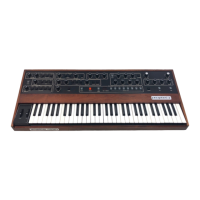
The default mode of control for knobs with the mouse is the circular mode: click on the knob
and turn around it in order to change the value of the controller. The circular mode gives high
precision in the manipulation of controls: The further the mouse goes from the knob, the higher
the precision of the setting.
Knobs
In linear mode, the knob can be set only by vertically moving the mouse, not going around it.
Like the sliders, it is possible to obtain a higher precision by right clicking or Shift+Click on the
knob concerned.
The linear mode can sometimes be simpler to use than the circular mode, although we can lose
in precision (the precision is limited by the number of vertical pixels on the screen on which the
mouse movements are being evaluated). Movement to linear mode is available in the options of
your sequencer. In Cubase
tm
, for example, this choice can be found via the «Edit/Preferences»
menu, and is found in the «General» tab of the window.



 To Next Page