27
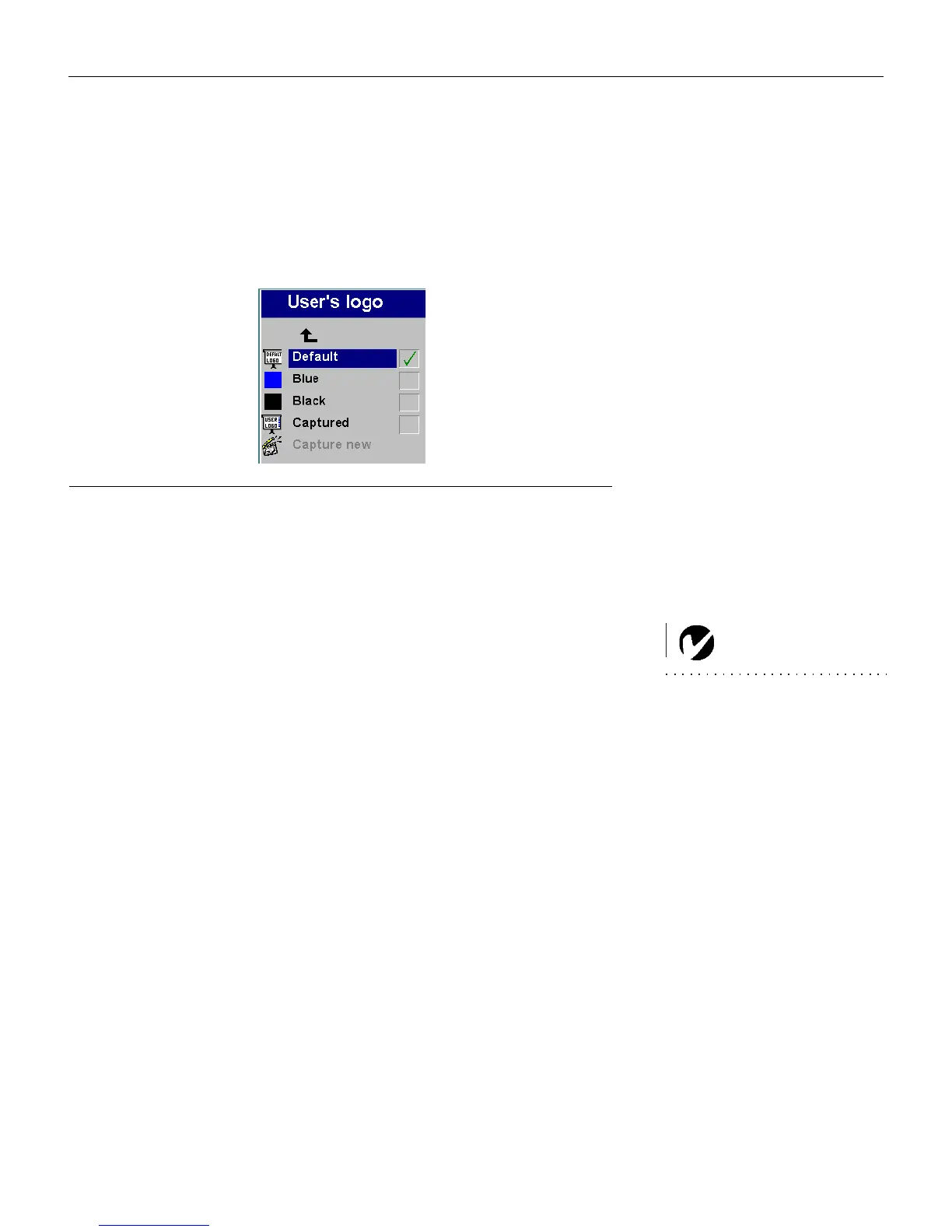
User’s logo menu
This menu allows you to display a blank blue or black screen
instead of the default screen at startup and when no source is
detected. It also allows you to capture and display a custom logo.
FIGURE 22
User’s logo menu
• Highlight the desired color (black or blue), then press Select.
To capture a custom logo:
1 Display the image you want to capture on your computer,
highlight Capture New, then press
Select.
NOTE: The higher quality capture
you select, the more memory will
be used in the capture process. To
use less memory, select good or
medium as the capture quality.
2 Use the keypad arrows to position the capture rectangle
around your logo, then press
Select.
3 Select the quality of the logo capture and press
Select.
• While the capture is underway, the LED on the keypad
turns red. When ready, the projector confirms the capture
and the LED changes to green.
The next time you start the projector, the custom logo you cap-
tured displays.
M2+.book Page 27 Thursday, April 8, 2004 8:10 AM


 To Next Page