Quick Start
5.6. How to set up your rangefinder with the Applied Ballistics® Phone App:
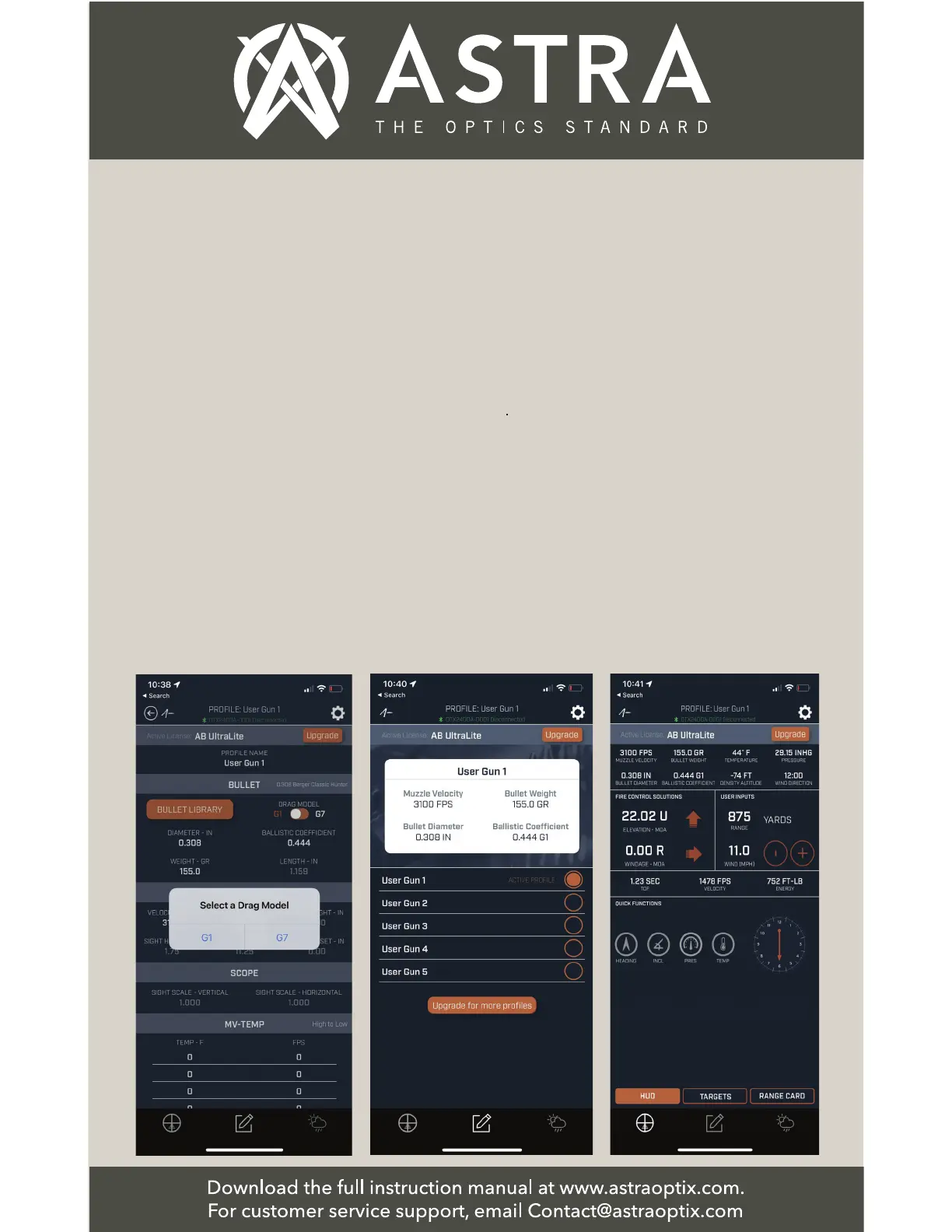
◆Setting up in the App -
Select active profile:
Select one of the 5
available profiles to be
the active profile that
will be stored in your
rangefinder.
Note: Your phone and
your App do not need
to be on to obtain the
ballistics solutions for the
active profile saved in
your rangefinder.
◆Setting up in the App -
Go back to your HUD
screen:
Now, you can start using
your rangefinder to
measure distances and to
see the ballistics adjust-
ments both in your laser
rangefinder display or on
your App as shown below.
◆Setting up in the App -
Choose your 5 most often
used load profiles:
Select your Drag
Model (G1 or G7).
Repeat these steps to
set up each load
profile. Set up to 5
different profiles.


 To Next Page