SECTION 5
TROUBLESHOOTING
65
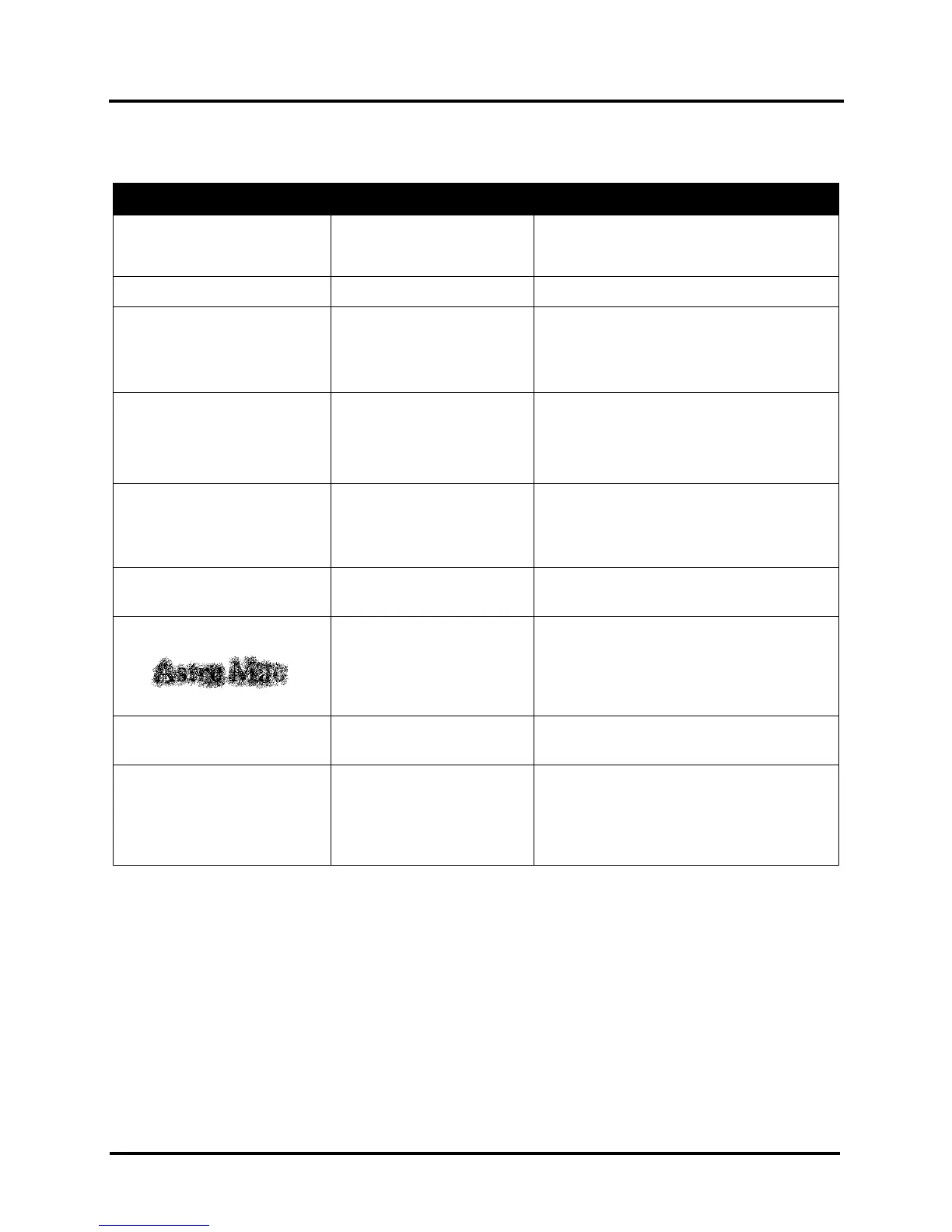
Printer
Ink Tank installed, no Ink
Level indication in Toolbox
Ink Tank contacts dirty,
preventing Printer/Ink Tank
communication.
Remove Ink Tank(s).
Clean prism and QA Chip contacts, see
Maintenance, Cleaning Ink Tank Contacts.
Check data in database program.
Improper output
(address information out of
order, misfeeding, etc.)
Wrong interface settings.
Static electricity.
Dirty Media Sensor.
Check software or database on PC.
Close software, then turn Printer OFF
and ON.
Clean Media Sensor.
Double feeding.
Media is curled or bent.
Media is too thin.
Adjust Sheet Separators on Feeder.
Uncurl media.
Minimum thickness for media
is 0.004".
Improper cabling / connector.
Unit not receiving power.
Use a proper USB cable (see Operator
Manual.)
Check plug connections, ON/OFF button and
fuse on back panel.
Print too light or missing
character dots
Clogged or dirty Printhead.
Running out of ink.
Check Printhead.
Check Ink Tanks.
Clean Printhead using a Cleaning Level on
the Printer Touchscreen or in the Printer
Toolbox.
Clean Printhead manually using distilled water
and a wet, clean, lint-free cloth.
Job is sent to print but does
not print.
Printer not turned ON.
Printer not connected
to computer.
Media Sensor is covered in
Print Engine.
Check that Printer is ON.
Connect printer cable to computer and
resend job.
Open Print Engine and remove media.


 To Next Page