EasyManua.ls Logo

Asus D340MC - User Manual

Asus D340MC
62 pages
Print Icon
To Next Page IconTo Next Page
Loading...
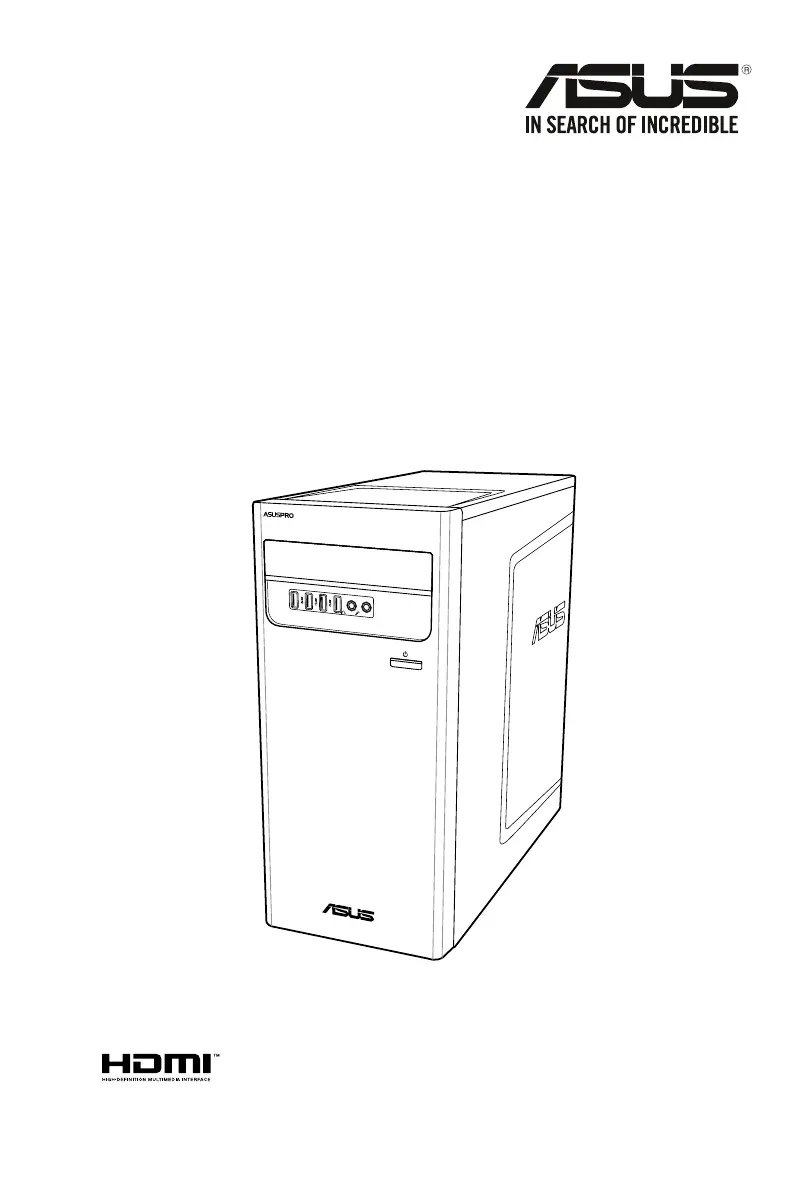
Desktop PC
D340MC (S340MC)
User Guide

Questions and Answers

  • S
    Sandra WellsAug 12, 2025
    Why can't my Asus Desktop be powered on?
    • S
      samuel17Aug 12, 2025
      If your Asus Desktop cannot be powered on and the power LED is not lit, check the following: * Ensure that your computer is properly connected to a functioning wall outlet. * Verify that the Power Supply Unit is switched on.
  • J
    johnsonmaryAug 15, 2025
    What to do if I cannot connect to a wireless network using the ASUS WLAN Card on my Asus Desktop?
    • R
      robertpatrickAug 16, 2025
      If you cannot connect to a wireless network using the ASUS WLAN Card on your Asus Desktop: * Ensure that you enter the correct network security key for the wireless network you want to connect to. * Connect the external antennas (optional) to the antenna connectors on the ASUS WLAN Card and place the antennas on the top of your computer chassis for the best wireless performance.
  • D
    dickersonkatrinaAug 20, 2025
    What to do if there is no display on my Asus D340MC monitor?
    • W
      whitejosephAug 20, 2025
      If there is no display on the monitor connected to your Asus Desktop, check the following: * Ensure the monitor is powered on and properly connected to the video output port on your computer. * If your computer has a discrete graphics card, connect the monitor to a video output port on the graphics card. * Inspect the monitor video connector for bent pins; replace the cable if necessary. * Confirm that the monitor is properly plugged into a power source. If problems persist, consult the monitor's documentation.
  • D
    diane70Aug 23, 2025
    What to do if only one monitor has display when using multiple monitors on my Asus Desktop?
    • C
      Connor HerreraAug 23, 2025
      If only one monitor displays when using multiple monitors with your Asus Desktop: * Ensure that both monitors are powered on. * During POST, only the monitor connected to the VGA port has display. The dual display function works only under Windows. * If a graphics card is installed, connect the monitors to the output port on the graphics card. * Check if the multiple displays settings are correct.
  • S
    scott22Aug 27, 2025
    What to do if my Asus D340MC Desktop computer hangs?
    • M
      Melissa BoydAug 27, 2025
      If your Asus Desktop computer hangs, try the following: * Press + + keys simultaneously and then click Task Manager. * If that doesn't work, press and hold the Power button on the top of your computer until it shuts down. Then, press the Power button again to turn it back on.
  • C
    Cameron HowardAug 31, 2025
    What to do if my Asus D340MC computer cannot detect my USB storage device?
    • N
      nschmidtAug 31, 2025
      If your Asus Desktop computer does not detect your USB storage device: * The first time you connect your USB storage device to your computer, Windows automatically installs a driver for it. Wait for a while and go to My Computer to check if the USB storage device is detected. * Connect the USB storage device to another computer to test if the device is broken or malfunctioning.
  • T
    Trevor IbarraSep 3, 2025
    How to restore Asus D340MC Desktop system settings without affecting personal files?
    • W
      wkaufmanSep 4, 2025
      To restore or undo changes to your Asus Desktop system settings without affecting your personal files, you can use the Windows 10 recovery option. To use the refresh option, click Settings > Update & recovery > Reset this PC from the Start menu, select Keep my files, wait for several seconds and click Next to continue or Cancel to quit. To use the reset option, click Settings > Update & recovery > Reset this PC from the Start menu, select Remove everything > Only the drive where Windows is installed > Just remove my files, and click Reset. By default, your personal files, apps and settings are stored in the system volume (eg. C:\), ensure to move them to a data volume (eg. D:\).
  • A
    Adam CabreraSep 7, 2025
    What to do if the arrow keys on the number key pad are not working on my Asus D340MC Desktop?
    • D
      Danielle GriffinSep 7, 2025
      If the arrow keys on the number key pad are not working on your Asus Desktop, check if the Number Lock LED is off. When the Number Lock LED is on, the keys on the number key pad are used to input numbers only. Press the Number Lock key to turn the LED off if you want to use the arrow keys on the number key pad.

Summary

Notices and Compliance Information

Regulatory Compliance Statements

Covers FCC, REACH, Lithium Battery, and other regional compliance.

International Compliance Statements

Details compliance for Canada, Japan (VCCI), and Korea (KC).

RF Equipment Compliance

Notices regarding RF exposure, wireless radio use, and specific regional compliance.

Chapter 1: Getting Started

Welcome and Initial System Overview

Introduction to the ASUS Desktop PC and its features.

Understanding Computer Hardware and Ports

Details on front and rear panel ports and connectors.

Setting Up Your Computer: Displays and Peripherals

Guides for connecting monitors, keyboard, mouse, and power.

Power Connection and Multiple Display Setup

Instructions for connecting the power cord and setting up multiple monitors.

Chapter 2: Connecting Devices

Connecting USB Storage Devices

Instructions for connecting USB drives and other storage.

Connecting Audio Peripherals

How to connect microphones and speakers to the PC.

Configuring External Audio Output

Steps to change the audio output to external devices.

Chapter 3: Using Your Computer

Maintaining Ergonomic Posture

Guidance on proper seating and desk setup for PC use.

Operating the Optical Drive

Instructions for inserting and removing optical discs.

BIOS Configuration for USB and HDD Security

Setting up USB ports and HDD passwords through BIOS.

Chapter 4: Connecting to the Internet

Wired Network Connections

Steps for connecting to DSL/cable modems and local area networks.

Chapter 5: ASUS Business Manager

Installing ASUS Business Manager

Steps to install the ASUS Business Manager software.

Launching and Navigating ASUS Manager

How to start ASUS Manager and use its view modes.

System Information and Driver Updates

Accessing system details and updating drivers or BIOS.

Security Features: PC Cleanup and Secure Delete

Using PC Cleanup and Secure Delete for system maintenance.

USB Lock and Data Recovery

Securing USB ports and performing system backup/recovery.

Power Management Features

Configuring power management settings for the PC.

Customization Tools: Ai Booting and MyLogo

Customizing boot sequence and boot logo.

Chapter 6: Troubleshooting

Common Hardware and System Issues

Solutions for power, system hangs, and wireless connectivity problems.

Display, Network, and Audio Troubleshooting

Resolving issues with display output, internet access, and audio.

System Performance and CPU Noise Resolution

Addressing slow system performance, freezes, and noisy fans.

ASUS Contact and Support

Asus D340MC Specifications

General IconGeneral
BrandAsus
ModelD340MC
CategoryDesktop
LanguageEnglish

Related product manuals