EasyManua.ls Logo

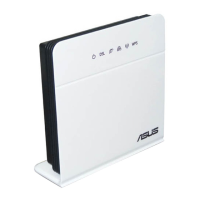
Asus DSL-N10S - User Manual

Asus DSL-N10S
62 pages
Print Icon
To Next Page IconTo Next Page
Loading...
User Manual
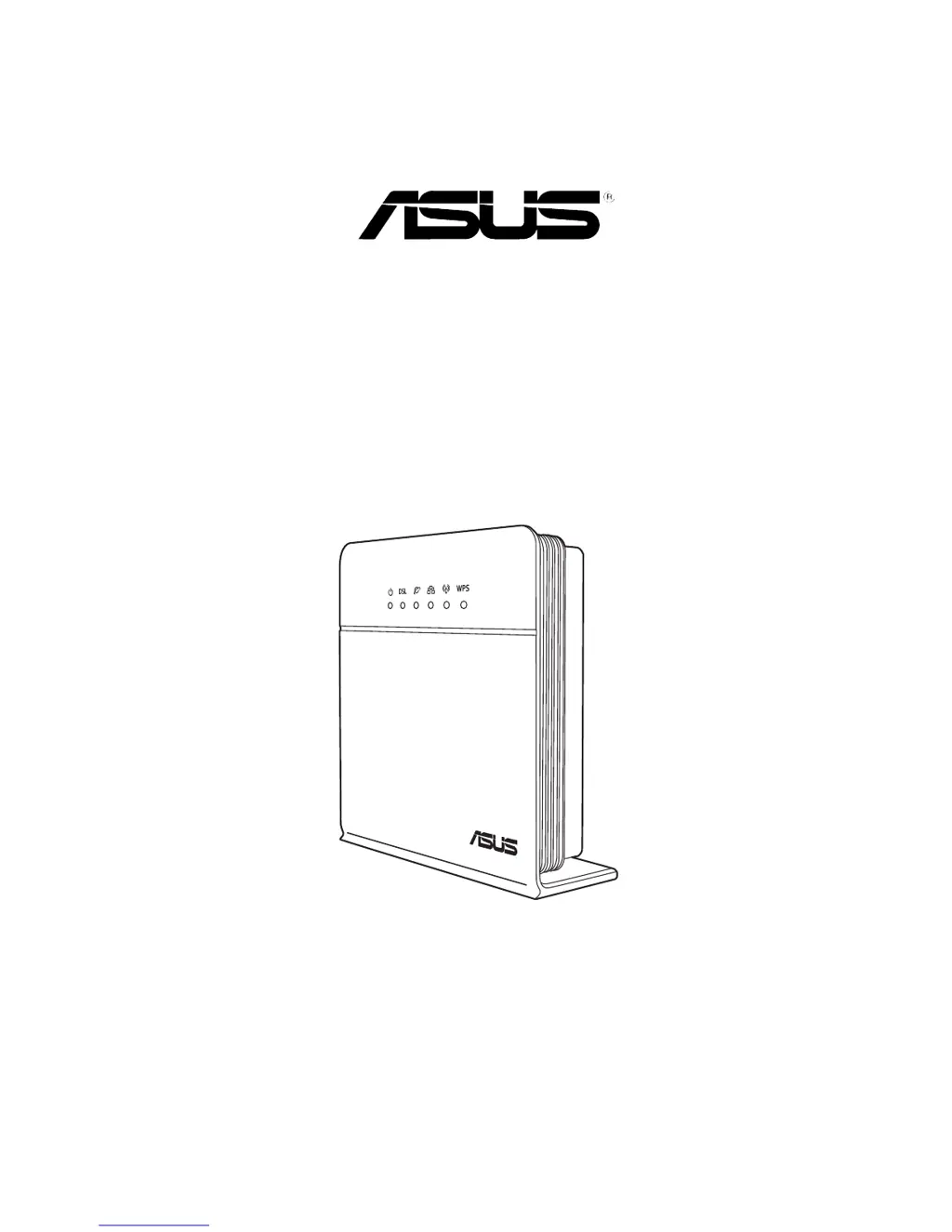
DSL-N10S
Wireless-N150 ADSL Modem Router

Table of Contents

Questions and Answers

  • J
    jasonwalkerAug 17, 2025
    What to do if my Asus Network Router won't connect to Wi-Fi?
    • D
      donaldsonteresaAug 17, 2025
      If your client device fails to establish a wireless connection with your Asus Network Router, it could be due to several reasons. First, ensure that the router is within sufficient range of the wireless client; try moving them closer. If the range is adequate, check the wireless security settings and authentication. For authentication problems, try using a wired connection to connect to the router. You can also try changing the channel settings. As a last resort, press the Restore button at the rear panel for more than five seconds. If the router cannot be found, insert a needle inside the Reset hole at the rear panel for more than five seconds and check the settings in the wireless adapter, such as SSID and encryption settings.
  • C
    Christopher CabreraAug 19, 2025
    How to fix Asus Wireless Router when client cannot establish wireless connection?
    • R
      Robert SanfordAug 19, 2025
      If your client device can't connect to the Asus Wireless Router, it might be too far away. Try moving the router closer to the device. Another reason could be related to authentication issues, in that case connect to the router using a wired connection and check the wireless security settings. If the router can't be found, reset it by inserting a pointed blunt object in the Reset hole for more than five seconds. Also, verify the SSID and encryption settings in the wireless adapter.
  • D
    Daniel Johnson PhDAug 22, 2025
    How to fix Asus DSL-N10S when cannot access internet via wireless LAN adapter?
    • T
      Thomas BrownAug 22, 2025
      If you cannot access the internet via your wireless LAN adapter using your Asus Network Router, start by moving the router closer to the wireless client. Then, check that the wireless adapter is connected to the correct wireless router and that the wireless channel in use conforms to the channels available in your country/area. Ensure the encryption settings are correct and that the ADSL or Cable connection is properly configured. Finally, try using another Ethernet cable.
  • R
    robin29Aug 25, 2025
    What to do if I forgot my Asus DSL-N10S network name or encryption key?
    • S
      Sarah MooreAug 26, 2025
      If you have forgotten your network name or encryption keys for your Asus Network Router, try setting up a wired connection and configuring the wireless encryption again. Alternatively, insert a needle in the Reset hole at the rear panel of the wireless router for more than five seconds.
  • L
    Linda JacksonAug 27, 2025
    What to check if ADSL Modem “Link” light is ON but Internet Access is not possible on Asus DSL-N10S Network Router?
    • D
      Dana CruzAug 27, 2025
      If the ADSL Modem “Link” light is ON but you still cannot access the internet with your Asus Network Router, first restart your computer. Check if the WAN LED on the wireless router is ON and verify the wireless encryption settings. Ensure that your computer can obtain an IP address via both wired and wireless networks, and confirm that your web browser is configured to use the local LAN and not a proxy server.
  • J
    Juan BrownAug 30, 2025
    What to do if I cannot access the internet via wireless LAN adapter on Asus Wireless Router?
    • J
      Joseph RichardsAug 30, 2025
      If you cannot access the internet via the wireless LAN adapter on your Asus Wireless Router, try moving the router closer to the wireless client. Ensure the wireless adapter is connected to the correct wireless router and that the wireless channel conforms to your country's regulations. Also, verify the encryption settings and ensure that the ADSL or Cable connection is correct. You may also try another Ethernet cable.
  • S
    stanleyfrankSep 2, 2025
    What to do if the ADSL 'LINK' light blinks or stays off on my Asus Wireless Router?
    • Q
      qmonroeSep 2, 2025
      If the ADSL 'LINK' light blinks continuously or stays off on your Asus Wireless Router, ensure all cables are properly connected. Disconnect the power cord from the ADSL or cable modem, wait a few minutes, and then reconnect it.
  • R
    Rebekah FlemingSep 5, 2025
    How to restore Asus Wireless Router to default settings?
    • L
      Linda HodgeSep 5, 2025
      To restore your Asus Wireless Router to its default settings, insert a pointed blunt object in the Reset hole at the right side of the router for more than five seconds.
  • K
    Kevin OlsenSep 8, 2025
    What to do if ADSL “LINK” light blinks continuously on Asus DSL-N10S?
    • G
      Guy MccoySep 8, 2025
      If the ADSL “LINK” light on your Asus Network Router blinks continuously or stays off, ensure that all your cables are properly connected. Disconnect the power cord from the ADSL or cable modem, wait a few minutes, and then reconnect the cord.
  • J
    john68Sep 10, 2025
    How to restore Asus DSL-N10S Network Router to factory settings?
    • C
      Crystal EvansSep 12, 2025
      To restore your Asus Network Router to its default settings, insert a needle into the Reset hole at the rear panel of the wireless router for more than five seconds.

Summary

Knowing Your Wireless Router

Package Contents

Lists all items included in the ASUS Wireless Router package for user verification.

System Requirements

Specifies the necessary system and network prerequisites for installing the ASUS Wireless Router.

Before You Proceed

Provides essential guidelines and precautions to take before installing the ASUS Wireless Router.

Hardware Features

Details the physical components and ports of the ASUS Wireless Router, including status indicators.

Getting Started

Accessing the Routers Web GUI

Instructions on how to access the router's web-based graphical user interface via a web browser.

Quick Internet Setup (QIS)

Guides users through a step-by-step process to quickly configure the internet connection.

Configuring Network Clients

Managing Network Clients

Explains how to manage network clients, including DHCP and static IP assignment for devices.

Configuring via the Web GUI

Network Settings Configuration

Configures wireless, LAN, and WAN network parameters for optimal connectivity.

Internet Services Configuration

Manages DNS, Firewall, UPnP, IGMP Proxy, TR-069, and ACL settings for internet services.

Advanced Settings Configuration

Covers advanced functionalities like QoS, Bridge settings, and other networking parameters.

Administration Settings

Handles firmware upgrades, system logs, user accounts, and system time settings for device management.

Troubleshooting

Common Wireless Connection Problems

Provides solutions for clients failing to establish a wireless connection or being unable to find the router.

Internet Accessibility Issues

Offers steps to resolve problems when the internet is inaccessible or ADSL link is unstable.

Appendices

Notices and Regulatory Information

Contains FCC statements, CE mark, IC warnings, and other regulatory compliance details.

Licensing and Software Information

Details the GNU General Public License and other software licensing terms applicable to the product.

ASUS Contact and Support Information

Provides contact details, phone numbers, and websites for technical support and service.

Asus DSL-N10S Specifications

General IconGeneral
BrandAsus
ModelDSL-N10S
CategoryNetwork Router
LanguageEnglish

Related product manuals