
 Need help?
Do you have a question about the Asus Eee Pad TF201 and is the answer not in the manual?
Learn how to access data stored on microSD, SD card, and USB devices.
Instructions on how to move selected files to another folder on your device.
Guide on copying and pasting files to connected external storage devices.
Steps to stop a currently running application on your Eee Pad.
How to remove unwanted downloaded applications from your device.
Locate where to check the status and detailed information about applications.
What to do when your Eee Pad becomes unresponsive.
Troubleshooting steps when the Eee Pad screen is off and cannot be woken up.
Troubleshooting when a microSD card inserted into the Eee Pad is not visible.
Steps to resolve issues when a connected USB disk drive is not seen.
Instructions on how to capture screenshots using the Eee Pad.
Tips and settings to help extend the battery life of your Eee Pad.
What to do when the battery of your Eee Pad is totally drained.
Explanation of why the Eee Pad may not fully charge via the mobile docking station.
How to customize your browser's view settings.
Instructions on how to use the MyNet feature.
Information on how to update your Eee Pad's system software.
Procedure for resetting your Eee Pad to its factory default settings.
Guidance on opening and saving email attachments on your Eee Pad.
Information on using the GPS function in a car and potential signal interference.
This document provides a comprehensive FAQ for the ASUS Eee Pad TF201, covering various aspects of its functionality, usage, and maintenance.
The Eee Pad TF201 allows users to manage files stored on microSD cards, SD cards, and USB devices. To access data from these external storage devices, users need to tap on the respective SD card or USB icon that appears in a prompt on the bottom right corner of the screen. Following this, tapping the folder icon will display all data within the selected storage device. For more detailed instructions, users can refer to the device's user manual.
Moving files between folders is a straightforward process. Users can tick the desired file and then tap either "Copy" or "Cut." After entering the desired destination folder, tapping the "Paste" icon located in the top right corner will complete the file transfer. If multiple files need to be moved, users can tick the desired files or tap "Select All," then proceed with "Copy" or "Cut," and finally "Paste" in the new location. Copying and pasting files to a connected external storage device follows the same procedure; users simply need to locate the desired destination folder within the external storage device.
The Eee Pad TF201 provides methods for managing running and installed applications. To stop a currently running application, users should navigate to "Apps menu" > "Settings" > "Applications" > "Running services." From there, they can select the application they wish to stop and tap "Stop." An alternative method involves tapping the "Recent Apps" key located at the lower left of the screen, and then tapping the "x" icon next to the corresponding application listed on the panel.
If a downloaded application is no longer desired, it can be uninstalled. The process involves going to "Apps menu" > "Settings" > "Applications" > "Manage applications" > "Downloaded." Users can then select the application they wish to remove and tap "Uninstall." To check the status or view detailed information about any application, users can go to "Apps menu" > "Settings" > "Applications" > "Manage applications" > "All." Selecting an application from this list will display its detailed information.
In situations where the Eee Pad TF201 becomes unresponsive, there are specific steps to take. Users should press and hold the power button until the "Power off" menu appears, then select "OK." After the device shuts down, they should press and hold the power button again to turn the system back on. Alternatively, users can poke and hold the reset button, which is a tiny hole located on the left side of the Eee Pad, until the system restarts. The ASUS logo will appear on the screen once the system successfully boots up.
If the Eee Pad screen is off and cannot be woken up, the same procedure applies: press and hold the power button until the "Power off" menu appears, select "OK," then press and hold the power button to turn the system on again, or use the reset button.
Users might encounter issues with external storage devices not being recognized. If a microSD card has been inserted but is not visible, the user should remove the memory card from the Eee Pad and reinsert it. Similarly, if a USB disk drive is connected but not visible, the user should undock and re-dock the Eee Pad from the mobile docking, or remove and reinsert the USB disk drive.
The Eee Pad TF201 supports capturing screenshots. To enable this feature, users need to tap "Apps menu" > "Settings" > "ASUS Customized Setting" and tick "Screenshot." Once enabled, users can hold the "Recent Apps" key to capture desired screenshots. If the Eee Pad is docked, screenshots can be captured directly by pressing the hotkey on the keyboard.
Maintaining and extending the battery life of the Eee Pad TF201 is crucial for optimal usage. Users can check the screen timeout settings in "Settings," as setting the screen timeout to "Never" will consume more battery power. It is also recommended to manage and close running applications when they are not in use. Further instructions on managing applications can be found in the "Stopping or uninstalling applications" section.
If the battery is completely drained, users should connect the power adapter to charge the Eee Pad. The device can typically be started normally after about 10 minutes of charging.
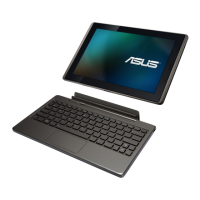
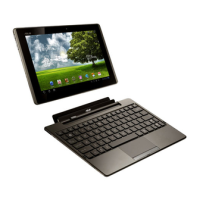
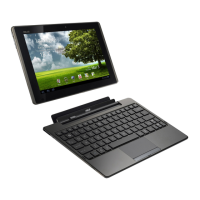
A common question relates to why the Eee Pad might not fully charge when connected to the mobile docking. When the Eee Pad is docked and disconnected from a power adapter, the mobile docking charges the Eee Pad battery up to a maximum of 90%. This limit is in place to protect the battery and prolong its lifespan. The mobile docking will only recharge the Eee Pad battery once its power level drops below 70%. When connected to a power adapter, the Eee Pad battery will fully charge to 100% and will recharge when its level falls below 95%.
Customizing the browser's view is possible on the Eee Pad TF201. Users can open the web browser, tap the tool button in the top right corner, and select "Settings" > "Advanced" > "User agent string." From there, they can choose between "Tablet," "Desktop," or "Mobile-phone" views.
To use the MyNet feature, users must ensure that Microsoft Media Player (version 10 or later) is running on their PC. Additionally, both the Eee Pad and the PC must be connected to the same wireless access point. More detailed instructions can be found in the user manual.
System updates for the Eee Pad TF201 are managed automatically. Users do not need to manually update their device. ASUS will send a pop-up message notification when an update is available. To receive updates, the device must be connected to the Internet, and the user must be logged into their Google Account.
If a user wishes to reset their Eee Pad TF201 to its factory defaults, they can do so by navigating to "Settings" > "Privacy" > "Factory data reset." Tapping "Reset tablet" will erase all data from the device. It is crucial to back up all important data before performing a factory reset.
The Eee Pad TF201 allows users to open and save e-mail attachments, provided the file size is smaller than 5MB. However, .apk files, which are installable filename extensions for the Android operating system, cannot be opened directly. If an .apk attachment meets the size restrictions and the installation from unknown sources is enabled, users are allowed to save the attachment. To check if the "Unknown sources" option is enabled, users can go to "Settings" > "Applications" and verify if "Unknown sources" is checked.
The GPS function on the Eee Pad TF201 can be used in a car. However, it's important to note that heat insulation protective films on car windows may reduce or block GPS signals from reaching the Eee Pad, potentially affecting its performance.
 General
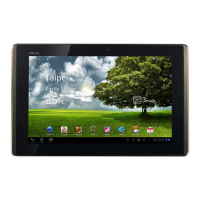
| Model | Asus Eee Pad Transformer Prime TF201 |
|---|---|
| Processor | NVIDIA Tegra 3 Quad-core 1.3 GHz |
| RAM | 1 GB |
| Storage | 32GB/64GB |
| Camera | 8 MP rear, 1.2 MP front |
| Weight | 586 g |
| Dimensions | 263 x 180.8 x 8.3 mm |
| Display | 10.1 inches, 1280 x 800 pixels |
| Operating System | Android 4.0 (Ice Cream Sandwich) |
| Battery | 25Wh Li-Polymer (up to 12 hours) |
| Connectivity | Wi-Fi 802.11 b/g/n, Bluetooth 2.1 |
| Ports | micro HDMI, headphone jack, proprietary dock connector |



 To Next Page