EasyManua.ls Logo

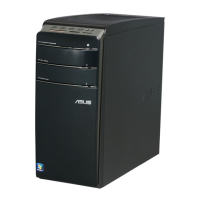
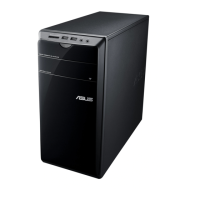
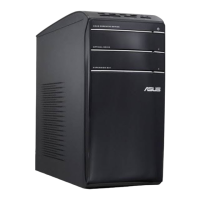
Asus Essentio CM1730 - User Manual

Asus Essentio CM1730
332 pages
Print Icon
To Next Page IconTo Next Page
Loading...
English ............................................................................1
Deutsch.........................................................................67
Français ......................................................................133
Español .......................................................................199
Nederlands .................................................................265
Index

Table of Contents

Questions and Answers

  • A
    Anna HawkinsAug 20, 2025
    What to do if my Asus Essentio CM1730 computer cannot be powered on?
    • A
      Annette PetersenAug 20, 2025
      First, ensure your Asus Desktop is properly connected to the power source. Next, verify that the wall outlet is functioning correctly. Finally, check if the Power Supply Unit is switched on.
  • M
    Michelle ButlerAug 22, 2025
    Why is my Asus Desktop system speed too slow?
    • M
      Morgan DrakeAug 22, 2025
      The slow system speed may be because too many programs are running; try closing some of them. It could also be due to a computer virus attack; use anti-virus software to scan for viruses and repair your computer. You can also try reinstalling the operating system.
  • C
    Chad JohnsonAug 25, 2025
    What to do if I cannot access the Internet on my Asus Desktop?
    • L
      Laurie OlsonAug 25, 2025
      First, connect the LAN cable to your computer. Ensure the LAN LED is on; if not, try another LAN cable. Also, make sure your computer is properly connected to a router or hub. Close the anti-virus software. Reinstall the LAN driver.
  • C
    Collin FlemingAug 26, 2025
    What to do if there is no display on the monitor connected to my Asus Desktop?
    • K
      Kimberly OlsonAug 26, 2025
      First, check if the monitor is powered on and properly connected to the video output port on your computer. If your computer has a discrete graphics card, make sure the monitor is connected to a video output port on that card. Check for bent pins on the monitor video connector; if found, replace the cable. Also, ensure the monitor is properly plugged into a power source.
  • L
    Lauren HooverAug 28, 2025
    What to do if my Asus Essentio CM1730 Desktop computer hangs?
    • W
      wcastroAug 28, 2025
      Try pressing the + + keys simultaneously, then click Start Task Manager. If the keyboard is not responding, press and hold the Power button on the top of your chassis until the computer shuts down, and then press the Power button again to turn it back on.
  • A
    Anthony FrancisAug 29, 2025
    What to do if my Asus Essentio CM1730 system often hangs or freezes?
    • A
      Angela ReedAug 29, 2025
      Replace with compatible memory modules. Remove the extra memory modules that you have installed, then try again. Move your computer to an area with better air flow. Reinstall the OS and reinstall compatible software.
  • C
    collinsaaronAug 31, 2025
    Why is there no display output after turning the Asus Desktop computer on (Black screen)?
    • R
      Rachel WhiteAug 31, 2025
      Connect the signal cable to the correct display port (onboard VGA or discrete VGA port). If you are using a discrete VGA card, connect the signal cable to the discrete VGA port. Try connecting to another monitor.
  • D
    Daniel MosleySep 3, 2025
    What to do if my Asus Essentio CM1730 computer is too noisy when in use?
    • M
      Matthew GarciaSep 3, 2025
      Ensure that you are using a compatible or ASUS-recommended CPU fan. Ensure that your computer is working in an area with good air flow. Update the BIOS. If you know how to reinstall the motherboard, try to clean the inner space of the chassis.
  • M
    Morgan SmithSep 5, 2025
    What to do if there is no power on my Asus Essentio CM1730 (The power indicator is off)?
    • M
      Michaela LongSep 5, 2025
      First, set your computer’s power voltage switch to your area’s power requirements. Then, press the power key on the front panel to ensure that your computer is turned on. Ensure that the power cord is properly connected and try another compatible power cord. Try installing another PSU on your computer.
  • S
    Scott StephensSep 6, 2025
    What to do if my Asus Essentio CM1730 Desktop has no audio?
    • E
      Emily GoldenSep 7, 2025
      Refer to your computer’s user manual for the correct port, disconnect and reconnect the speaker to your computer. Try using another speaker or headphone. Try both the front and back audio ports. If one port failed, check if the port is set to multi-channel. Reinstall the audio driver.

Summary

Safety Information

General Safety Precautions

Essential guidelines for safe operation and handling of the computer.

Guide Introduction and Resources

Conventions Used in This Guide

Explanation of symbols and formatting used throughout the manual.

Where to Find More Information

Resources for additional product and software update information.

Package Contents

Included Components

List of items included in the product package for user reference.

Chapter 1: Getting Started

Welcome and Computer Overview

Introduction to the PC and identification of front/rear panel components.

Setting Up Your Computer

Guide to connecting monitors, peripherals, and powering on/off.

Connecting Peripherals and Power

Connecting USB devices and the power cord for initial setup.

Turning the Computer On and Off

Procedures for correctly powering the computer on and off.

Chapter 2: Using Windows 7

Initial Windows 7 Setup Process

Steps for configuring the operating system upon first use.

Desktop Navigation and Program Management

Navigating the desktop, Start menu, taskbar, and managing programs.

File and Folder Management

Operations for exploring, arranging, sorting, and grouping files.

Data Management and Backup

Procedures for setting up data backups and restoring system settings.

Protecting Your Computer with Security Features

Using Action Center, Update, anti-virus, and user accounts.

Chapter 3: Connecting Devices

Connecting USB Storage Devices

Instructions for connecting and safely removing USB storage devices.

Audio Device Connections

Connecting microphones, headphones, and multi-channel speaker systems.

Display Connections

Setting up multiple monitors and connecting to an HDTV.

Chapter 4: Using Your Computer

Ergonomics and Proper Posture

Guidelines for maintaining healthy posture while using the PC.

Peripheral Device Usage

Using memory card reader, optical drive, and multimedia keyboards.

Keyboard Model Specifics

Details on functions for specific ASUS keyboard models.

Chapter 5: Internet Connectivity

Wired Internet Connection Setup

Setting up a network connection using an RJ-45 cable.

Wireless Network Connection

Steps to connect the computer to a wireless network.

Chapter 6: System Utilities

ASUS AI Manager Utility

Introduction and installation of the ASUS AI Manager utility.

ASUS EPU-4 Engine Utility

Guide to installing and using the ASUS EPU-4 power saving utility.

ASUS Software and System Tools

Using ASUS Update for BIOS, MyLogo2™, and Nero 9.

System Recovery Options

Using the Recovery Partition

Restoring the system to its original factory state using the recovery partition.

Using the Recovery DVD

Instructions for creating and using a Recovery DVD for system restoration.

Chapter 7: Troubleshooting

Power, Display, and System Hangs

Solutions for common power, display, and system responsiveness issues.

Network, Audio, and Connectivity Issues

Troubleshooting steps for network, audio, and DVD drive problems.

System Performance and CPU Noise

Addressing slow system speed, freezes, and noisy CPU fans.

ASUS Contact and Support Information

Global Support Contact Details

Worldwide contact information for ASUS technical support and service.

Asus Essentio CM1730 Specifications

General IconGeneral
Operating SystemWindows 7 Home Premium
Form FactorTower
ChipsetAMD 785G
Optical DriveDVD Super Multi
LAN10/100/1000 Mbps Ethernet
RAMUp to 8GB DDR3
Storage1 TB HDD
Audio8-channel HD Audio
USB Ports6 x USB 2.0
Weight8.3 kg

Related product manuals