
 Need help?
Do you have a question about the Asus OnHub and is the answer not in the manual?
Contact support via website, phone, or email for assistance with your OnHub setup.
Device antennas must not be co-located or operated with any other antenna or transmitter.
Equipment complies with FCC RF exposure limits; users must follow specific operating instructions.
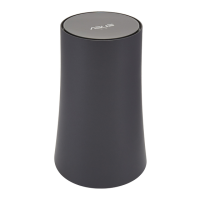
This document describes the setup and basic operation of the OnHub device, a smart router designed to provide optimal Wi-Fi performance and network management. The OnHub aims to simplify home networking by offering an intuitive setup process and user-friendly controls through a dedicated mobile application.
The primary function of the OnHub is to serve as a central hub for your home network, broadcasting a strong and reliable Wi-Fi signal. It is designed to deliver the best possible signal strength by recommending optimal placement within your home. Unlike traditional routers that might be hidden away, the OnHub is intended to be placed in an open space, such as on a shelf or TV stand, to maximize its signal reach and performance. This design philosophy emphasizes both functionality and aesthetics, making it a device that can blend into modern home environments.
Setting up the OnHub is a straightforward, three-step process guided by the Google On app. The first step involves downloading the Google On app, which is available for both Android and iOS mobile devices. This app acts as the primary interface for configuring and managing your OnHub. Once the app is installed, it walks you through the entire setup procedure, making it accessible even for users with limited technical expertise.
The second step is to physically connect the OnHub. This involves finding a suitable location for the device, ideally an open space to ensure the best signal distribution. After positioning the OnHub, you connect its power adapter to a power outlet. A light at the bottom of the OnHub will illuminate, indicating that the device is powered on. The final physical connection involves using the provided Ethernet cable to link the OnHub's bottom port to your modem. This establishes the internet connection that the OnHub will then distribute wirelessly.
The third and final step is to get your OnHub online and configure your network settings using the Google On app. The app provides easy-to-follow instructions for setting up your Wi-Fi network, including creating a network name and password. The OnHub also supports Zigbee and Bluetooth networks, which will be enabled when the software is ready, indicating its potential for integration with smart home devices.
The OnHub's status is communicated through a color-coded light at its base, providing quick visual feedback on its operational state. A "NO LIGHT" status means the OnHub needs to be plugged in. A "BLUE" light indicates that the OnHub is ready for setup, prompting you to proceed with the app-guided configuration. When the light is "TEAL," it signifies that the OnHub is on and actively working, providing network connectivity. An "AMBER" light indicates that something is wrong, and you should check the Google On app for specific details and troubleshooting steps. This simple color scheme allows users to quickly understand the device's status without needing to consult the app for every minor check.
Beyond basic setup, the Google On app offers several features for managing your network and optimizing performance. One key feature is "Wave control," which allows you to prioritize bandwidth for specific devices or activities. For example, if you're streaming a movie or engaged in an online gaming session, you can use Wave control to ensure that device receives preferential bandwidth, minimizing lag and buffering. Another useful feature is the ability to "Set a Priority device," which dedicates a portion of your network's resources to a chosen device, ensuring its consistent performance.
The app also includes diagnostic tools to help maintain network health. You can "Run a Network check" to identify potential issues or bottlenecks in your network, providing insights into signal strength, connected devices, and overall performance. This proactive approach to network management helps users troubleshoot problems before they significantly impact their internet experience. Additionally, the app simplifies sharing your Wi-Fi password, making it easy for guests to connect to your network without having to manually type in complex credentials.
For users who encounter issues or require assistance, the OnHub provides support options. The manual directs users to visit g.co/onsupport for online help and provides a contact number (844-442-3693) and email address (onsupport@google.com) for direct support. This comprehensive support system ensures that users can get help when needed, contributing to a smooth and reliable user experience.
The OnHub is designed to be a low-maintenance device, with most management and troubleshooting handled through the intuitive Google On app. Its emphasis on clear status indicators and guided setup minimizes the need for complex manual configurations. The device's ability to optimize signal strength through intelligent placement and its features for prioritizing network traffic contribute to a consistently high-performance Wi-Fi experience. The integration of Zigbee and Bluetooth capabilities also positions the OnHub as a future-proof device, ready to connect with a growing ecosystem of smart home devices. Overall, the OnHub aims to provide a powerful, user-friendly, and intelligent solution for modern home networking.
 General
| Type | Wireless Router |
|---|---|
| Brand | Asus |
| Model | OnHub |
| Wireless Standard | 802.11a/b/g/n/ac |
| Wireless Speed | Up to 1900 Mbps |
| Ports | 1 x Gigabit Ethernet WAN, 1 x Gigabit Ethernet LAN |
| Bluetooth | Yes |
| Frequency Bands | 2.4 GHz and 5 GHz |
| Processor | Qualcomm IPQ8064 |
| Memory | 1 GB RAM |






 To Next Page