Need help?
Do you have a question about the Asus RT- N66U and is the answer not in the manual?
Log in to the ASUS router and select the Traffic Manager option to begin QoS configuration.
Turn the QoS slider ON and click the Save button to apply the initial QoS settings.
Input current upload and download bandwidth speeds after QoS is enabled.
Save the bandwidth figures and power cycle or reboot the router to complete QoS configuration.
This document provides a setup guide for the ASUS RT-N66U Dark Knight Router, specifically focusing on configuring its Quality of Service (QoS) settings. The router is designed to manage and prioritize network traffic, ensuring optimal performance for various online activities.
The primary function of this router, as highlighted by the setup guide, is to provide robust network connectivity and intelligent traffic management through its QoS feature. QoS is a crucial aspect of modern networking, allowing users to allocate bandwidth effectively and prioritize certain types of data over others. This is particularly useful in environments where multiple devices are connected and various applications are running simultaneously, such as online gaming, video streaming, voice calls, and general web browsing. Without proper traffic management, high-bandwidth activities can consume all available resources, leading to lag, buffering, and poor performance for other applications. The ASUS RT-N66U aims to mitigate these issues by giving users control over how their network resources are utilized.
One of the key usage features of this router is its intuitive interface for configuring QoS. The setup guide demonstrates a straightforward process, starting with logging into the router's web interface using a standard IP address (http://192.168.1.1). This accessibility ensures that even users with limited technical expertise can navigate the settings. Once logged in, the user is directed to the "Traffic Manager" section, which is the central hub for QoS configuration. The ability to simply click a switch to turn QoS "ON" or "OFF" simplifies the initial activation process, making it less daunting than routers with more complex, multi-step activation procedures.
A significant usage feature is the router's ability to prioritize specific network applications and types of traffic. The guide mentions that QoS "sets online gaming and web surfing as the highest priority and applications (peer-to-peer applications such as BitTorrent)" at a lower priority by default. This default prioritization is a valuable feature for many home and small office users, as it aligns with common usage patterns where real-time activities like gaming and browsing are critical. However, the router also offers the flexibility for users to define their own QoS rules, allowing for customized prioritization based on individual needs. This "User-defined QOS rules" option caters to advanced users who might have specific applications or devices that require higher priority than the defaults. For instance, a user working from home might want to prioritize video conferencing tools over entertainment streaming, and the router's customizable rules would allow for this.
Another important usage feature is the requirement to input the user's current upload and download bandwidth. The guide explicitly instructs users to enter these figures, and even provides a link to a speed test (http://www.megapath.com/speedtestplus/) for those unsure of their current speeds. This step is critical because QoS works by intelligently allocating a percentage of the total available bandwidth to different traffic types. If the router doesn't know the actual maximum bandwidth, its allocations might be inaccurate, leading to suboptimal performance. By requiring this input, the router ensures that its QoS algorithms are working with accurate data, leading to more effective traffic management. The use of dropdown menus for "Mb/s" (Megabits per second) further simplifies the input process, preventing errors and ensuring consistency.
The visual feedback provided by the interface is also a notable usage feature. The guide highlights that the "QoS slider turns green" when activated, providing a clear visual indicator that the feature is enabled. This kind of immediate feedback helps users confirm their actions and understand the state of their network settings at a glance.
Regarding maintenance features, the guide emphasizes the importance of a power cycle/reboot after configuring QoS settings. This step, while seemingly simple, is a common and essential maintenance practice for network devices. Rebooting the router ensures that the newly applied QoS settings are fully loaded and take effect across all network functions. It clears any temporary configurations and starts the device with the updated parameters, preventing potential conflicts or unexpected behavior that might arise if the settings were changed while the router was actively managing traffic under old rules. This instruction serves as a reminder for good network hygiene, ensuring the stability and effectiveness of the configured QoS.
The overall design of the setup process, as presented in the guide, aims for user-friendliness and clarity. The step-by-step instructions, combined with visual aids (like the screenshot of the router's interface), make the configuration process accessible to a wide range of users. The "QOS FAQ" link visible in the screenshot suggests that the router's interface itself provides additional support and information, which is a valuable maintenance and support feature. This integrated help system can assist users in understanding the nuances of QoS and troubleshooting common issues without needing to consult external documentation.
In summary, the ASUS RT-N66U Dark Knight Router, as described through its setup guide, is a network device focused on intelligent traffic management. Its usage features include an accessible web interface, straightforward QoS activation, customizable traffic prioritization, and a clear process for inputting bandwidth information. Maintenance is primarily addressed through the essential step of rebooting the router after configuration, ensuring that the new settings are properly applied and the network operates optimally. The router's design emphasizes ease of use while providing powerful control over network performance.
 General
| VPN support | IPSec, PPTP, L2TP, PPTP |
|---|---|
| Ethernet LAN | Yes |
| Networking standards | IEEE 802.11a, IEEE 802.11b, IEEE 802.11g, IEEE 802.11n |
| Ethernet LAN data rates | 10, 100, 1000 Mbit/s |
| Ethernet LAN interface type | Gigabit Ethernet |
| Wi-Fi band | Dual-band (2.4 GHz / 5 GHz) |
| Wi-Fi standards | 802.11a, 802.11b, 802.11g |
| Top Wi-Fi standard | Wi-Fi 4 (802.11n) |
| WLAN data transfer rate (max) | 450 Mbit/s |
| USB 2.0 ports quantity | 2 |
| Ethernet LAN (RJ-45) ports | 4 |
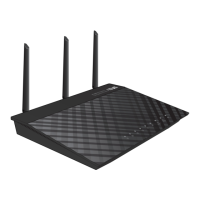
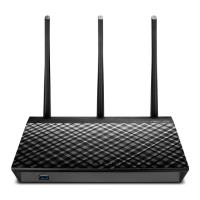
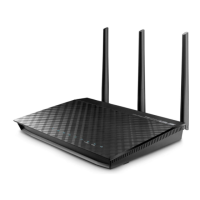
| Antennas quantity | 3 |
| Security algorithms | 128-bit WEP, 64-bit WEP, WPA-PSK, WPA2-PSK |
| Output current | 1.58 A |
| Output voltage | 19 V |
| AC input voltage | 110 - 240 V |
| Power source type | DC |
| AC input frequency | 50 - 60 Hz |
| Cables included | LAN (RJ-45) |
| Product type | Portable router |
| Product color | Black |
| LED indicators | LAN, USB, WAN |
| DSL WAN | No |
 Weight and Dimensions
| Depth | 148.8 mm |
|---|---|
| Width | 207 mm |
| Height | 35.5 mm |
| Weight | 450 g |

 To Next Page