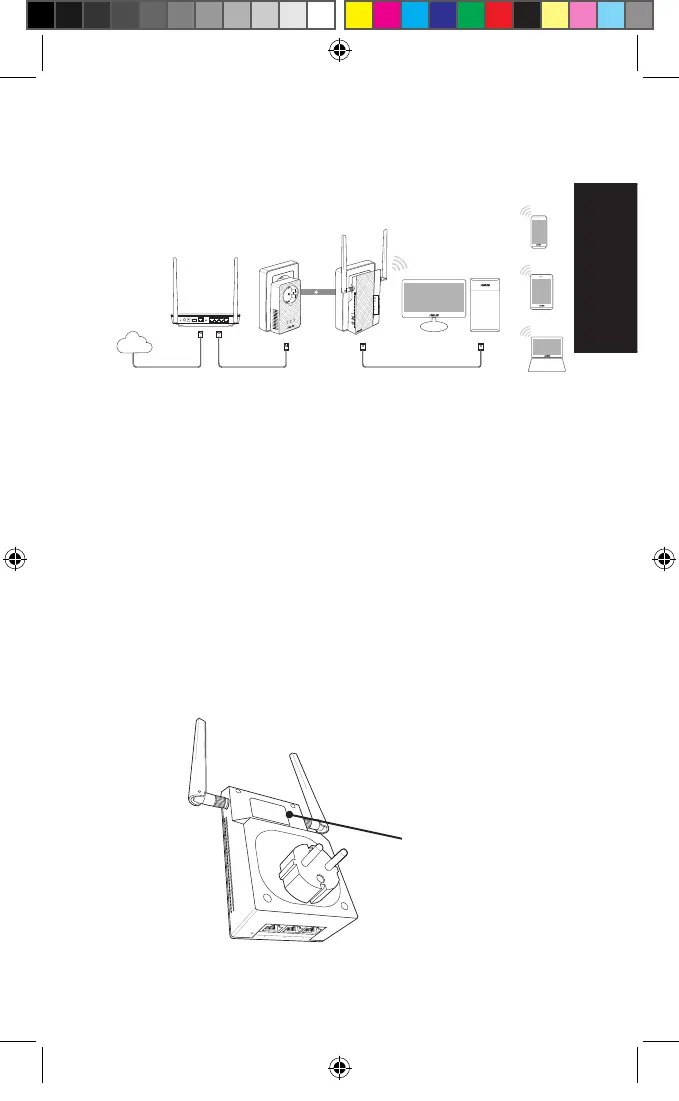
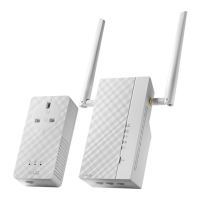
Setting up your PL-AC56 Kit
Desktop
Ethemet
Connection
Tablet
Smart phone
Wireless
Connection
Internet
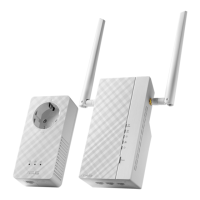
1. Use the bundled Ethernet/network cable to connect your PL-
E56P to your network’s router or switch. Plug your PL-E56P to
a wall outlet.
2. Plug your PL-AC56 to a wall outlet located in the same circuit.
Wait until the power LED turns green, indicating that your
PL-AC56 has nished booting up.
3. Wait until the powerline LED turns green, indicating that your
PL-AC56 has successfully connected to your PL-E56P via the
powerline.
4. Connect your device to your PL-AC56 via wired or wireless
connection.
5. The Wi-Fi SSID and Password is posted on the Wi-Fi informa-
tion sticker on your PL-AC56.
Wi-Fi information
sticker
U11264_PL-AC56_Kit_QSG_Booklet_105x170mm.indb 5 2016-02-04 10:04:49


 To Next Page