ENGLISH
ENCreducestheunwantedenvironmentalnoisethatyourheadset'smicrophone
picksup,ensuringclearandaudiblecommunicationwithotherpeople.Forthe
headset'soptimalperformance,ensurethatyouaremorethan70cmawayfrom
theconsolebox.
IMPORTANT!TheROGCenturion7.1ControlBoxisaplug-and-playaudiodevice.
Dependingonhowyourcomputeriscongured,the7.1ControlBoxmayormaynot
automaticallybeselectedasthedefaultaudiodevice.Hence,ensurethatyouselectthe7.1
ControlBoxasyourdefaultaudioplayback/recordingdeviceifthereisnosound.
Environmental Noise Cancellation (ENC)
Connecting your devices
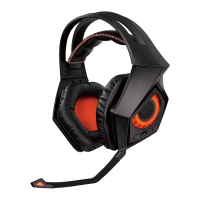
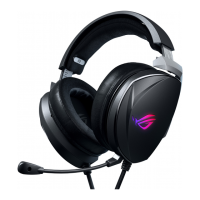
1. ConnecttheheadsettotheHDMIheadsetportoftheROGCenturioncontrol
box.
2. Connectthesingle-USBendofthebundledUSBY-cabletotheUSBporton
theROGCenturioncontrolboxandtheotherendtoyourcomputer.
3. Connectthemicrophoneboomtotheheadsetfortwo-waycommunication.
4. Connectingyourspeakers:
a. ConnecttheHDMIconnectorofthebundledHDMIspeakercabletothe
ROGCenturioncontrolbox.
b. ConnectthefourcoloredjacksofthebundledHDMIspeakercabletothe
appropriateaudioportsonyourspeakers.Refertothecolorindicationsof
thefourcoloredjacksbelow.
• Green:Front • Black:Rear
• Orange:Center/Sub • Gray:Side
5. Presstheheadset/speakerswitchingbuttontoswitchbetweenheadsetand
speakers�
Q11267_ROG_Centurion_QSG.indb 6 2016/8/15 10:20:23


 To Next Page