
 Need help?
Do you have a question about the Asus ROG STRIX XG17AHP and is the answer not in the manual?
Details FCC compliance rules and conditions for operation.
States compliance with Canadian ICES-003 standards.
Explains symbols like WARNING, CAUTION, IMPORTANT, and NOTE.
Guides users to ASUS websites and optional documentation.
Provides a welcome message and lists all package contents.
Instructions on how to adjust the tilt tension of the ROG tripod.
Notes on tripod compatibility, weight limits, and assembly.
Warns about magnet interference and provides battery safety guidelines.
Guide to activating, navigating, and changing settings within the OSD menu.
Details OD, Adaptive-Sync/FreeSync, and GamePlus gaming enhancements.
Adjustments for Brightness, Contrast, Sharpness, VividPixel, ASCR, Aspect Ratio, and Blue Light Filter.
Configuration of Color Temperature, Gamma, Saturation, and advice to reduce eye strain.
Manage Input Device settings and power supply options for charging.
Enables/disables Auto Rotation and selects the video input source.
Configure custom shortcuts, system settings, language, and OSD options.
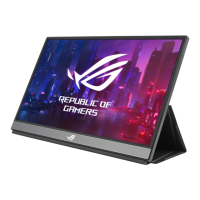
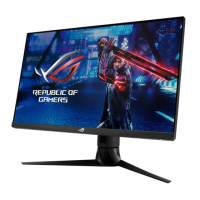
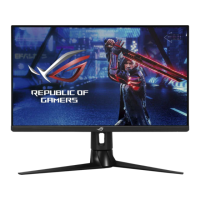
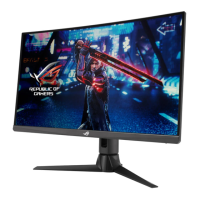
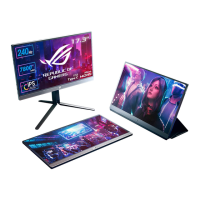
The ASUS ROG STRIX XG17AHP is a portable gaming monitor designed to enhance daily viewing experiences with its portability and style. It comes with a smart cover for various standing positions and a ROG tripod for adjustable tilt strength, catering to personal preferences and usage frequency.
The monitor features a user-friendly On-Screen Display (OSD) menu for easy configuration. Users can navigate through options like Gaming, Image, Color, Power, Auto Rotation, Input Select, MyFavorite, and System Setup using dedicated buttons. The OSD menu allows for detailed adjustments to optimize the display for different content and environments.
The Gaming function offers several features to enhance the gaming experience. "OD" (Over Drive) speeds up response time, with levels from 0 to 5. "Adaptive-Sync/FreeSync" dynamically adjusts the display refresh rate to match the graphics source's frame rates, ensuring a stutter-free and low-latency experience. This feature supports a range from 48-240Hz via HDMI and Type-C ports. "GamePlus" provides a toolkit for gamers, including Crosshair, Timer, FPS Counter, and Display Alignment functions, particularly useful for First Person Shooter (FPS) games. "GameVisual" offers eight sub-functions, each with a Reset option, allowing users to choose preset modes or maintain custom settings. These modes include Scenery, Racing, Cinema, RTS/RPG, FPS, sRGB, MOBA, and User Mode, each optimized for specific content types. "Shadow Boost" enhances dark tones in images, making objects in dark scenes more visible.
The Image function allows for adjustments to Brightness, Contrast, Sharpness, VividPixel, ASCR, Aspect Control, and Blue Light Filter. Brightness and Contrast can be adjusted from 0 to 100. Sharpness, also adjustable from 0 to 100, refines picture clarity. VividPixel, an ASUS Exclusive Technology, enhances visuals for crystal-clear and detail-oriented enjoyment, with an adjustment range from 0 to 100. ASCR (ASUS Smart Contrast Ratio) can be turned ON or OFF to enable or disable dynamic contrast ratio. Aspect Control allows users to select "Full," "4:3," or "1:1" aspect ratios. The Blue Light Filter reduces the energy level of blue light emitted from the LED backlight, with different levels impacting user configurability of brightness and compliance with TUV Low Blue Light Certification.
The Color function provides options for Color Temp., Gamma, and Saturation. Color Temp. includes preset modes like Cool, Normal, Warm, and a User Mode where R (Red), G (Green), and B (Blue) colors can be configured from 0 to 100. Gamma offers three modes: 1.8, 2.2, and 2.5. Saturation can be adjusted from 0 to 100.
The Power function manages input device and power supply settings. "Input Device Pop-up" enables or disables pop-up questions regarding input device and power supply connections. "Input Device" allows selection between "Phone" and "NB/PC" modes. When connected to a mobile phone, power supply is not provided due to typical mobile device power output limitations. When connected to a notebook/PC, users can select "Charging From NB/PC" to sustain working time or "No Charging From NB/PC" to disable power supply, though getting power under 100mA does not affect the host device's battery life.
Auto Rotation can be turned ON or OFF, supported by the DisplayWidget software on Windows OS. The Input Select function allows users to choose between HDMI and Type-C input sources.
The MyFavorite function enables users to customize shortcuts and settings. Users can select "Blue Light Filter," "GameVisual," "Brightness," "Contrast," "Auto Rotation," "Input Select," "Volume," or "GamePlus" as shortcut keys, with "Volume" being the default. Customized Settings allow users to save their preferred configurations.
The System Setup function provides access to Language, Volume, ECO Mode, Power Indicator, Power Key Lock, Key Lock, OSD Setup, Information, and All Reset. Language options include English, French, German, Spanish, Italian, Dutch, Russian, Polish, Czech, Croatian, Hungarian, Romanian, Portuguese, Turkish, Simplified Chinese, Traditional Chinese, Japanese, Korean, Persian, Thai, and Indonesian. Volume adjusts the output level. ECO Mode activates power saving. Power Indicator turns the power LED on/off. Power Key Lock disables/enables the power key. Key Lock disables all key functions, with a five-second press of the shortcut key to disable. OSD Setup adjusts OSD Timeout, DDC/CI, and Transparency. Information displays monitor details. All Reset reverts all settings to factory defaults.
The monitor is designed for portability, allowing users to set it up in various standing positions using the included smart cover. The ROG tripod provides an adjustable tilt strength, which can be customized to individual preferences. If the tilt strength loosens over time, it can be re-adjusted using the provided Allen wrench. The ROG tripod can also function as a standard tripod with a 1/4 thread when the ball shaft is removed, supporting products up to 1.5kg.
For connectivity, the monitor includes USB Type-C ports and a Micro-HDMI port. The USB Type-C ports support DisplayPort Alt Mode for signal input up to 1920x1080 @240Hz and battery charging. The monitor can receive 9V@2A 18W power from the inbox QC3.0 adapter or up to 12V@2A from certified PD3.0 power adapters. An earphone-out port is also available.
Regular cleaning involves turning off and unplugging the monitor, then wiping the surface with a lint-free, non-abrasive cloth. Mild cleaner can be used for stubborn stains, but alcohol or acetone-based cleaners should be avoided. Cleaners should not be sprayed directly on the screen to prevent internal damage.
The device includes a battery and requires careful handling. It is recommended to charge the monitor for 4 hours before first use and only use the bundled power adapter and USB cable to prevent potential damage. The adapter may become warm during use, so it should not be covered or kept close to the body. If the device becomes unusually hot, the USB cable should be disconnected, and the device, power adapter, and USB cable should be sent to an ASUS qualified service personnel.
To alleviate eye strain, users are advised to take short, frequent breaks (at least 5 minutes after an hour of use) and periodically focus on distant objects. Eye exercises can also help reduce strain. If eye strain persists, a physician should be consulted. The Blue Light Filter feature is designed to reduce harmful blue light emissions.
The product and its smart cover contain magnets, which could potentially affect computer hard drives or other magnet-sensitive objects. It is important not to stack the monitor with a computer that is powered on or in standby mode to avoid data loss or activation of computer auto-protection mechanisms. When transporting the monitor with a computer in a bag, the computer should be powered off to prevent hard drive damage.
The battery capacity can vary with environmental temperature, humidity, and monitor usage. Users should never attempt to short-circuit, disassemble, or reassemble the monitor battery. If leakage is detected, usage should be discontinued. The battery and its components must be recycled or disposed of properly, and small components should be kept away from children.
In case of troubleshooting, common issues and solutions are provided. If the power LED is not on, users should check signal source connections, ensure the source is on, charge the battery, press the power button, and check the Power Indicator setting in the OSD. If the power LED is blue but there is no screen image, users should verify monitor and computer power, check USB Type-C and HDMI cable connections for bent pins, and test with another monitor. For screen images that are too light or dark, brightness settings should be adjusted. If the screen image bounces or shows a wave pattern, users should check cable connections and move electrical devices causing interference. For color defects, cable connections should be inspected. If the monitor automatically turns off, users should check battery power and charge if low, or verify if the signal source has entered sleep mode.
 General
| Screen shape | Flat |
|---|---|
| Response time | 3 ms |
| Display surface | Matt |
| Display diagonal | 17.3 \ |
| Display technology | LED |
| Native aspect ratio | 16:9 |
| Maximum refresh rate | 240 Hz |
| Viewable size, vertical | 214.812 mm |
| sRGB coverage (typical) | 100 % |
| Contrast ratio (typical) | 1000:1 |
| Display number of colors | - |
| Viewable size, horizontal | 381.888 mm |
| Display brightness (typical) | 300 cd/m² |
| Supported graphics resolutions | 1920 x 1080 (HD 1080) |
| Flicker-free technology | Yes |
| RMS rated power | 1 W |
| Number of speakers | 2 |
| Feet color | Black |
| Product color | Black, Grey |
| DisplayPorts quantity | 0 |
| Headphone connectivity | 3.5 mm |
| Energy efficiency scale | A to G |
| Power consumption (off) | 0 W |
| Power consumption (standby) | - W |
| Power consumption (typical) | 10 W |
| Cables included | Micro-HDMI, USB Type-C to USB Type-C |
| Package type | Box |
| Package depth | 146 mm |
| Package width | 521 mm |
| Package height | 362 mm |
| Package weight | 4500 g |
| Harmonized System (HS) code | 85285210 |
 Weight and Dimensions
| Depth (with stand) | 282.75 mm |
|---|---|
| Height (with stand) | 474.3 mm |
| Weight (with stand) | 1760 g |
| Depth (without stand) | 9.95 mm |
| Width (without stand) | 399.09 mm |
| Height (without stand) | 250.51 mm |
| Weight (without stand) | 1060 g |


 To Next Page