Need help?
Do you have a question about the Asus VG278HE Series and is the answer not in the manual?
Describes device compliance with FCC regulations for interference.
Describes device compliance with Canadian regulations for radio noise.
Important guidelines before and during monitor setup and use.
Covers power cord, outlets, liquids, dust, and temperature.
Proper techniques for moving and cleaning the monitor screen and body.
Describes expected behaviors like flickering or afterimages.
Explains symbols used throughout the user guide.
Directs users to ASUS official websites for product updates.
Mentions additional documents that may be included by the dealer.
A brief introduction and thank you message to the user.
Lists all items included in the monitor package.
Identifies front panel layout, buttons, and their functions.
Details the rear ports and their connectivity functions.
Step-by-step guide for assembling the monitor base and removing the lock.
Instructions for tilting, swiveling, and adjusting monitor height.
Steps to safely remove the monitor arm for wall mounting.
Information on compatible VESA mount kits and screw specifications.
Guide on navigating and using the On-Screen Display menu.
Details Splendid modes, Color, Image, Input, and System Setup options.
Key specifications like panel type, resolution, brightness, and response time.
Details VESA mounting, power, dimensions, weight, and certifications.
Solutions for power LED not on or no screen image problems.
Troubleshooting steps for image brightness, stability, and color defects.
Addresses issues with no sound or low audio volume.
Lists supported resolutions, refresh rates, and horizontal frequencies.
Lists timings for HDMI/DVI and notes for 3D/144Hz features.
This document is a user guide for the ASUS VG278 Series LCD Monitor, providing comprehensive instructions for setup, operation, and maintenance.
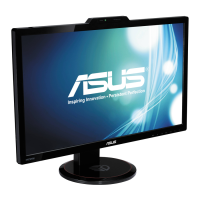
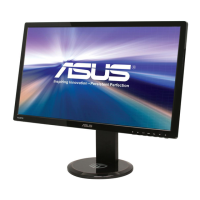
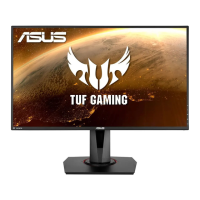
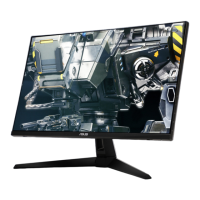
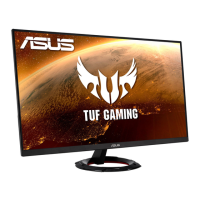
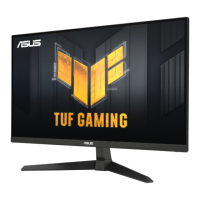
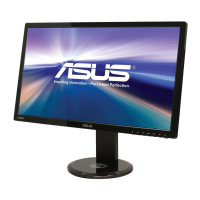
The ASUS VG278 Series LCD Monitor is a widescreen display designed to offer a crisp, broader, and brighter viewing experience. It incorporates several features to enhance user interaction and visual quality. The monitor is equipped with multiple input options, including VGA, DVI (Dual-Link), and HDMI, allowing connectivity with various devices such as PCs and HDMI-compatible equipment. For audio, it includes a 3.5mm PC Audio-In Jack and a 3.5mm Earphone-Out Jack, along with integrated stereo speakers.
One of the primary usage features of this monitor is its OSD (On-Screen Display) menu, which allows users to configure various settings to optimize their viewing experience. The OSD menu is accessed via dedicated buttons on the monitor's front panel.
The Splendid function is a key feature, offering six video preset modes: Scenery Mode, Standard Mode, Theater Mode, Game Mode, Night View Mode, and sRGB Mode. These modes are designed to enhance video quality for different types of content. For instance, Scenery Mode is optimized for photo display, Standard Mode for document editing, Theater Mode for movies, Game Mode for gaming, and Night View Mode for dark-scene content. The sRGB Mode ensures compatibility with the sRGB color space, making it ideal for document editing. Users can switch between these modes using a dedicated hotkey. It's important to note that certain adjustment functions like Contrast and Brightness may be temporarily disabled when the 3D function is active. Also, Saturation and ASCR functions are not configurable in Standard Mode, and the sRGB function is not configurable in other modes.
The Color menu in the OSD allows for detailed color adjustments. Users can control Brightness, Contrast, and Saturation, each with an adjusting range from 0 to 100. The Brightness function can also be activated via a hotkey. The Color Temp. setting offers four modes: Cool, Normal, Warm, and User Mode. In User Mode, the Red, Green, and Blue color components are individually configurable from 0 to 100. Additionally, the Skin Tone setting provides three options: Reddish, Natural, and Yellowish. A Smart View feature is available to enable clearer visibility when the screen is tilted.
The Image menu provides settings related to picture quality. Sharpness and Trace Free can be adjusted from 0 to 100, with Trace Free speeding up response time. Aspect Control allows users to select aspect ratios such as “4:3”, “Full”, or “OverScan”, though “OverScan” is only available for HDMI input. The ASCR (ASUS Smart Contrast Ratio) function can be turned on or off, but it is only available in Scenery Mode, Theater Mode, Game Mode, and Night View Mode. For VGA input, Position settings (H-Position and V-Position) can be adjusted from 0 to 100, and Focus can be adjusted from 0 to 100 to reduce horizontal and vertical line noise by separately adjusting Phase and Clock. Phase adjustment helps eliminate horizontal disturbances, while Clock controls the number of pixels scanned per horizontal sweep, ensuring image proportionality.
The Input Select function allows users to manually choose the input source from VGA, DVI, or HDMI. The VGA and DVI inputs also support an "Auto scan" function.
The System Setup menu offers various system configurations. The Splendid Demo Mode splits the screen to compare Splendid modes, available in Scenery Mode, Theater Mode, Game Mode, and Night View Mode. Volume control for speakers and earphones ranges from 0 to 100. An ECO Mode is available for power saving, though it may affect the distinction of some gray levels. The OSD Setup allows adjustment of the OSD's H-Position and V-Position (0-100), OSD Timeout (10-120 seconds), DDC/CI function (enable/disable), and Transparency of the OSD background. The monitor supports 10 languages, including English, French, German, Spanish, Italian, Dutch, Russian, Traditional Chinese, Simplified Chinese, and Japanese. An Information section displays monitor details, and an All Reset option restores default settings.
For physical adjustments, the monitor offers tilt, swivel, and height adjustment capabilities. It can tilt from -5° to +15°, swivel from left-to-right for 150°, and its height can be adjusted by approximately 100mm. Users are advised to hold the base when changing the angle to prevent the monitor from falling. It is normal for the monitor to shake slightly during angle adjustments.
The monitor is also designed for VESA wall mount compatibility. The arm can be detached for this purpose. To detach the arm, users must first disconnect power and signal cables, lower the monitor to its lowest height, insert the height adjustment lock, and then carefully place the monitor face down on a flat, clean table. A screwdriver is used to remove the four screws on the arm, allowing it to be detached. It is recommended to cover the table surface with a soft cloth to prevent damage to the monitor and to hold the stand while removing screws. The VESA wall mount kit (100 x 100 mm) is sold separately, and only UL Listed Wall Mount Brackets with a minimum weight/load of 32.4kg (Screw size: M4 x 10 mm) should be used.
Maintenance features emphasize safety and care. Before setup, users should read all documentation. To prevent fire or shock, the monitor should not be exposed to rain or moisture, and the cabinet should never be opened due to high voltages. If the power supply is broken, a qualified service technician or retailer should be contacted. All cables must be correctly connected and undamaged. Ventilation slots should not be blocked, and the monitor should not be placed near radiators or heat sources without proper ventilation. The monitor should be operated from the specified power source, and the appropriate power plug should be used. Overloading power strips and extension cords should be avoided. The monitor should be kept away from dust, humidity, and temperature extremes, and placed on a stable surface. During lightning storms or long periods of disuse, the unit should be unplugged. Objects or liquids should not be spilled into the cabinet slots. For satisfactory operation with a PC, the monitor should be used with computers having 100-240V AC receptacles. For technical problems, a qualified service technician or retailer should be contacted. The wall socket should be easily accessible.
For cleaning, the monitor should be turned off and unplugged. The surface should be cleaned with a lint-free, non-abrasive cloth, and stubborn stains can be removed with a cloth dampened with mild cleaner. Cleaners containing alcohol or acetone should be avoided, and cleaners specifically for LCDs should be used. Cleaners should never be sprayed directly on the screen to prevent dripping inside the monitor and potential electric shock.
The manual also addresses normal monitor symptoms, such as screen flickering during initial use (which can be resolved by cycling the power), slightly uneven brightness depending on the desktop pattern, and afterimages when the same image is displayed for hours (which recover slowly or by turning off the power). If the screen becomes black, flashes, or stops working, the dealer or service center should be contacted.
The troubleshooting section provides solutions for common issues, such as the power LED not being ON (check power button and cord), the power LED being amber with no screen image (check monitor/computer ON status, signal cable connection, bent pins, and try another monitor), screen image being too light or dark (adjust Contrast and Brightness via OSD), screen image bouncing or having a wave pattern (check signal cable, move electrical devices), screen image having color defects (check signal cable, perform All Reset, adjust R/G/B color settings or Color Temperature via OSD), and no sound or low sound (check audio cable, adjust volume settings on monitor and computer, ensure sound card driver is installed and activated).
 General
| Color | black |
|---|---|
| Screen Type | lcd |
| Webcam | no |
| OS Compatibility | windows |
| Screen Size | 27 inches |
| Aspect Ratio | 16:9 |
| Resolution | 1920 x 1080 |
| Refresh Rate | 144hz |
| Horizontal Viewing Angle | 170 degrees |
| Vertical Viewing Angle | 160 degrees |
| Response Time | 2 milliseconds |
| Brightness | 300 candela per square meter |
| Contrast Ratio | 50, 000, 000:1 |
| Native Resolution | full hd (1920 x 1080) |
| Built-In Speakers | yes |
| Power Consumption | 65 watts |
| Depth with Stand | 9.83 inches |
| Width with Stand | 25.3 inches |
| Net Weight without Stand | 17.64 pounds |

 To Next Page