
 Need help?
Do you have a question about the Asus VG32V Series and is the answer not in the manual?
FCC compliance statement for device operation under specific conditions.
Statement on Canadian digital apparatus compliance with radio noise limits.
Official ASUS websites for product and software updates.
Additional documents provided by the dealer, not part of the standard package.
Lists all items included in the monitor package for user verification.
Step-by-step instructions for assembling the monitor stand and base.
Guide to connecting display and power cables to the monitor ports.
Overview of monitor features and controls, including the control button functions.
Instructions for removing the monitor stand for VESA wall mounting.
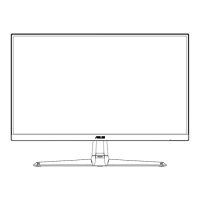
Detailed physical dimensions of the monitor in mm and inches.
Steps to navigate and reconfigure settings within the OSD menu.
Explanation of various OSD functions like GameVisual and Blue Light Filter.
Technical specifications of the VG32V model monitor.
Common problems and their possible solutions for the monitor.
List of supported PC timings for HDMI and DisplayPort inputs.
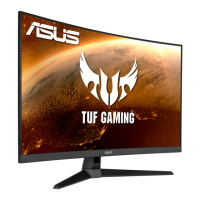
This document is a user guide for the ASUS VG32V Series LCD Monitor, providing comprehensive instructions for setup, operation, and maintenance.
The ASUS VG32V Series LCD Monitor is a widescreen display designed to offer a crisp, broader, and brighter viewing experience. It incorporates a host of features aimed at enhancing user interaction and visual quality, particularly for gaming and multimedia consumption. The monitor supports various input sources, including HDMI and DisplayPort, allowing for flexible connectivity with different devices.
The monitor features an On-Screen Display (OSD) menu, which serves as the primary interface for adjusting various image and system settings. This menu is navigated using a control button located on the bottom of the monitor, typically a 5-way joystick-like button.
A key feature of this monitor is GameVisual™ Video Intelligence Technology, which offers seven preset video modes tailored for different content types:
Another significant function is GamePlus, a toolkit that provides in-game enhancements to improve the gaming experience. This includes features like Crosshair, Timer, FPS Counter, Display Alignment, and Sniper mode. These tools are particularly useful for new gamers or those interested in FPS games, offering an advantage by providing on-screen overlays.
The monitor also includes a Blue Light Filter to reduce the emission of harmful high-energy blue light from the LED backlight. This feature is designed to alleviate eye strain and help prevent conditions like Age-Related Macular Degeneration (AMD) and Computer Vision Syndrome (CVS). The filter offers multiple levels of reduction, with Level 4 being an optimized setting compliant with TUV Low Blue Light Certification.
For image customization, the monitor provides a Color function, allowing users to adjust Brightness, Contrast, Saturation, Color Temperature (Cool, Normal, Warm, and User modes), and Skin Tone (Reddish, Natural, and Yellowish).
The Image function offers advanced controls for picture quality, including:
The Input Select function allows users to choose between HDMI-1, HDMI-2, or DisplayPort input signals.
Finally, the System Setup menu provides access to various system configurations, including GameVisual Demo Mode, Volume control, ECO Mode for power saving, OSD Setup (Timeout, DDC/CI, Transparency), Language selection, Key Lock, Information display, Power Indicator control, Power Key Lock, and an All Reset option to revert settings to factory defaults. The MyFavorite function allows users to load and save their preferred monitor settings.
The monitor is designed for ease of assembly and adjustment. To assemble, the monitor arm and base are connected using a bundled screw, with a recommendation to keep the monitor in its packaging during this process to prevent damage.
Physical adjustments include:
For VESA wall mounting, the detachable stand can be removed by unscrewing four screws at the rear of the monitor, allowing it to be mounted on a compatible wall bracket (purchased separately).
The OSD menu is intuitive, with navigation primarily through the 5-way control button. Users can press the center button to activate the OSD, use up/down buttons to toggle options, and left/right buttons to adjust parameters or move between menus. The "X" button serves to exit the OSD menu. Hotkeys are provided for quick access to GameVisual and GamePlus functions.
The GamePlus features, such as Crosshair, Timer, FPS Counter, and Display Alignment, can be activated and customized through the GamePlus main menu. Sniper mode requires HDR to be disabled on the device.
The Blue Light Filter is a user-selectable option, with different levels offering varying degrees of blue light reduction. It's important to note that activating the Blue Light Filter may automatically import default settings for Racing Mode, and certain levels may restrict the configurability of the Brightness function.
The user guide emphasizes several key aspects for maintaining the monitor and ensuring its longevity and safe operation:
The manual includes a troubleshooting section to address common issues:
The document also highlights normal symptoms with the monitor, such as screen flickering during initial use (which can be resolved by turning the power off and on), slightly uneven brightness depending on the desktop pattern, and afterimages if the same image is displayed for extended periods (which will recover slowly or by turning off the monitor). It explicitly states that if the screen becomes black, flashes, or stops working, users should contact their dealer or service center and not attempt repairs themselves.
 General
| Screen Size | 31.5 inches |
|---|---|
| Panel Type | VA |
| Response Time | 1 ms (MPRT) |
| Aspect Ratio | 16:9 |
| Contrast Ratio | 3000:1 |
| Curvature | 1800R |
| Viewing Angle | 178°/178° |
| Color Support | 16.7 Million |
| VESA Mount | 100 x 100 mm |
| Resolution | 2560 x 1440 |
| Refresh Rate | 144Hz |
| Adaptive Sync | AMD FreeSync Premium |
| Connectivity | DisplayPort 1.2, HDMI 2.0 x 2 |
| Color Gamut | 90% DCI-P3 |
| Speakers | 2 x 2W |



 To Next Page