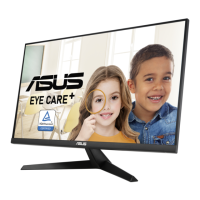
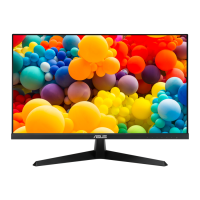
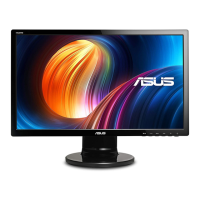
The ASUS VY279 Series LCD Monitor is a widescreen display designed to provide a crisp, broader, and brighter viewing experience with a host of features. It functions as a visual output device for computers, offering various settings and modes to enhance user comfort and optimize display quality for different tasks.
Function Description
The primary function of the ASUS VY279 Series LCD Monitor is to display visual information from a connected computer. It supports both HDMI and VGA input signals, allowing compatibility with a wide range of devices. The monitor features an On-Screen Display (OSD) menu, which provides extensive control over image settings, color adjustments, and system configurations.
Key functional aspects include:
- Splendid Modes: The monitor offers eight pre-set Splendid modes (Standard, sRGB, Scenery, Theater, Game, Night View, Reading, and Darkroom) to optimize the display for specific content types. These modes automatically adjust various parameters like saturation, color temperature, sharpness, and contrast to provide the best visual experience for tasks such as document editing, photo viewing, movie watching, and gaming.
- EyeCare Features: Designed to reduce eye strain during prolonged use, the monitor includes several EyeCare functions. The Blue Light Filter allows users to adjust the level of blue light emitted, with higher levels reducing blue light scattering. The Rest Reminder function prompts users to take breaks after a set working time, displaying a pop-up reminder on the screen. Color Augmentation enhances color perception, while EyeCheck provides three patterns (Snellen Chart, Amsler Grid, and Astigmatism) to help users check their vision and identify potential eye issues.
- Color Adjustments: Users can fine-tune the display's color output through settings like Brightness, Contrast, Saturation, Color Temp., and Skin Tone. The Color Temp. offers Cool, Normal, Warm, and User modes, while Skin Tone provides Reddish, Natural, and Yellowish options. In User Mode, individual Red, Green, and Blue color levels can be adjusted.
- Image Enhancements: The monitor incorporates several technologies to improve image quality. Sharpness adjusts picture clarity, while Trace Free speeds up response time using Over Drive technology. Aspect Control allows users to switch between "Full" and "4:3" aspect ratios. VividPixel enhances visual clarity and detail. ASCR (ASUS Smart Contrast Ratio) enables dynamic contrast ratio adjustments. Motion Sync reduces motion blur and ghosting during fast-moving scenes, though it may cause slight screen flashing and brightness reduction. AMD FreeSync dynamically adjusts the display refresh rate to reduce stuttering and tearing with compatible graphics cards. Shadow Boost enhances dark tones in images, making objects in dark scenes more visible. For VGA input, Position, Focus, and Auto Adjust functions are available to optimize horizontal and vertical positioning, reduce line noise, and automatically adjust image parameters.
- GamePlus Functions: Aimed at gamers, GamePlus provides a toolkit to enhance the gaming environment. It includes a Crosshair overlay with multiple options, a Timer to track elapsed time, an FPS Counter to display frames per second, and Display Alignment tools. These features can be activated and moved using the monitor's control buttons.
- QuickFit: This feature offers three patterns (Grid, Paper size, and Photo size) to help designers and users organize content and layouts. Grid patterns assist in achieving consistent look and feel, Paper size allows viewing documents in real size (A4, B5, Letter), and Photo size enables photographers to accurately view and edit photos in their actual dimensions (8x10, 5x7, 4x6, 3x5, 2x2).
- System Settings: The monitor's settings menu allows users to configure various system parameters, including Splendid Demo Mode activation, Volume control, OSD Timeout, DDC/CI (Display Data Channel/Command Interface), and Transparency of the OSD screen. It also supports multiple OSD languages and a Key Lock function to disable all key functions. An Information section displays monitor details, and an All Reset option reverts all settings to factory defaults.
- Shortcut Keys: Two customizable shortcut keys can be assigned to frequently used functions such as Blue Light Filter, Splendid modes, Brightness, Auto Adjust, Contrast, Signal input, Color Temp, Volume, GamePlus, QuickFit, Rest Reminder, Color Augmentation, or EyeCheck.
Usage Features
The ASUS VY279 Series LCD Monitor is designed for user-friendly operation with intuitive controls and flexible adjustments.
- Easy Assembly: The monitor stand and base are designed for simple assembly, requiring users to place the display flat, attach the base to the arm, and secure it with a screw.
- Ergonomic Adjustments: The monitor's angle can be adjusted from +23° to -5°, allowing users to find the most comfortable viewing position.
- Intuitive Controls: A single control button on the back of the monitor serves as a multi-directional joystick for navigating the OSD menu. Pressing the central button activates the OSD, while moving it up, down, left, or right allows users to toggle between options, select items, adjust parameters, and exit menus. Dedicated shortcut keys are also available for quick access to Signal input and Brightness settings. The Down key also functions as a Key Lock shortcut when pressed and held for 5 seconds, and can turn on the monitor when it's off.
- Multiple Input Options: The monitor supports both HDMI and VGA inputs, providing versatility for connecting to different computers and devices. An earphone-out port is also included for audio output.
- VESA Mount Compatibility: The detachable stand allows the monitor to be mounted on a VESA-compatible wall mount (100 x 100 mm), offering flexibility in placement and saving desk space.
- Power Indicator: A clear power indicator light (white for ON, amber for Standby mode, OFF when powered off) provides visual feedback on the monitor's status.
- Power Saving Modes: The ECO Mode helps reduce power consumption, and the monitor features low power saving and power off modes (<0.5W).
Maintenance Features
Proper care and maintenance are essential to ensure the longevity and optimal performance of the ASUS VY279 Series LCD Monitor.
- Cleaning Instructions: Before cleaning, the monitor should be turned off and unplugged. The surface should be cleaned with a lint-free, non-abrasive cloth. Stubborn stains can be removed with a cloth dampened with a mild cleaner. Users are advised to avoid cleaners containing alcohol or acetone and to never spray cleaner directly onto the screen to prevent damage or electric shock.
- Environmental Considerations: The monitor should be protected from dust, humidity, and extreme temperatures. It should not be placed in areas where it may get wet and should always be on a stable surface. Adequate ventilation is crucial, so slots and openings on the cabinet should not be blocked, and the monitor should not be placed near radiators or heat sources without proper ventilation.
- Power Management: To protect against power surges, the unit should be unplugged during lightning storms or when not in use for extended periods. Overloading power strips and extension cords should be avoided to prevent fire or electric shock.
- Cable Management: Before lifting or repositioning the monitor, it is recommended to disconnect all cables and the power cord. When connecting cables, ensure they are properly seated and that no pins are bent.
- Troubleshooting Guide: The manual includes a troubleshooting section (FAQ) to help users diagnose and resolve common issues such as the power LED not turning on, no screen image, image quality problems (too light/dark, bouncing, color defects), and audio issues (no sound or low sound). This guide provides possible solutions, encouraging users to check cable connections, adjust settings, and inspect components.
- Professional Service: Users are advised not to attempt to open the monitor cabinet or repair the screen themselves due to dangerous high voltages. If the power supply is broken or technical problems persist, contacting a qualified service technician or retailer is recommended. The manual also provides information on where to find local service centers and contacts.
- Replaceable Parts: The manual mentions that power cord specifications are provided and that users can obtain qualified replaceable parts from local service networks.
- Eye Strain Prevention: The manual offers recommendations to alleviate eye strain, including taking regular breaks, focusing on distant objects periodically, and performing eye exercises. It also highlights the benefit of the blue light filter in reducing harmful blue light.

 Need help?
 General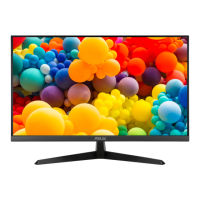

 To Next Page