RUNNING YOUR ATLAS VIA WIRELESS REMOTE
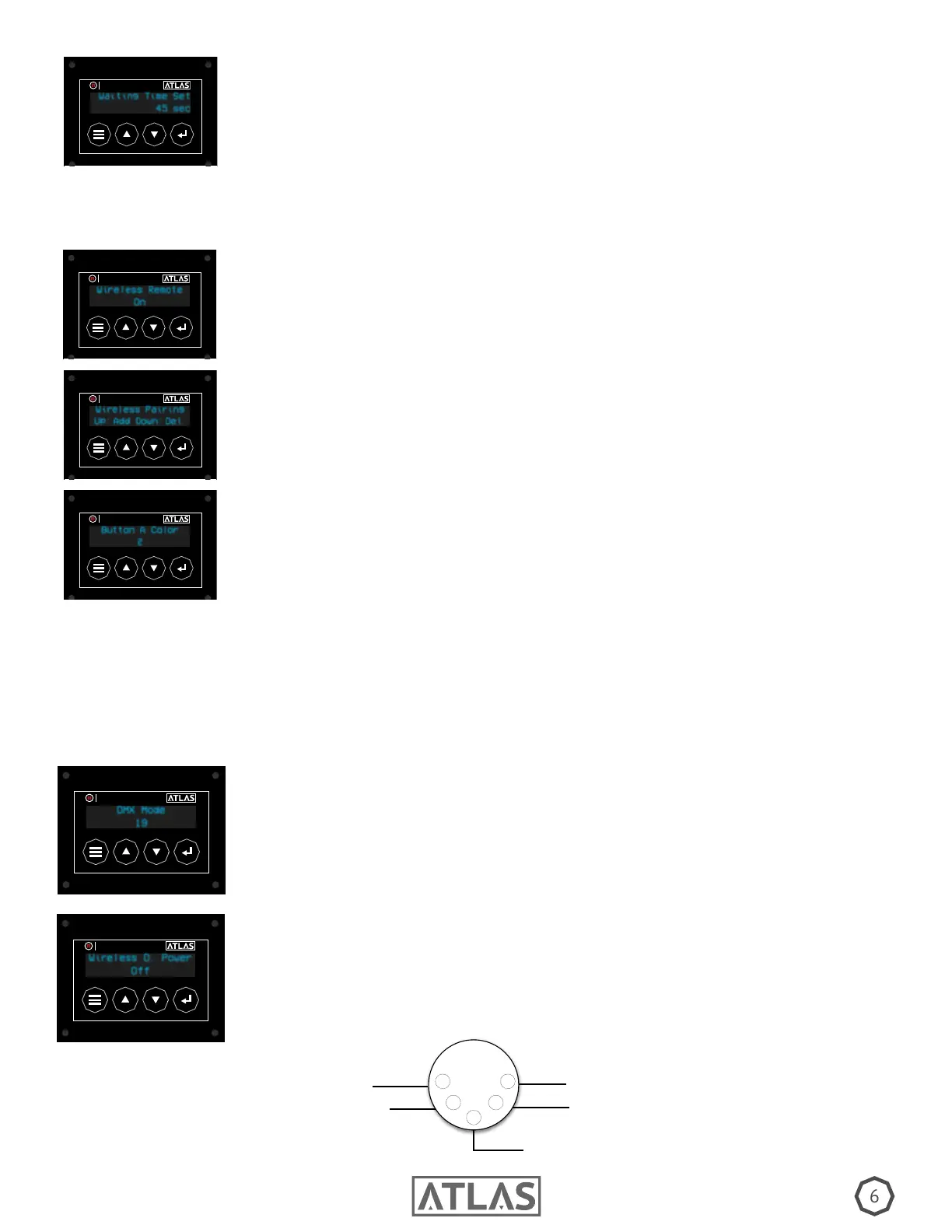
Scroll through the settings to Wireless Remote and Select “ON”
Wireless Remote
On
TIMER
MASTER FX
Once the Wireless Remote option is on, scroll through the settings to “Wireless Pairing” and press
the Up arrow to link the machine with your remote.
Wireless Pairing
Up: Add Down: Del.
TIMER
MASTER FX
Once your remote is linked, you may select the color and options of each button. Conrm your
answer by hitting enter.
Button A Color
2
TIMER
MASTER FX
In order to run your Atlas via the optional Wireless Remote, follow the directions listed below.
NOTE: When using the remote, the duration of fog is determined by the Burst Mode.
If Burst mode is “Off”, press and hold remote button for duration of fog.
Waiting Time Set: The interval inbetween fog output. Select up to 360 Seconds.
Waiting Time Set
45 sec
TIMER
MASTER FX
RUNNING YOUR ATLAS VIA DMX
Begin by Selecting your desired channel mode, then select the channel you would like to use. In
10 Channel mode, all 3 Zones are the same color. 20 Channel mode allows you to mix colors by
Zones. (See below for pin layout)
DMX Mode
19
TIMER
MASTER FX
The Atlas is equipped with 5 Pin DMX and utilizes 10 or 20 channels.
(Channel Chart can be found on Page 12). The Atlas also has optional Wireless DMX capabilities.
W-DMX: If you’re operating via the optional wireless DMX, turn the power on for wireless DMX
attachments by going through the settings and selecting “On.”
NOTE: The Mystic utilizes wireless DMX protocol from Wireless Solution.
Wireless D. Power
Off
TIMER
MASTER FX
1
2
3
4
5
Ground
Data +
Data -
Unused
Unused
PIN LAYOUT


 To Next Page
 Loading...