PIP – BEST PRACTICE
GUIDE
Before you can start using Picture-in-Picture on the ZATO CONNECT, ensure that it’s running
at least firmware 10.03.01, as this is the version where PiP was introduced to its feature set.!
The first step in setting up your ZATO CONNECT for a PiP workflow is selecting your main
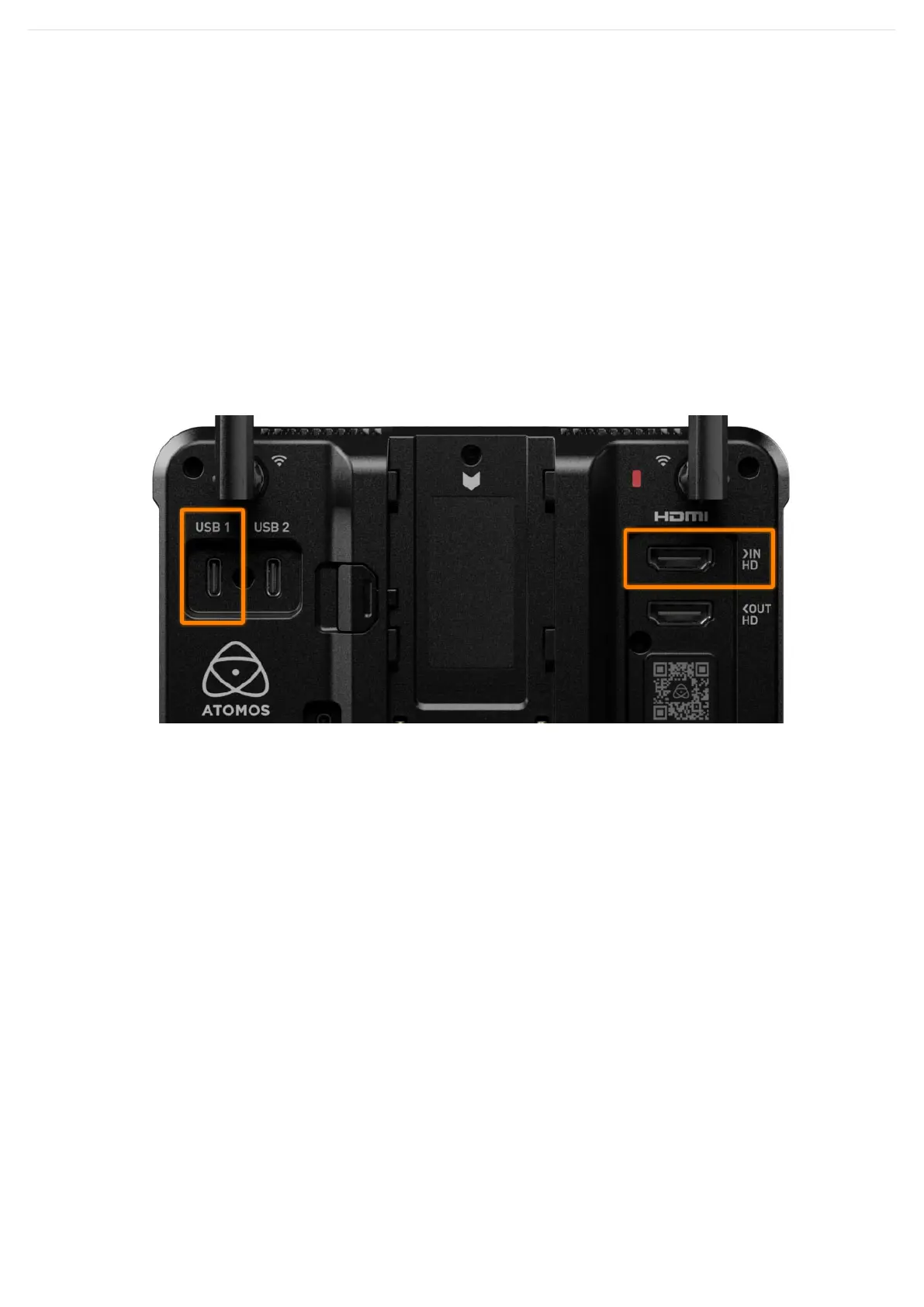
input source that the PiP overlay will sit on top of. For this, connect either an HDMI device to
the ZATO’s HDMI Input or a USB UVC device to its USB-1 port.
Note:!USB-2 is a multi-purpose port that can only be used with the included USB-C to
Ethernet adapter, or as a USB UVC output.
Next, navigate to the Input menu and select either HDMI or USB, depending on the device
you previously connected to the ZATO. Immediately after switching to your source of choice,
the signal will get displayed in the background.



 To Next Page