Preface
Thank you for buying the Speed Wi-Fi NEXT W03 (simply called “the product” from here on).
Before using the product, be sure to read the “Quick Start Guide” (this manual) and “Notes on usage” to
ensure correct use. After reading, store the manuals in a safe place for future reference.
“Quick Start Guide” (this manual) describes basic operations and settings of major functions.
As an instruction manual of the product, refer to the supplied “Quick Start Guide” (this manual), “Notes on
usage”, or “
取扱説明書詳細版
(Full Instruction Manual)” (Japanese) available on the au homepage. In this
manual, “Instruction Manual” includes “Quick Start Guide” (this manual), “Notes on usage”, and “
取扱説明書
詳細版
(Full Instruction Manual)” (Japanese).
・
“
取扱説明書詳細版
(Full Instruction Manual)” (Japanese) is also installed in the product.
Connect the product to a PC, etc. via wireless LAN (Wi-Fi
®
) or a specified microUSB cable
→
Activate the web
browser
→
Enter “http://speedwifi-next.home”
→
In “
言語
(Language)” list, select “English”
→
Login
→
“Help”
→
“Please refer to the manual”
*For instructions on how to log in, refer to “Activating Speed Wi-Fi NEXT setting tool” in this manual.
・
“Instruction Manual” is available on the au homepage.
http://www.au.kddi.com/support/mobile/guide/manual/
・
In this manual, descriptions are written on the assumption that you are skilled in basic operations of Windows/
Mac PCs or each game console. For operations of PC or each game console, refer to the manual of the PC or
the game console.
・
Illustrations and screens shown in this manual may look different from the actual ones. In some cases, minor
details or a part of a screen may be omitted. In some cases, minor details or a part of a screen may be
omitted.
・
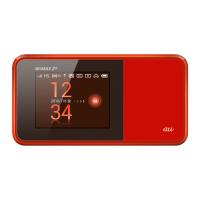
In this manual, explanations for body color “Orange” are given as examples.
Packaged items
Before your start using the product, make sure that you have all the following packaged with the product.
●microUSB cable (sample) ●保証書(本体)(Warranty)
(for main unit) (Japanese)
●Wireless LAN
Initialization Sticker
●はじめてガイド
(Quick Start Guide) (Japanese)
●ご利用にあたっての注意事項
(Notes on usage) (Japanese)
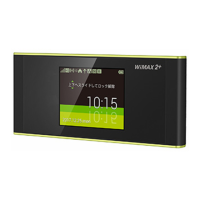
● Speed Wi-Fi NEXT
W03 main unit
*Keep the included accessories including warranty at hand.
* To charge using the included microUSB cable (sample), use a PC.
* An AC adapter is not included in the package. Purchase a specified charger (sold separately). For details,
refer to “Introduction of related accessories” in this manual.
When using the product
・
Before using the product, be sure to read the “Safety Precautions (Observe Strictly)” of “Notes on usage” to
ensure correct use.
・
Before you assume that the product is malfunctioning, check for possible remedies in “Troubleshooting” in this
manual.
・
During communication, please keep the device farther than 1.5 cm away from your body without including
any metals.
・
Communication is not possible even inside the service area in places where the signal does not reach
(e.g. tunnels and basements). Also, communication is sometimes not possible in poor reception areas.
Communication is sometimes interrupted if you move into a poor reception areas during communications.
・
Since the product uses radio waves, the possibility of communication intercepts by third parties cannot be
eliminated (Though WiMAX 2+, LTE and UMTS system has highly secure confidential communication features).
・
The product supports the international roaming service. Related network services explained in this manual
vary by region or the service.
・
Since the product is a radio station under the Radio Law, you may be asked to temporarily submit the product
for inspection in accordance with the Radio Law.
・
The IMEI information of the product is automatically sent to KDDI CORPORATION for maintenance and
monitoring operational status.
・
Before using the product overseas, check the relevant laws and regulations of the country/region you visit.
・
The Company is not liable for any damages arising from earthquakes, lightning, storms, floods or other natural
disasters, as well as fires, actions by third parties, other accidents, intentional, mistaken, or incorrect use by the
customer, or use under other unusual conditions outside the responsibility of the Company.
・
The Company is not liable for any incidental damages (change/disappearance of described content, loss of
business income, disruption of business, etc.) arising from use of or inability to use the product.
・
The Company is not liable for any damages arising from failure to observe the described content of the “Instruction
Manual”.
・
The Company is not liable for any damages arising, for example, from malfunction caused by combination with
connected devices or software not related to the Company.
・
Settings etc. may sometimes be altered or lost due to faults, repair or other handling of the product. The Company
is not liable for any damage or lost income resulting from recovery of these data.
・
It is recommended you keep a copy of important data on your computer’s hard disk, etc. Whatever the cause of
the defect or malfunction may be, the Company assumes no responsibility for alteration or loss of saved data.
・
You can use the product under the WiMAX 2+ network environment. However, UQ Communications Inc., is not
liable for the quality of the product.
・
Contents registered in the product might be altered or lost in an accident, fault, repair or mishandling. Be sure to
keep a copy of important contents. Note that Company assumes no responsibility for any damages or lost profits
resulting from altered or lost contents.
・
The product uses liquid crystal for its display. The display response speed may become slow when the ambient
temperature is low, which is due to the property of liquid crystal and not a malfunction. The display response
speed returns to normal at room temperature.
・
Although the display used on the product is made using high-precision technology, some pixels (dots) might be lit
or out at all times. This is not a malfunction.
・
Do not discard the product together with regular trash. Please cooperate in the collection of the product when it
is no longer needed to protect the environment and effectively use resources. Old products (including optional
accessories) are collected at au shops and other places.
* “The Company” as appears in the manual refers to the following companies:
Sold by: KDDI CORPORATION·OKINAWA CELLULAR TELEPHONE COMPANY
Imported by: HUAWEI Technologies Japan K.K.
Manufactured by: HUAWEI TECHNOLOGIES CO., LTD
* Reproduction of the content of this manual in part or in whole is prohibited.
* The content of this manual is subject to change without notice.
* Every effort has been made in the preparation of this manual. Should you notice any unclear points, omissions,
etc., feel free to contact us.
Mobile Device Etiquette
■
Use of the product is not allowed in the following places!
・
Use of electric devices on board is restricted. Follow the instructions of each airline company.
■
Make sure where you are when using!
・
Use the product in a place where it cannot block foot or traffic in a street.
・
It is extremely dangerous to walk while looking at the screen of the product. Do not operate the product while
walking or by stopping suddenly.
・
Move to a place where you do not disturb others while you are in shinkansen, a hotel lobby, etc.
・
In a crowd such as crowded train, there may be people with a cardiac pacemaker nearby. Turn off the
product beforehand.
・
When a medical institution has laid down designated areas where use of the product is prohibited or is not
allowed to be brought in, abide by the instructions of that medical institution.
Factory default settings
■
Wireless LAN Initialization Sticker
For connecting the product with wireless LAN (Wi-Fi
®
)
devices such as
PCs or game consoles
(
wireless LAN (Wi-Fi
®
) devices
), entering a network name (SSID) and security key (password)
is required.
For connecting to wireless LAN (Wi-Fi
®
) devices
, see “Connecting with
wireless
LAN (Wi-Fi
®
) using
Easy settings” in this manual.
Network name (SSID) and security key (password) are
printed on the Wireless LAN Initialization Sticker (by
default). The sticker is needed to connect the product
and
wireless LAN (Wi-Fi
®
)
devices by default or when you reset
the product. Keep it for example by attaching on the right
section of the product and refer if it is necessary.
Paste the Wireless
LAN Initialization
Sticker and store it
in a safe place.
■
To initialize the settings (reset)
With the power of the product turned on, press Reset button for over approximately five
seconds with a fine-tipped object to initialize the settings.
* If you reset the product, your settings will be all cleared. Please be careful to use this function.
Before using the product
You can perform data communication via WiMAX 2+, LTE or UMTS system with the product.
Select the following communication modes to use.
• High Speed Mode: Connects to WiMAX 2+ network
• High Speed Plus Area Mode: Connects to WiMAX 2+ network or LTE network
■
ECO mode
Make settings for performance. Turn on ECO mode to use the following modes.
• High performance
Maximizes performance. It uses carrier aggregation.
• Normal
Carrier aggregation is used when the battery level is sufficient, but not used when
the battery level is low. The mode switches having an appropriate balance between
performance and lasting battery when no communication status continues for the fixed time.
• Battery save
Reduces battery consumption to save duration of the battery. It does not use carrier
aggregation.
*
Even if “High performance” or “Normal” is set, carrier aggregation may not be available
depending on congestion situation of the base station etc.
What you can do with Speed Wi-Fi NEXT W03
The product can connect up to ten
wireless LAN (Wi-Fi
®
)
devices such as PCs and game
consoles
via wireless LAN (Wi-Fi
®
)
and also connect a PC, etc. with a specified microUSB
cable. Also the data communication via Internet connection using WiMAX 2+, LTE or UMTS
system is available (best effort*
1
) from connected devices through the product.
*1: Communication speed may not reach the maximum value depending on connection environment.
Also, with some devices or game consoles etc., communication or online matchup games may not
operated correctly.
* The product automatically determines most suitable network at that time to connect.
■
Connecting via wireless LAN (Wi-Fi
®
)
How to connect PCs or game consoles etc.
via wireless LAN (Wi-Fi
®
) is described in this
manual.
■
Connecting LAN cable to the
cradle (sold separately) for
communication
Connect a commercially available LAN
cable to W03 Cradle (HWD34PUA) (sold
separately) for LAN connection or Internet
access while charging.
■
International roaming
You can perform data communication using
LTE/UMTS network overseas.
■
Connecting with microUSB cable
* Before connecting via USB, install Speed
Wi-Fi NEXT setting tool into a PC. Installation
can be performed when the product is
connected to a PC.
* Wireless LAN (Wi-Fi
®
)
and USB connection
can be used simultaneously. Up to
11 devices can be connected in total.
Operating Environment for Wireless LAN (Wi-Fi
®
)/USB Connection
The operating environment for
wireless LAN (Wi-Fi
®
)
/USB connection with the product are as
follows. (as of April of 2016)
■
Compatible devices
PCs, iPhone, iPod touch, iPad, iPad mini, smartphones, game consoles, etc. compatible
with
IEEE802.11a/b/g/n/ac
wireless LAN (Wi-Fi
®
) standard
Windows/Mac PCs with USB port
■
Compatible OS (PCs)
Windows Vista (32-bit/64-bit)
Windows 7 (32-bit/64-bit)
Windows 8 (32-bit/64-bit)
Windows 8.1 (32-bit/64-bit)
Windows 10 (32-bit/64-bit)
Mac OS X 10.5 (32-bit/64-bit)
Mac OS X 10.6 (32-bit/64-bit)
Mac OS X 10.7 (32-bit/64-bit)
Mac OS X 10.8 (64-bit)
Mac OS X 10.9 (64-bit)
Mac OS X 10.10 (64-bit)
Mac OS X 10.11 (64-bit)
For each OS, Japanese version/English version is supported.
*For Windows RT, USB connection is not supported.
■
Memory
Windows Vista: 1 GB or more is recommended (512 MB or more is required)
Windows 7: 1 GB or more is required (32-bit) 2 GB or more is required (64-bit)
Windows 8/8.1: 2 GB or more is required
Windows 10: 1 GB or more is required (32-bit) 2 GB or more is required (64-bit)
Mac OS X: 512 MB or more is recommended (256 MB or more is required)
■
Hard Disk
100 MB or more is recommended (50 MB or more free space is required)
Windows 8/8.1: 2 GB or more free space is required
Windows 10: 16GB or more free space is required (32-bit) 20GB or more free space is
required (64-bit)
■
Screen resolution
1024 x 768 or more is recommended
■
USB port
USB 2.0 or USB 3.0 (except USB ports by PC manufacturer's specification)
■
Compatible browser (for Speed Wi-Fi NEXT setting tool)
Microsoft Internet Explorer 8.0 - 11.0
Microsoft Edge
Safari 6.0 - 9.0
Firefox 24.0 - 44
Chrome 10 - 48
Opera 11 - 35
iOS 6.0 - 9.2 standard browser (compatible with Speed Wi-Fi NEXT setting tool for
smartphones)
Android 4.1, 4.2, 4.3, 4.4, 5.0, 5.1, 6.0 standard browser/Chrome (compatible with Speed
Wi-Fi NEXT setting tool for smartphones)
Use outside these environments may affect performance. Operating environment (hardware,
connected peripherals, installed applications, etc.) may also affect performance. Operation
may not be performed properly depending on web browser settings such as proxy or security
in Internet options.
*
For PC support, OS version upgrade information, etc., see corresponding manufacturer’s
manual and follow the instructions.
Names and functions of parts
*
Battery is built into the
product and not removable
by customers.
①
Display panel (Touch panel)
Status of the product is displayed.
Directly touch the display to operate.
②
NFC scanning area
Use NFC function to establish a Wi-Fi
®
connection
③
External connection terminal (microUSB)
④
Reset button
Initialize the
settings.
⑤
Power button
Turn on/off the
power, restart, turn the
display on/off, etc.
⑥
Micro IC Card slot
Attach au Micro IC Card (LTE). For details,
refer to
“Attaching au Micro IC Card (LTE)”
in this manual.
■
Button operation
Power button
Operation Function Description
Press for over
approximately three
seconds
Power on When the power is turned off, press to turn the power
on.
Press for over
approximately one
second
Power off/restart When the power is turned on, select “Power off”/
“Reboot”.
Press (within
approximately one
second)
Turn the display on/off
Return from Wi-Fi auto
sleep function*
Press to turn off the display when the power is on.
Press to turn on the display when the display off; the
unlock screen appears.
When wireless LAN (Wi-Fi
®
) is disconnected due to
Wi-Fi auto sleep function*, press to connect again.
Press for over
approximately ten
seconds
Force shutdown Shut down the product forcibly when the product gets
inoperative, etc.
*: When data communication is not performed for the set time duration,
deactivate wireless LAN
(Wi-Fi
®
) function to save the internal battery power.
Reset button
Operation Function Description
Press for over
approximately five
seconds
Initialize the settings
With the power of the product turned on, press Reset
button with a fine-tipped object.
Alternatively, you can reset the product from Speed Wi-Fi
NEXT setting tool.
Attaching au Micro IC Card (LTE)
Your phone number etc. is recorded in the au Micro IC Card
(LTE).
The product is compliant with au Micro IC Card (LTE)
.
*
Do not insert IC Card with a conversion adapter.
*
Although the phone number is stored as customer information,
phone call etc. is not available with the product.
* Note the following points, otherwise handling the au Micro IC Card (LTE) may cause
malfunction or damage.
・
Do not touch the IC (metal) part of the au Micro IC Card (LTE).
・
Insert in the correct direction.
・
Do not force to attach or remove.
Before attaching the au Micro IC Card (LTE), make sure to turn the product off. au Micro IC
Card (LTE) is not recognized on the product if it is attached when the product turned on.
Remove microUSB cable if it is connected.
Open Micro IC Card slot cover
Put your finger (nail) on the concave part
on the side of the cover and pull in the
direction of the arrow.
Concave part
Insert au Micro IC Card (LTE) into
the slot
With the IC (metal) side of the au Micro
IC Card (LTE) facing up, confirm the
orientation with the notch shown, then
insert the au Micro IC Card (LTE) until it
clicks.
Align the Micro IC Card slot cover
with the slot
3
4
Press the Micro IC Card slot cover
lightly
IC (metal) part
au Micro IC Card(LTE)
Charging
■
Charging with the specified AC Adapter (sold separately)
Charging with Common AC Adapter 05 (sold separately) is explained.
Connect the microUSB plug of Common
AC Adapter 05 (sold separately) to the
external connection terminal of the
product
Make sure the form of the connector plug and
insert it straight. Firmly insert it all the way.
Insert the power plug of Common AC
Adapter 05 (sold separately) into a 100 V
AC outlet
Common AC Adapter 05
(sold separately)
When charging is complete, pull out the microUSB cable of Common AC
Adapter 05 (sold separately) straight from the product
Disconnect the power plug of Common AC Adapter 05 (sold separately) from the
product
Pull out the power plug of Common AC Adapter 05 (sold separately) from the outlet.
■
Charging with a PC
Connect a specified microUSB cable to the external connection terminal of
the product
Make sure the form of the connector plug and insert it straight. Firmly insert it all the way.
Connect the connector of the specified microUSB cable to the USB port of a PC
Make sure the form of the connector plug and insert it straight.
When charging is complete, pull out the microUSB cable straight from the
product
• When the product is powered on, make sure that sending/receiving data is finished before removing
the product.
■
Charging with W03 Cradle (HWD34PUA) (sold separately) and specified AC
Adapter (sold separately)
Connect the microUSB plug of Common AC Adapter 05 (sold separately) to
the microUSB power terminal of the cradle (sold separately)
Make sure the form of the connector plug and insert it straight.
Insert the power plug of Common AC Adapter 05 (sold separately) to a 100V
AC outlet
The power indicator of the cradle (sold separately) turns on.
Connect the product with the charging microUSB connector of the cradle (sold
separately)
① ② ③ ④ ⑤ ⑥ ⑦ ⑧
⑨
⑩
⑫
⑪
①
Signal strength
・
: WiMAX 2+, LTE or UMTS system
・
: No au Micro IC Card (LTE), or
invalid IC card
・
圏外
: Out of service area
・
: During roaming
・
: Cradle (sold separately)
connected in AP mode
・
(animation) : Line connecting
②
Communication mode
・
HS: High Speed Mode
Connects to WiMAX 2+ network
・
HS+A: High Speed Plus Area Mode
*
1
Connects to WiMAX 2+
network or LTE network
③
Number of connected wireless LAN
(Wi-Fi
®
) devices
④
Software update notification
・
: The latest software update available
⑤
Frequency band
・
Turn on: 5 GHz band in use
・
Turn off: 2.4 GHz band in use
⑥
Bridge mode
・
Turn on: On
・
Turn off: Off
⑦
Indoor use indicator
When this indicator is turned on, use the
product indoors.
・
Turn on: Connected in wireless LAN (Wi-Fi
®
)
5 GHz band W52 channel
・
Turn off: Connected in wireless LAN (Wi-Fi
®
)
5 GHz W56 channel or wireless LAN
(Wi-Fi
®
) 2.4 GHz band
・
(Blinking): DFS checking
⑧
Battery level
・
: Sufficient
・
(animation): Charging
⑨
Data amount up to now/Maximum data
amount set by communication counter
*
2
・
1m: Display the data amount counter for one
month
・
3d : Display the data amount for three days
until today.
⑩
Data communication status
・
: Receiving
・
: Sending
⑪
Touch menu icon
Tap to make the settings for each function.
⑫
Current screen position
Shows which of Home screen 1 or 2 is
displayed.
・
Home screen 1: About/WAN/Easy settings/
Data count
・
Home screen 2: Timer settings/ECO settings/
Help/Settings
*1: Switching to High Speed Plus Area Mode, the
predetermined additional fee is charged separately.
*2: In one month display with notification setting for data
amount counter enabled, the bar color changes if the
data amount exceeds the specified value. In three
days display, the bar color changes if the data amount
until the previous day exceeds the specified value.
Turning the power on/off/restarting
Press the power button for over approximately
three seconds to turn the power on
The power is on and the unlock screen is displayed.
• When the power is turned on, the product automatically connects
to the Internet. Also, the wireless LAN (Wi-Fi
®
) function is turned
on and appears.
• When you power on the product for the first time, “
本製品へよう
こそ!
(Welcome!)” screen appears. To change the language to
English, refer to “Switching to English display” in this manual.
Slide the screen from the left to the right
The screen is unlocked and the Home screen is displayed.
To turn the power off, press the power button for over approximately one
second
→
Tap “Power off”
Tap “Reboot” to restart the product.
■
Force shutdown
Press the power button for over approximately ten seconds to shut down forcibly. Force
shutdown turns off and on again when the product gets inoperative, etc.
Switching to English display
From the Home screen, tap “
設定
(Settings)”
→
“
システム設定
(Tools)”
→
“
言語
(Language)”
→
Select “English”
→
Tap
Basic operation
■
Using the touch panel
Tap
Gently touch the screen
and then immediately
release your finger.
Flick (Swipe)
Operate the screen by quickly
moving (flicking) your finger up/
down or right/left.
Drag
Keep touching a slider
etc., trace it to the desired
direction.
Slide
Keep touching the screen and
trace it to the desired direction to
move over.
■
Screen display
The following information is shown on the Home screen.
Quick Start Guide
■
Notification by animation/message
Communication status and information of failure are notified by animation or message.
Display Description
⇒ ⇒ ⇒ ⇒
(animation)
Charging (displayed when the power is off).
PIN lock* PIN code of the au Micro IC Card (LTE) is activated.
Insert au Micro IC card and reboot device* au Micro IC Card (LTE) is not inserted.
*: Displayed on the unlock screen when powering on the product.
■
Learning basic operation
Frequently used operations are described.
・
To select displayed item or icon, directly tap the screen.
・
When is displayed at the top of the screen, tap to fix selection/entry.
When
is displayed, tap it to cancel selection/entry and return to the previous screen.
・
When is displayed at the top of the screen, tap to return to the previous screen.
Tap
to return to the Home screen.
・
When (ON)/ (OFF: Gray) switch is displayed at the side of each setting item, tap the
switch to turn on/off the setting.
When the slide switch is displayed, slide the switch to turn on/off settings.
-
: Setting is on
-
(Gray): Setting is off


 To Next Page
 Need help?
 General