EasyManua.ls Logo

aubor MY04 - User Manual

aubor MY04
24 pages
Print Icon
To Next Page IconTo Next Page
Loading...
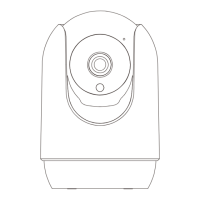
SECURITY CAMERA
Quick Installation Guide
I ndoor
Thank you for choosing our security camera. Please read the quick
installation guide carefully before using and keep it in good conditions.
Question and Answer IconNeed help?

Do you have a question about the aubor MY04 and is the answer not in the manual?

Summary

Product Packing List

Appearance Brief

Product Instructions

APP Download and Installation

Download and install the CloudEdge app from App Store or Google Play.

APP Permission Settings

Grant necessary permissions for CloudEdge app to function correctly.

Accounts Registration

Create an account by providing email, nickname, and password.

Device Adding

Steps to add the camera to the app via WiFi connection.

Function Overview

How to Store Recordings

Manual Recording

Record video clips manually via the live view interface.

Memory Card Storage

Supports micro SD cards up to 128GB for local storage.

Cloud Storage Plan

Utilize cloud storage services after payment is completed.

Video Playback

Playback from SD Card

Access recorded videos from the SD card via the 'History-Alert' icon.

Playback from Cloud

View recorded videos stored in the cloud via the 'Cloud-Alert' icon.

Camera Sharing

Device Sharing Process

Share camera access with family or friends using QR code or account entry.

Alarm Management

Crying Detection

Enable 'Crying Detection' for specific alert notifications.

Installation Instructions

Mounting and Placement

Instructions on how to mount the camera using screws or place it on a flat surface.

Troubleshooting

APP Registration and Network Connectivity

Resolving issues with app registration and network connection problems.

Device Functionality Issues

Troubleshooting audio problems, motion detection alerts, and sensitivity.

Storage and WiFi Band Issues

Resolving SD card errors, multi-device viewing, reset key, and WiFi band identification.

Web Browser Viewing

Notification of Compliance

FCC Compliance Statement

Details on FCC compliance and operational conditions.

RF Exposure Information

Information regarding RF exposure limits and safe usage.

Overview

This document is a quick installation guide for an indoor security camera from the brand Aubor.

Function Description

The Aubor security camera is designed for indoor use, providing surveillance and monitoring capabilities. It supports motion detection alarms and offers various recording and playback options. The camera can be accessed and controlled via a mobile application called "CloudEdge," available for both iOS and Android devices. It also features temperature and humidity sensing.

Important Technical Specifications

  • Power Port: DC 5V±10%
  • SD Card Slot: Supports local SD card storage up to 128GB (micro SD card, not included).
  • WiFi Network: Supports 2.4GHz WiFi network only.
  • Cable Length: 10ft length cable provided.
  • Reset: Press and hold the reset button for 5 seconds to reset the camera.

Usage Features

APP Download and Installation: The "CloudEdge" app can be downloaded from the App Store or Google Play, or by scanning a QR code.

APP Permission Settings: Users must allow the "CloudEdge" app to access mobile cellular data, wireless LAN, and receive pushed messages for proper functionality, especially for adding the IP camera and receiving alarm notifications.

Accounts Registration: Users need to register an account by providing a legal email address, agreeing to the privacy policy, and entering a nickname and password.

Device Adding:

  1. Click "Add Device" or "+" in the app and select the corresponding camera icon.
  2. Select the 2.4G WiFi network and input the password.
  3. Scan the QR code displayed on the phone with the camera.
  4. Ensure the router, mobile device, and camera are as close as possible during connection.
  5. Once added, the camera can be monitored from the phone, and common functions can be set up in the live view interface.

Function Overview (from live view interface):

  • Time Stamp
  • Mute Button
  • Resolution Button
  • Full Screen
  • Network Speed
  • Temperature and Humidity display
  • Take a Screenshot
  • Microphone
  • Record a Video
  • ON / OFF Motion Detection
  • Setting Button
  • Return to Homepage
  • Lens Switch
  • PTZ Control
  • Music
  • Find your Video or Screenshot
  • Intercom Sound

How to Store Recordings:

  1. Stored By Manual: Manually record video by clicking the 'Record' button in the live view. Recording stops automatically upon exiting live view.
  2. Memory Card: Supports micro SD card (up to 128GB) for local storage.
  3. Cloud Storage Plan: Cloud storage activates automatically after payment.

Video Playback:

  1. SD Card Playback: Access "History-Alert" icon for today's motion-detected events or use the 'Calendar' to trace back earlier recordings.
  2. Cloud Playback: Access "Cloud-Alert" icon for today's motion-detected events.

Camera Sharing: The administrator (first account bound to the camera) can share the device with other family members or friends. Shared accounts can view live video or playbacks, but only the administrator can set up the device. All shared accounts must be registered in the same region as the administrator's account. Sharing is done by scanning a QR code or entering the account.

Alarm Management: The camera supports "Crying Detection" which can be enabled in "Alarm Management."

Maintenance Features

Troubleshooting: The guide provides extensive troubleshooting steps for common issues:

  • APP registration failure: Check network, privacy agreement, spam mail for verification code, use WiFi, allow app permissions, reinstall app.
  • Unable to connect to network (WiFi): Enable router's DHCP, check MAC blacklist, turn off 5GHz WiFi (if applicable), ensure mobile phone can access internet via 2.4GHz WiFi, ensure mobile devices are on the same router network, reset camera and reconnect.
  • Unable to connect to network (wired): Enable router's DHCP, check MAC blacklist.
  • WiFi password reason: Verify WiFi password, check for spaces or special characters.
  • Disconnected 5GHz WiFi, unable to connect to WiFi: Turn off 5GHz network, keep 2.4GHz, restart router and camera, avoid "5Ghz" in WiFi name.
  • Camera matches WiFi but no voice: Reset camera, power off and reconnect, place phone close to camera and router, turn off 5GHz WiFi.
  • No pop-up message for motion detection alarm: Allow app notifications in system settings, turn on motion detection in app. SMS and email reminders are not supported.
  • Motion detection messages prompt frequently: Reduce motion detection sensitivity (low level recommended) to avoid alarms caused by light changes.
  • SD card displays damaged: Disconnect power before inserting SD card, connect power after inserting, format SD card on computer before use, use genuine SD cards.
  • Watching videos with the same camera on different devices: Master account can share video without limit; shared accounts have view-only rights. Main account credentials can be used to log in on other devices.
  • Scenarios for reset key: Reset WiFi information, WiFi exception before connecting, WiFi password error, WiFi drop, replacing new WiFi.
  • Differentiating 2.4GHz and 5GHz Wi-Fi: Check router manual, contact network operator, or rename Wi-Fi networks with 2.4G and 5G for distinction (avoid 5G preferred, 2.4GHz & 5GHz mixing).
  • Viewing camera on web browser: Access https://web.meari.com.cn/, choose location, input account and password.

FCC Compliance Statement: The device complies with FCC rules, Part 15, regarding harmful interference and must accept received interference. Users are advised that changes or modifications not expressly approved could void authority to operate the equipment. The equipment has been tested and found to comply with Class B digital device limits. It generates and uses radio frequency energy, and if not installed according to instructions, may cause harmful interference to radio communications. Troubleshooting steps for interference include reorienting/relocating the antenna, increasing separation, connecting to a different circuit, and consulting a technician. The device meets general RF exposure requirements and can be used in portable exposure conditions without restriction.

aubor MY04 Specifications

General IconGeneral
Brandaubor
ModelMY04
CategorySecurity Camera
LanguageEnglish