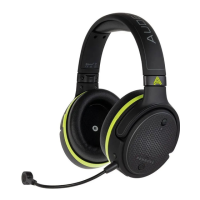
Welcome to the Audeze Penrose Experience
Hey there, thanks for joining us-- we’re glad to have you on our team! Whether you use Penrose with your gaming console, PC, phone or
other source, we know you’ll get a lot of use out of it. We created this guide to help you get the utmost enjoyment from Penrose, so please
read on for the uber-important details! We promise to keep things fun and brief.
Getting Started with Penrose
• Plug in the microphone by inserting into the Mic Port and aligning the flat sides. Press firmly to fully insert.
• Slide the Mic Mute Switch on Penrose’s left earcup to the UP position to unmute.
• Adjust headband size by sliding in/out above the Audeze A logo.
• Power-on Penrose by pressing the Power Button for about 3 seconds. 1 one-thousand, 2 one-thousand, 3 one-thousand...
• Connect to your source device using 2.4GHz Wireless, AUX or Bluetooth (BT). See below for instructions on each connection method.
• Adjust Headphone Volume and Microphone Volume by turning the corresponding adjustment wheels on the left earcup. Not too loud,
now, don’t hurt yourself.
• To fully charge Penrose’s battery, connect a USB-C cable between the port on the headphones and a 5V/1A charger.
• Further customize your Penrose experience with the Audeze HQ app for Windows, Mac and Android, available at
www.audeze.com/AudezeHQ
• Have fun storming the castle!
Charging, Adjusting Volume and Powering On/Off
You took the time to fully charge your Penrose after unpacking, right? Of course you didn’t, and we don’t blame you! There should be
sufficient charge in the battery to get you started, but if you find Penrose starting to misbehave, please pause to plug in to an approved
power source. We suggest a USB charger of 5V/1A, like the one you might use for your mobile communication device. In a pinch you can
use most computer USB ports (results may vary).
Penrose should charge automatically once connected to a power source: the LED on the left earcup will flash slowly while charging, then
stop flashing at full charge. Charging with a 1A charger should take about 3 hours with power off, from 0% to 100%. Speaking of full charge,
the battery inside Penrose should last about 15 hours before running out of juice. At that point, you should probably take a break, too. (Mom,
get outta here...) You can charge and play at the same time, so don’t fret, just plug in and carry on!
When battery power starts getting low, Penrose will flash its yellow LED. The LED will flash slowly from about 20% to 10% charge, then the
flashing will speed up below about 10%. There will also be a voice cue when the charge level gets low, so listen for the voice in your head
saying “low battery”, and plug in accordingly. You may choose to ignore the other voices in your head, at your discretion.
Headphone volume adjustment is done by spinning the Headphone Volume Control wheel on the left earcup. Software based volume
controls such as those in Windows or Mac OS will have no effect when connected over the 2.4gHz wireless adapter, since the computer
has no direct connection to the headphones and only sees the dongle. Volume adjustments can be made via the source device and/or
Penrose when connected over Bluetooth or AUX.
Powering Penrose on is a simple affair: just hold the Power Button on the left earcup for about three seconds. You’ll hear the friendly voice
say “power on.” To turn Penrose off, hold the same button for about five seconds (bet you can guess the voice prompt for this action).
Penrose has a power saving feature and will power down automatically if left turned on without signal for several minutes. This is handy so
you don’t accidentally burn down your blanket fort if you forget to turn Penrose off. If Penrose powers off automatically, just turn it back
on and you’re all set for battle again.
2.4GHz Wireless Connection
The best connection type for Penrose is via the 2.4gHz wireless adapter (or dongle), which is a high-bandwidth, fully lossless, 16bit/48kHz
connection with extremely low latency of about 16ms.
To connect using 2.4gHz Wireless:
The Penrose X USB adapter has a two-position slider switch on one side. Slide the switch to the XBOX position for Xbox use, and to the PC
position for other sources. (The PS version of Penrose does not have this switch.)
Insert the included USB-A dongle fully into the proper port of your console or PC. For best results, we recommend direct connection to the
USB port closest to the motherboard, and we do not recommend the use of any USB hubs.
Turn Penrose on by pressing the Power Button for about three seconds.
Penrose should connect automatically. If Penrose is in Aux or BT mode, click the Multi-Function Button until you hear the voice say
“wireless.” Wireless is the default mode for Penrose, so you should not need to do this unless the source has been switched.
The friendly voice in Penrose should say “connected” once connection is made. Your source device may need a few seconds to get
Penrose ready. Once that’s done, you can blast off and beat the record on the Kessel Run!
Headphone volume adjustment is done by spinning the Headphone Volume Control wheel on the left earcup. Software based volume
controls such as those in Windows or Mac OS will have no effect when connected over the 2.4gHz wireless adapter.
Mic volume is adjusted by spinning the Mic Volume Control wheel.
2.4GHz Wireless pairing
Penrose should pair automatically after a few seconds. The below procedure is for use in rare cases, such as pairing a replacement dongle.
In case automatic pairing doesn’t occur, long-press the Multi-Function Button while in 2.4 Ghz wireless mode and you should hear the
“pairing” voice prompt, which should be followed shortly by “connected.” In the unusual case the above doesn’t work, unplug the USB
dongle from your source device. Then re-insert, making sure the dongle is fully inserted and its LED is blinking. Repeat the step above. If
that fails to work, insert a paperclip end into the small hole on the side of the dongle for a few seconds until the LED starts to blink faster.
Repeat the steps above.
Microphone Use and Chat/Game Mix Setup
Test 1, 2... Can you hear me now? In order to level-up your chat status, plug the mic into the Penrose port with the Mic symbol. Align the
flat side of the mic plug with the flat side of the port and push the mic in firmly. Then, be sure the Mic Mute Switch on the upper part of the
left earcup is flipped UP. Now put Penrose on your head…
For the best mic position, we recommend between 2 and 6 cm from the lower left corner of your chin, below your mouth. Experiment to
find the position that gives you the best signal, while reducing breath sounds and external noises.
You’ll be able to hear your own voice through the magic of a feature called Sidetone. You can use the Audeze HQ app to toggle sidetone
on and off, see the HQ section below.
On most devices over wireless or BT, simply spin the Microphone Volume Control wheel to adjust mic gain. Over AUX connection, use your
source device to control mic gain (the Mic wheel will have no effect).
For Xbox, the Mic wheel also functions as a balance control for chat vs. game audio. Just click, then spin the wheel until you have the
desired balance between your two audio sources. These functions can also be controlled by the Audeze HQ app (see HQ section below).
You can also adjust the mic’s level in the hardware and software settings of your chosen machine/platform/chatroom/thing. Check in with
your teammas and associated AI interfaces to find the best level.
If you experience any strange mic-related anomalies when connected to your game, chat app or other software, please make sure you’ve
adjusted any settings on your source device and in the software you’re using. There are often semi-hidden settings that control level, noise
reduction, and other features, so check your software guides and ask your co-pilots for advisement if you have trouble. Experiment with all
the settings to see what works best for you, so you can get the most out of the Penrose mic.
Bluetooth Connection
Bluetooth (BT) is a convenient way to connect to compatible devices without using a USB port. Penrose uses the latest BT 5.0 technology,
but keep in mind that BT will always be lossy, meaning audio quality is compromised for the sake of convenience. This is especially true if
you use it for two-way communication, like talking on the phone with Mom or over a chat line with your spy network. There may also be
additional latency, so sound and picture on videos may not sync correctly over BT.
To connect using Bluetooth:
• Turn Penrose on by pressing the Power Button for about three seconds.
• Click the Multi-Function Button until you hear the voice say “Bluetooth.”
• Open the Bluetooth Settings on your source device, and ask it politely to look for new devices if needed. Check your device’s user
guide for details (bet it’s not as fun as ours, though).
• Double Click Penrose’s Power Button to put it in pairing mode.
• Select Penrose on your source device.
• Volume adjustments can be made via the source device and/or Penrose’s Volume Control wheel.
• Mic volume is adjusted by spinning the Mic Volume Control wheel.
• Now you can whisper your Rebel Secrets under cover of darkness (ssshhh!).
You can use BT and either the 2.4gHz wireless or AUX connections simultaneously on most devices. See this article for how to do that.
AUX/Analog Connection
Penrose’s AUX (auxiliary) or Analog connection mode is designed for compatible devices without a USB port. It allows for a full bandwidth,
old-school connection to the headphones and microphone by using the included TRRS 3.5mm cable. You can use most any four-conductor
3.5mm TRRS stereo cable, but if your cable is only TRS, the mic or other connections may not work. Make sure your cable has four
conductors on each plug for best compatibility.
Since Penrose is an active headphone, it must be powered ON for the AUX connection to work. Incoming analog audio signals pass
through Penrose’s built-in ADC, are processed by the DSP, and then go to the DAC and AMP before being shuttled back out to your EARS.
Please take a moment to read that sentence again while we catch our breath.
To connect using AUX/Analog:
• Turn Penrose on by pressing the Power Button for about three seconds.
• Connect the included 3.5mm analog cable between your source device and Penrose’s AUX Port. Watch out for the Mic Port-- they
look similar but aren’t the same! If required, click the Multi-Function Button until you hear the voice say “AUX.”
• Adjust volume using the controls on BOTH your source device and the Headphone Volume Control wheel on Penrose’s left earcup.
Find the balance between the two that sounds best to your ears, and see the following paragraphs for some mildly scolding
warnings.
• Use your source device to control mic gain (the Mic wheel will have no effect).
• Lock, Load and Launch the mission!
Now for a few words about using Penrose with a headphone amplifier:
Penrose is an active headphone that contains its own fully balanced amplifier section, so a headphone amp is not required (or necessarily
desired). It was designed to be used with headphone jacks on computers, mobile phones, etc, and is optimized for the levels presented by
those devices.
Since Penrose has an analog input port, it can technically be used with any source that provides an analog signal. However, use of an amp
that provides greater than line level output (such as some headphone amps) can cause clipping, distortion, and possible damage, and is
not recommended. Excessive power levels can damage Penrose’s circuitry. In AUX/analog mode, do not exceed standard line level voltage
to minimize the risk of damage, which is not covered under warranty.
While there's no formula for determining line level output on a headphone amp, we'd recommend starting with the amp volume at zero,
then increasing slowly until things sound good. You can fine tune Penrose’s volume control to find the sweet spot for your device. If you
hear distortion, just back the volume off on your amp and increase on Penrose to compensate.
Our recommendation is to use Penrose wirelessly from your USB-capable device for the best headphone sound.
Audeze HQ App for Penrose
Take full command of your Penrose with the Audeze HQ app. HQ adds functionality such as customizable EQ, sidetone control, firmware
updates and more. Visit this link to download the HQ app: www.audeze.com/AudezeHQ
For Windows or Mac PC:
Download and install as directed here.
Connect the included USB-A to C cable (or use your own, most any USB-C cable will do, as long as it can transmit data).
Adjust settings as desired. Your settings will be saved when you unplug the cable.
For Android:
• Download and install as directed here.
• Connect Penrose via Bluetooth (see BT section above).
• Adjust settings as desired. Your settings will be saved when you disconnect.
• Support, Care, and Feeding your Penrose
• To clean Penrose, simply wipe it down regularly with a clean, soft towel. You can use a little clean water if needed,
but don’t use any harsh chemical cleaners, abrasives, C-4, TNT, or other dangerous substances. (Explosions and
chemical meltdowns are not covered by warranty.)
• Be sure to keep Penrose out of direct sunlight and away from heat sources, and never submerge in water or feed it
after midnight!

 Need help?
 General

 To Next Page