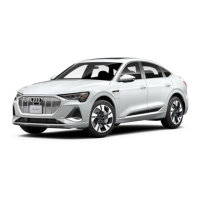
This document provides a quick questions and answers guide for the 2024 Audi Q8 e-tron and Sportback models, covering various aspects of the vehicle's operation, including the MMI displays, driver assistance systems, climate control, navigation, charging, phone connectivity, and indicator lights.
MMI Displays (Upper & Lower)
The Audi Q8 e-tron features a dual-screen Multi Media Interface (MMI) system.
- Upper Display: This touchscreen provides access to a wide range of features and vehicle functions such as Radio, Media, Telephone, Navigation, Phone Apps, Vehicle settings, and more. When connected to Apple CarPlay or Android Auto, the display switches to the mobile device's operating system. Icons can be moved by pressing and holding, then dragging. Swiping left or right navigates between menu pages, and a quick press of the home button returns to the home screen. A quick access bar allows for fast switching between four selected menus. The status bar shows information like connected mobile devices, data connection, and Bluetooth activation. The Notification Center, accessed by pulling down the status bar or pressing its icon, displays status information and notifications, and allows management of connected devices, personal profiles, date/time settings, and other content. Notifications can be deleted by pressing and dragging to the right edge.
- Lower Display: This touchscreen controls HVAC features, seating adjustments, and allows for handwriting navigation destinations. Dedicated buttons above and below the screen activate or deactivate specific vehicle functions.
- Head-Up Display (if equipped): Pressing its icon shows settings for the head-up display.
- Hill Descent Assist: Helps maintain a constant vehicle speed on downhill slopes by automatically braking all four wheels. Braking regulation depends on the hill gradient and vehicle speed. It can be switched on or off by pressing the corresponding icon.
- Garage Door: Opens the garage door opener function. Used for programming the opener by following MMI instructions.
- Shortcuts: Opens a shortcut bar for saved items like radio stations, contacts, and vehicle settings. Items can be saved as shortcuts by pressing and holding their description in the Upper display until "Save as a shortcut" appears. Shortcuts can be moved or deleted by pressing and holding them.
- On/Off: Pressing this icon switches the upper display on or off. Pressing and holding it turns both upper and lower displays on or off.
- Touch Response: The haptic (touch sensitive) feedback level for icon activation can be adjusted in Settings > Display and brightness > MMI > Touchscreen feedback. Audible response can also be toggled.
Steering Wheel Controls
- Left Side Controls: Used to select tabs in the instrument cluster. The thumbwheel scrolls through menus, and pressing it makes a selection. The Back button returns to higher-level functions. The VIEW button changes the virtual cockpit display. A dedicated button opens or closes a menu.
- Right Side Controls: Used to make or receive phone calls. The thumbwheel controls volume and can mute audio when pressed. KK/D▷▷ selects the next or previous track, radio station, or allows fast forward/rewind. A customizable button allows users to assign a function via the MMI touch display (Vehicle > Settings & Service > Steering wheel button assignment). The Voice Recognition button activates MMI voice recognition with a short press, or voice recognition with a paired phone with a long press.
Automatic Climate Control
The advanced climate control system, accessible via the lower display, offers 4-zone heating and cooling, rear-seat control, and various interior environment features.
- Driver and Passenger Controls:
- AUTO: Automatically regulates temperature, fan speed, and airflow to maintain the selected temperature. A/C activates automatically for conditioning and dehumidifying. Changing air distribution or fan speed deactivates AUTO.
- Seat Heating/Ventilation: Selects one of three levels by repeated presses.
- A/C: Turns A/C on when illuminated.
- A/C Max: Provides the quickest way to cool the cabin, returning to normal operation once the desired temperature is reached.
- OFF: Deactivates the climate control system.
- AUTO Recirculate: Closes the air intake and filters/recirculates interior air. In AUTO mode, recirculation is automatic based on air quality sensors and outside temperature.
- Defrost MAX (not shown): Automatically adjusts settings to maximize defogging/defrosting of windows. Recommended temperature is 72°F (22°C) or higher.
- Rear Defrost (not shown): Activates the electric rear window defroster, switching off after 10-20 minutes depending on outside temperature.
- Temperature: Tapping or sliding adjusts temperature on either side.
- Airflow: Allows selection of any combination of airflow directions.
- Blower: Selects one of six fan speeds. Ensures continuous air exchange and helps prevent window fogging.
- Additional Functions (accessed via "..." button in upper display):
- Customizable Buttons: Buttons on either side of the "..." button can be assigned different climate control functions by pressing and holding the symbol for the desired function on the upper display for at least three seconds. A menu allows assignment to the left or right button.
- SYNC: Sets all cabin areas to the same settings. Can also be activated by "pinching" two fingers between the temperatures shown on the lower display.
- REAR: Sends control of the climate control system to the rear center console. Press REAR again to exit.
- Steering Wheel Heating: Turns steering wheel heating on or off.
- Climate Control Preconditioning:
- Preconditioning: Draws energy from the high voltage battery to heat or cool the vehicle when the ignition is off. Maximum preconditioning is 30 minutes. Can be activated immediately or set with up to two timers.
- Timer Programming (not shown): Allows setting preconditioning timers for up to six days in advance to precondition temperature, seat ventilation, and defrost windows before departure.
Navigation
The Audi MMI Navigation system plus offers user-definable views, routing selections, and more.
- Intelligent Search: Allows entering navigation destination data (Points of Interest, contacts, previous destinations, received destinations, routes, or favorites) in any order.
- Select Navigation button in the upper display.
- Touch the Search icon to display shortcuts for common destinations (e.g., Fast charging, Regular charging, Parking).
- Use the lower display touchpad to write the address or location name. Generic terms are recognized.
- Select from matching locations.
- Select Start for route guidance.
- Finding a Destination Using a Search Engine Provider:
- Select Navigation > > G.
- Enter search terms; suggestions will display.
- Press the desired destination, then Start. (Audi connect subscription required for internet-based searches).
- Intelligent Search with Voice Recognition:
- Short press the Voice Recognition button on the steering wheel or upper display.
- Say an address, point of interest, or generic category.
- Choose from the displayed list.
- Saving Favorites and Shortcuts:
- Press and hold a displayed destination until the Option menu appears.
- Choose Store as favorite or Save as shortcut. A solid white star indicates it's stored as a favorite.
- Access favorites via Navigation > > > Favorites.
- Access shortcuts via the shortcut icon on the lower display.
- Navigation Settings: Accessed by pressing in map view on the upper display. Settings include: Map settings, Voice guidance, Route criteria, e-tron route planner, Route information, Personal route assistances, and Presentation mode.
- Q8 e-tron Route Planner: Assists in finding charging stations along a route if the current battery charge is insufficient for a scheduled trip. Provides estimated charging times.
- Set a destination in navigation.
- If charge is insufficient, a warning appears. Press OK to include charging stations.
- Option to toggle "Prefer Electrify America charging station" for real-time availability.
Q8 e-tron Charging
- Charging Process:
- Unlock the vehicle to unlock charging doors.
- Press the charging port door button (top right of the door); the door will lower.
- Insert the charger into the charging port.
- Charging display pulses white when connection is established.
- Charging display pulses green when charging.
- Icon in instrument cluster pulses.
- Lock doors.
- Charging display stays green when complete.
- Removing Charger:
- Unlock vehicle to unlock charging door.
- Press charging port door button.
- Light within charge port illuminates when unlocked, cable can be removed. (If not removed within 30 seconds, it relocks).
- Charging Display Indicators:
- Pulsing green: charging
- Flashing green: timer active, not yet charged
- Solid green: charging complete
- Solid yellow: charging cable not recognized
- Solid red: charging connector not locked or cover open
- Scheduled Charging: Allows charging during specific times (e.g., lower electricity rates).
- From Home Screen, press Vehicle > Charging & Efficiency > Charging.
- Swipe left on the lower display to show charging target.
- Press arrow next to available time slots.
- Select charging days, press Next.
- Select desired departure time, press OK.
- Toggle icon to enable/disable schedule.
- Temperature icon warms/cools interior to last set temperature by scheduled departure time.
- Setting a Charging Target: Sets the maximum charge level (50-100%). 80% is recommended for daily use, 100% for long trips.
- From Home Screen, press Vehicle > Charging & Efficiency > Charging.
- Press right section of battery charge level display.
- Set desired charging target.
- Charging Benefits with Electrify America: 2 years of unlimited charging via Electrify America network.
- Locate station via myAudi App or MMI.
- Plug in vehicle.
- Open myAudi App, enter station ID to start session.
- myAudi App notifies when charge is complete.
Amazon Alexa
Alexa is available with a trial or paid Audi connect Prime subscription.
- Setup:
- Enable Speech Dialog System: Settings > General > Speech Dialog System.
- Activate "Hey Audi" and consent to online speech recognizer.
- From Home Screen, select User > Add User > Log In Now.
- Enter myAudi email/password, Log In.
- Select personal preferences.
- Select desired User from User's menu.
- Select Connect to Amazon Alexa.
- Agree to Amazon end user agreement.
- Scan QR code with smartphone camera, enter pin if requested.
- Once connected, Alexa is ready.
Phone Apps (Audi Smartphone Interface)
Connect compatible smartphones to the MMI for adapted content, apps, and voice recognition.
- Apple CarPlay®:
- Connection:
- Ignition on, vehicle in Park.
- iPhone unlocked, running latest iOS.
- Connect iPhone with manufacturer-approved USB cable to either USB port.
- Respond to MMI/iPhone prompts.
- For Wireless CarPlay, select "Enable Wireless CarPlay" on iPhone.
- Functions: Activated by long pressing Voice Recognition button on steering wheel or Home button on touch display.
- Siri: Make/receive calls, send/receive texts, set reminders, get turn-by-turn navigation, see recent places, listen to music apps.
- Home: Returns to Apple CarPlay home screen or Dashboard.
- Phone: Make calls, return missed calls, listen to voicemail.
- Maps: Turn-by-turn directions, traffic, estimated travel time.
- Messages: Send, read, reply to texts.
- Audi MMI button: Returns to Audi MMI system.
- Android Auto™:
- Connection:
- Android phone running current OS.
- Bluetooth and Wi-Fi on.
- Active data plan.
- Connect phone to USB port via USB cable.
- Respond to MMI/phone prompts; download/update Android Auto app if prompted.
- Functions: Activated by long pressing Microphone on touch display or Voice Recognition button on steering wheel, or saying "Hey Google."
- Google Assistant: Make/receive calls, send/receive texts, set reminders, get turn-by-turn navigation, see recent destinations, listen to music apps.
- Microphone: Activates Google Assistant.
- Navigation: Predictive navigation, turn-by-turn directions, traffic.
- Phone: Listen/reply to texts, make calls, check voicemail.
- Home Screen: Returns to Android Auto home screen.
- Music and Audio: Stream from apps like Pandora, Spotify, iHeartRadio.
- Vehicle Functions: Returns to Audi MMI system.
- Wireless Apple CarPlay and Wireless Android Auto:
- Connection:
- Bluetooth and Wi-Fi on phone, ensure Bluetooth menu is active when connecting.
- Select Phone apps on Audi MMI.
- Select To connected devices > New connection.
- Select phone from device list.
- Follow MMI/phone prompts.
- myAudi Mobile App Connectivity: Personalizes Q8 e-tron experience with smart services. Requires myAudi account and Audi connect key user setup.
- Login:
- From Home Screen, select User > myAudi login.
- Enter myAudi Username/Password, Login.
- Account connected.
- From myAudi mobile app, select Vehicle icon > "myAudi marketplace" > Shop button > View eligible plans.
Bluetooth® & Voice Recognition
- Bluetooth Technology Initial Setup:
- Ignition on, vehicle in Park.
- Activate phone's Bluetooth.
- "Audi MMI XXXX" (last four VIN digits) appears as an option on phone.
- Select Phone on upper display to view available Bluetooth devices.
- Select Connect mobile device.
- Select device from list; Refresh icon if not displayed.
- Select Pair on device when PIN matches MMI.
- Select Allow on device to sync contacts; open Bluetooth submenu on device and enable Show Notifications, Sync Contacts, and Apple CarPlay for iOS.
- Switch Between Paired Phones: From upper display, select Phone >. The secondary phone becomes primary.
- Voice Recognition:
- Enable Online Speech Dialog System:
- On MMI, select Settings > General > Speech dialog system.
- Consent to online recognizer by sliding button right.
- Activation:
- Short press of Voice Recognition button on steering wheel activates MMI voice recognition (e.g., "Play FM 103.5").
- Long press of Voice Recognition button with compatible device connected enables phone's digital assistant (e.g., "Call Mary Smith, mobile").
- Operating MMI with Voice Commands: Select Settings > General > Speech dialog system > Activate the speech dialog system with "Hey Audi". Say "Hey Audi" followed by command (e.g., "Hey Audi, call John Smith").
- Switch Off: Press and hold Voice Recognition button on steering wheel, or say "Cancel," or press Cancel on touch display.
Indicator Lights
The document includes a comprehensive list of indicator lights with their corresponding functions, categorized for easy reference. These cover:
- General Vehicle Status: Central indicator light, Electromechanical parking brake, Brake system, Cooling system, Electrical system, Safety belt, Steering, Steering lock, Motor start system, Transmission, All wheel drive, Air suspension, Hood.
- Driver Assistance Systems: Parking system plus, Emergency assist, Emergency call function, Adaptive cruise assist, Distance warning, Safety systems, Lane departure warning, Driver intervention request, Safe start monitor, Audi pre sense, Intersection assistant, Night vision assist, Traffic light information, Side assist, Exit warning, Hold assist, Child safety lock, Speed warning system, Camera-based traffic sign recognition, High beam assist.
- Vehicle Systems & Warnings: Tire pressure, Vehicle sounds, Loose wheel warning, Drive system, Charging system, Electronic Stabilization Control (ESC), Anti-lock Braking System (ABS), Brake pads, High-voltage battery range, Washer fluid level, Windshield wipers, Keys, Door lock, Battery in vehicle key, Bulb failure indicator, Adaptive light, Light/rain sensor, Cruise control system, Hill descent assist, Low beam headlight, Parking light, Suspension control.
- Efficiency Assist: Adaptive cruise assist, Lane guidance for adaptive cruise assist, Efficiency assist (multiple indicators).
This manual serves as a quick reference guide, and users are advised to consult the Owner's Manual and Infotainment System Booklet for complete information, warnings, and limitations. Always prioritize attentive driving and avoid distractions.

 Need help?
 General

 To Next Page