EasyManua.ls Logo

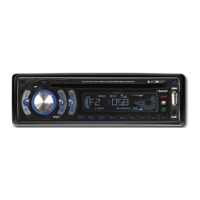
Audiomedia AMD 808BT - User Manual

Audiomedia AMD 808BT
19 pages
Print Icon
To Next Page IconTo Next Page
Loading...
AMD 808BT
BLUETOOTH CD/MP3 PLAYER
WITH RADIO AM/FM RDS
USB-SD/MMC BUILT IN
USER’S MANUAL
10R-02 1005

Questions and Answers

  • J
    Jennifer KaneAug 13, 2025
    What to do if my Audiomedia AMD 808BT Car Receiver has no power?
    • S
      Suzanne MclaughlinAug 13, 2025
      If your Audiomedia Car Receiver isn't powering on, there are a couple of things to check: * First, ensure your car ignition is switched to 'ACC'. The power supply should be correctly connected to the car accessory terminal. * Second, verify the fuse. If it's blown, replace it with a new one.
  • S
    Sarah WilliamsAug 16, 2025
    Why is there no sound coming from my Audiomedia Car Receiver?
    • H
      hansonlisaAug 16, 2025
      If you're not getting any sound from your Audiomedia Car Receiver, check these two things: * Make sure the volume isn't set to the minimum. Adjust it to a comfortable listening level. * Verify that all the wiring connections are properly connected.
  • A
    Ashley GarciaAug 20, 2025
    What to do if my Audiomedia Car Receiver won't load or eject discs?
    • M
      Mr. Jacob PorterAug 20, 2025
      If your Audiomedia Car Receiver is having trouble loading or ejecting discs, consider the following: * If there is a disc inside the player, remove it before inserting a new one. * Ensure the compact disc is inserted correctly, with the label facing upward. * The disc might be dirty or defective. Try cleaning it or using a new one. * If the car's internal temperature is too high, allow the system to cool down until the temperature returns to normal. * Condensation can cause this issue. Leave the player off for about an hour, and then try again.
  • Z
    zriveraAug 25, 2025
    Why does the sound skip on my Audiomedia AMD 808BT?
    • D
      Danielle BryantAug 25, 2025
      Sound skipping on your Audiomedia Car Receiver can be due to a couple of reasons: * The installation angle should be less than 30 degrees. Adjust if necessary. * The disc might be dirty or defective. Clean the compact disc or try a new one.
  • N
    Nicholas MyersAug 28, 2025
    What to do if the operation keys on my Audiomedia AMD 808BT Car Receiver do not work?
    • J
      Judith ThomasAug 28, 2025
      If the operation keys on your Audiomedia Car Receiver aren't working, press the RESET button. Also, ensure the front panel is properly fixed into its place.
  • B
    barbara74Sep 1, 2025
    Why is my Audiomedia AMD 808BT Car Receiver radio not working or selecting stations automatically?
    • J
      jose74Sep 1, 2025
      If your Audiomedia Car Receiver's radio isn't working or automatically selecting stations, here's what you can check: * Make sure the antenna cable is firmly inserted. * If the signals are too weak, try selecting a station manually.
  • R
    rodriguezleeSep 4, 2025
    What does ERROR 1 mean on my Audiomedia AMD 808BT?
    • L
      Lindsey LeblancSep 4, 2025
      If your Audiomedia Car Receiver displays 'ERROR 1', it indicates a Mechanism Error. Press the reset button; if the error code persists, consult your nearest sevice dealer.
  • M
    Mr. Andrew StewartSep 8, 2025
    What does ERROR 2 mean on my Audiomedia Car Receiver?
    • J
      jennifer91Sep 8, 2025
      If your Audiomedia Car Receiver displays 'ERROR 2', it indicates a Servo Error. Press the reset button; if the error code persists, consult your nearest sevice dealer.

Summary

Handling Compact Discs

Moisture Condensation

On a rainy day or in a very damp area, moisture may condense on the lenses inside the unit.

Notes on CDs

Handle the disc by its edge and keep it clean. Avoid sticky residue or labels.

Do Not Use Special Shape CDs

Use only round shape CDs; special shapes may cause malfunction.

Installation

DIN Front;Rear-Mount

Unit can be installed from "Front" (DIN) or "Rear" (DIN).

DIN Front-Mount (Method A)

Illustrates Method A for installing the unit into the dashboard.

Removing the Unit

Details on how to remove the front panel and the unit from the dashboard.

Trim Plate Installation

Steps to install the trim plate against the chassis before attaching the front panel.

DIN Rear-Mount (Method B)

Illustrates Method B for installing the unit using screw holes on the sides.

Detachable Control Panel (D.C.P.)

Instructions for removing and attaching the detachable control panel.

Caution

Warnings regarding handling the detachable control panel and its connectors.

Important

Note about removing 2 screws before installing the unit to prevent CD mechanism damage.

Electrical Connection

Fuse Replacement

Instructions on how to replace a blown fuse in the unit.

Basic Operations

Panel Release Button

Press this button to remove the control panel.

Power Button

Press this button to turn on or off the power.

Display Button

Press to view clock, RDS info, band, and frequency.

Mode Button

Press to select different modes like Tuner, CDP/MP3, USB, SD/MMC, AUX.

Front Aux Input

Connect external signal to the 3.5mm jack and select Aux mode.

Reset Button

How to activate the reset button for initial installation or malfunctions.

Audio Operations

Control volume, bass, treble, balance, and fader.

Mute Button

Press to mute or unmute the sound.

DSP Button (Digital Sound Processor)

Toggle EQ settings like FLAT, CLASSICS, POP, ROCK, DSP OFF.

Band;Loudness Button

Switch bands (FM1-FM3, AM) or long press for loudness on/off.

Aux Input (Rear)

Connect external signal to rear RCA jacks and select Aux mode.

Radio Operations

Band;Loudness Button

Dual function: Short press for band change, long press for loudness.

Tuning;Seek Up and Tuning; Seek Down Buttons

Use for auto search, manual search, and fast forward/reverse.

Radio Signal Strength Meter

Indicates the signal strength of the current radio station.

Auto Memory Store;Preset Scan Button (AMS)

Scan preset stations or auto store up to 6 strongest stations.

Station Preset Buttons (M1-M6)

Recall stored stations or manually preset new stations.

CD Operations

CD Slot

Insert the disc into the CD slot; playback begins automatically.

CD Pause Button

Press to pause CD play and press again to resume.

CD Scan Button

Play the first 10 seconds of each track sequentially.

CD Repeat Button

Play the current track repeatedly.

CD Shuffle Button

Play all tracks on CD in random order.

Eject Button

Press to eject the CD; the receiver switches to radio mode.

Track Up and Track Down Button

Skip tracks, fast forward/reverse, or rewind.

RDS Operations

AF Button

Switch AF follow mode on/off; set Regional mode.

TA Button

Turn Traffic Announcement (TA) mode on/off.

PTY Button

Toggle PTY modes and select program types using preset buttons.

Overview of the RDS Function

Explains RDS features like PI, PS, AF, TP, PTY, and CT.

Programmable Optionals

TA Seek, TA Alarm

Configure radio behavior when TP info is missing for 5 seconds.

PI Sound, PI Mute

Select PI sound or mute when crossing areas with multiple stations.

RetuneL, Retune S

Set the initial time for automatic TA Search or PI Search.

Mask PI, Mask All

Mask stations to avoid interference from different PI or non-RDS signals.

Beeps 2 nd, Beep All, Beep Off

Configure beep sounds for button presses and function selections.

MMC;SD Card & USB Device Operations

Start the USB Device Mode

Instructions for plugging in and starting USB device playback.

To Stop USB Playback

How to stop USB playback and switch to other modes.

USB Specification

Lists supported USB flash memory, songs, and file systems.

Caution

Warning about unplugging the USB gently to prevent damage.

Compatibility

Notes on compatibility with various USB drive/device technologies.

Start the SD;MMC Mode

Instructions for inserting and starting SD/MMC card playback.

To Stop SD;MMC Card Playback

How to stop SD/MMC card playback and switch to other modes.

SD;MMC Specification

Lists supported SD/MMC card size and song count.

Caution

Warning about inserting the SD/MMC card correctly to prevent damage.

MP3 Operations

Notes

Provides information on directory/track naming and MP3 file characteristics.

Loading CD

How the unit handles MP3 CDs upon insertion.

Navigating Through Directories and Tracks

Explains various methods for selecting tracks and directories.

ID3 Tag

How to display ID3 TAG information (Song Title, Artist, Album).

Instruction for Handsfree Function

Set Up

Step-by-step guide to set up and pair the Bluetooth handsfree function.

Operation

How to accept, reject, disconnect, transfer calls, and redial.

Bluetooth Notice

Important notes on pairing, reconnection, and reception for Bluetooth.

Bluetooth Notice (Continued)

Details on LED indicators, auto answer, voice dialing, and disconnecting.

Specifications for Blue Tooth

Lists power consumption, output power, frequency band, range, and standard.

Remark

Compatibility notes for the Bluetooth Handsfree System.

Note

Disclaimer regarding Bluetooth mobile phone compatibility.

Warning

Legal and safety warnings regarding phone use while driving.

Specifications

CD Player

Technical specifications for the CD player section.

Radio Section

Technical specifications for the FM and AM radio sections.

AM(MW)

Technical specifications for the AM radio band.

General

General specifications like power supply, polarity, impedance, and output.

Remark

General statement about specifications being subject to change.

Trouble Shooting

No Power

Cause and solution for the unit not powering on.

Disc Cannot Be Loaded or Ejected

Causes and solutions for problems with disc loading or ejection.

No Sound

Causes and solutions for audio output issues.

The Operation Keys Do Not Work

Cause and solution when control buttons are unresponsive.

Sound Skips

Causes and solutions for audio skipping or interruptions.

The Radio Does Not Work

Cause and solution when the radio function fails.

The Radio Station Automatic Selection Does Not Work

Cause and solution for automatic station scanning failure.

Error 1

Mechanism error and how to resolve it.

Error 2

Servo error and how to resolve it.

Audiomedia AMD 808BT Specifications

General IconGeneral
BrandAudiomedia
ModelAMD 808BT
CategoryCar Receiver
LanguageEnglish