EasyManua.ls Logo

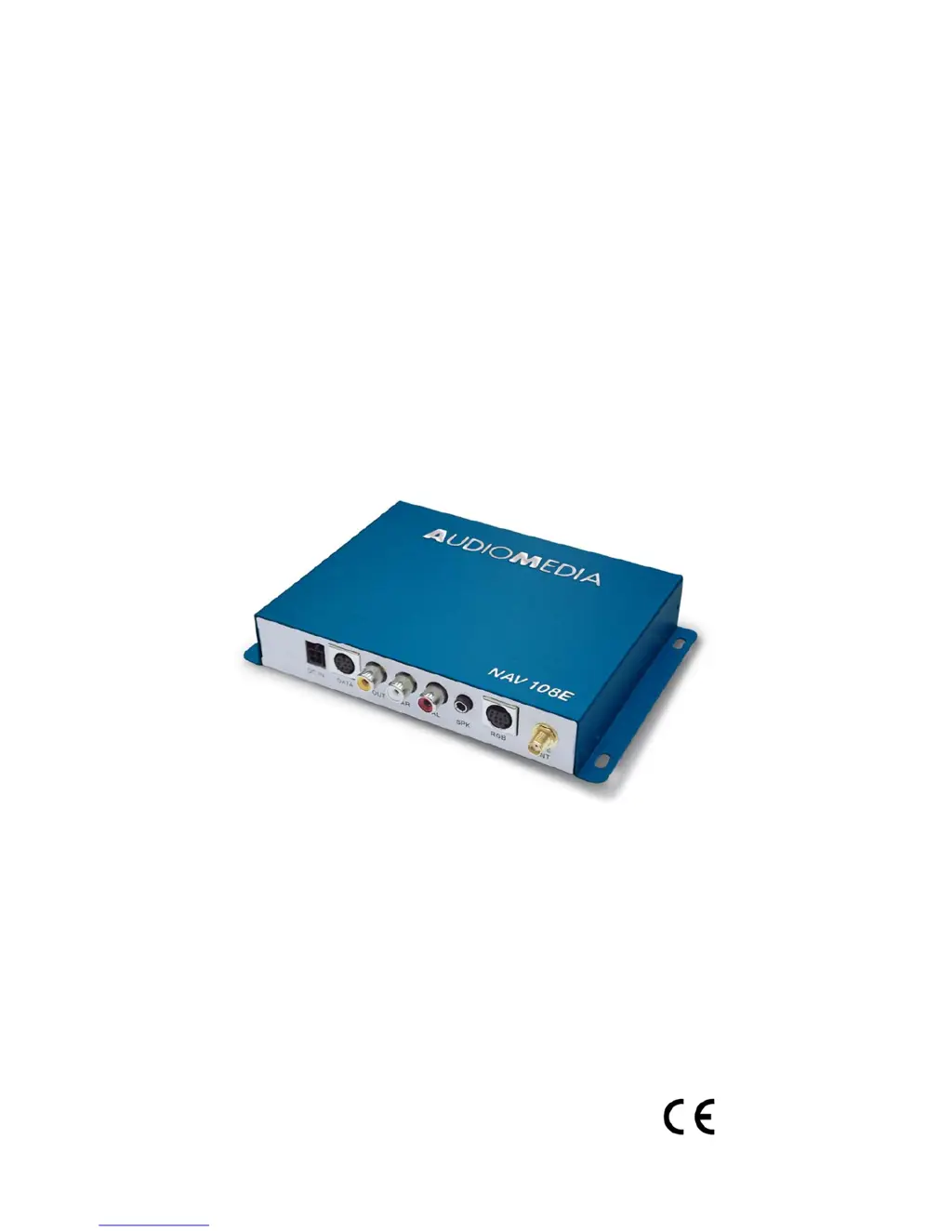
Audiomedia NAV108E - User Manual

Audiomedia NAV108E
112 pages
Go to English
Print Icon
To Next Page IconTo Next Page
Loading...
NAV108E Manuale d’uso- User’s manual – Instrucciones para el uso Pag
Clarital S.p.A Reggio Emilia – Italy www.clarital.it
1
Audiomedia
NAV108E
Vers. 7.3
Istruzioni per l’uso e l’installazione
User’s Manual
Instrucciones para el uso
0051

Questions and Answers

  • W
    wesley86Aug 19, 2025
    What to do if Audiomedia GPS satellites are not received?
    • C
      Connie FosterAug 19, 2025
      If your Audiomedia GPS isn't receiving satellite signals, it could be due to the GPS antenna being in a shielded position. Try placing the GPS antenna in a location where it can directly receive signals from the satellites. Another potential cause is shielded vehicle glass. In this case, consider repositioning the GPS antenna to a different location or even outside the vehicle.
  • M
    Michelle RodriguezAug 21, 2025
    Why is my Audiomedia GPS navigator not turning on?
    • J
      Jacob MendozaAug 21, 2025
      If your Audiomedia GPS navigator isn’t turning on and the LED is off, it could be due to a lack of power supply. Ensure that the power supply is 12Vdc or 24Vdc. Alternatively, the NAV108E might be off. Press and hold the Power button on the remote control for 3 seconds to turn it on.
  • P
    Paige KingAug 23, 2025
    What to do if Audiomedia NAV108E GPS navigation doesn’t work?
    • M
      Michael RoachAug 23, 2025
      If the Audiomedia GPS navigation isn't working, it might be because the Navigation SD card is missing. Disconnect the navigator and insert the navigation SD card. If the SD card is already in the slot but not properly located, disconnect the navigator, take out, and re-insert the SD card.
  • S
    Steve DavilaAug 26, 2025
    What to do if the Audiomedia GPS remote control doesn't work?
    • D
      Dr. Kelly DavisAug 26, 2025
      If the Audiomedia GPS remote control isn’t working, the batteries may be discharged. Replace the batteries. If that doesn’t solve the issue, the remote control might not be paired. Perform the pairing procedure.
  • A
    Anthony AliAug 28, 2025
    Why is there no image on my Audiomedia NAV108E monitor?
    • C
      Caroline CookAug 28, 2025
      If there is no image on the monitor but the LED is on, it could be due to a disconnected video connection. Check the video connection with the monitor. Another possibility is that the rear camera input hasn’t been activated. Ensure the activation cable of the rear camera has a power supply, and verify that the rear camera is enabled in the car radio menu.
  • E
    Edward LiuAug 30, 2025
    Why is there no navigation audio on my Audiomedia NAV108E?
    • P
      Paige CarlsonAug 30, 2025
      If there is no navigation audio on your Audiomedia GPS, it might be because the external speaker is not connected. Connect the external speaker. Alternatively, the navigation volume might be set to the minimum. Adjust the volume from the navigation menu.
  • G
    Gregory AndersonSep 2, 2025
    How to fix Audiomedia NAV108E GPS when it’s not possible to control the navigator with the touch screen?
    • V
      vcalhounSep 2, 2025
      If you cannot control the Audiomedia GPS navigator with the touch screen, the touch screen function for the connected source might not be properly set. Set the touch system for the connected source (panel 1 or 2). If the issue persists, the touch screen might not be aligned. Perform the "Calibration" function.
  • J
    Jason JonesSep 4, 2025
    Why is the range of the Audiomedia GPS remote control too short?
    • L
      Lori HortonSep 4, 2025
      If the range of the Audiomedia GPS remote control is too short, the receiving antenna of the NAV108E might not be protracted. Extend the antenna to be perpendicular with NAV108E. Also, the receiving antenna might be shielded. Place the NAV108E away from metal shields.
  • C
    christopher22Sep 6, 2025
    What to do if the image on the Audiomedia GPS monitor is not in center?
    • V
      Vincent AdamsSep 6, 2025
      If the image on the Audiomedia GPS monitor is not centered, it could be because the image is not aligned with the monitor. Adjust the image using the RGB function.
  • E
    Eric EdwardsSep 9, 2025
    Why is the Audiomedia NAV108E GPS car radio not muting during navigation advices?
    • P
      Patrick AvilaSep 9, 2025
      If the Audiomedia GPS car radio isn’t muting during navigation advices, the mute wire might not be connected. Connect the mute wire.

Summary

Safety Precautions

General Safety Advice

Essential safety guidelines for using the navigation system to prevent dangerous situations.

General Precautions

Installation Precautions

Guidelines for safely installing the Audiomedia navigator in a vehicle.

Remote Control

Precautions and Contents

Safety advice for remote control use and a list of package contents.

Remote Control Operation

Buttons and Functions

Details and explanations of the buttons and their functions on the remote control.

Pairing Procedure

Instructions for pairing the remote control with the navigation unit.

Remote Control Button Details

Navigation and System Controls

Descriptions of buttons for navigation, system settings, and power.

Main Unit Connections

Port Overview

Identification and purpose of the front and rear panel connection ports on the main unit.

Connection Port Details

Video & GPS Inputs

Details on video output ports (V OUT, RGB) and GPS antenna input.

Additional Connection Ports

Communication & Storage

Ports for data communication (UART, USB) and storage (SD CARD).

Clarion CeNet Integration

Functionality and Settings

Overview of functioning and configuration for Clarion CeNet integration.

VRX888;MAX688 Kit Integration

Functioning and Menu Settings

Details on operating modes and available menu settings for this kit.

VRX888;MAX688 Kit Integration (With Auto Rear Camera)

Functioning and Menu Settings

Operating modes and menu settings for kits with automatic rear camera.

VRX878;MAX678 Kit Integration

Functioning and Menu Settings

Details on operating modes and available menu settings for this kit.

FMS476 Kit Integration

Connection Diagram

Visual representation of how the FMS476 kit connects to the NAV108E.

AMV578;AMV497 Kit Integration

Functioning and Settings

Overview of kit functioning and NAV108E settings for this integration.

Universal Kit - Audio Entertainment Type 1

Functioning and Menu Settings

Operating modes and menu settings for the universal kit with audio entertainment.

Universal Kit - Audio Entertainment Type 1 (With Auto Rear Camera)

Functioning and Menu Settings

Operating modes and menu settings for kits with auto rear camera.

Universal Kit - Audio Entertainment Type 2

Functioning and Menu Settings

Operating modes and menu settings for the second type of audio entertainment kit.

Universal Kit - Audio Entertainment Type 2 (With Auto Rear Camera)

Functioning and Menu Settings

Operating modes and menu settings for kits with auto rear camera.

Universal Kit - Without Audio Entertainment

Connection Diagram

Visual guide for connecting the universal kit without audio entertainment features.

Universal Kit - Audio;Video Interface

Connection Diagram

Diagram illustrating the connection of the universal kit with an audio/video interface.

Universal Kit - Audio;Video Interfaces

Connection Diagram

Diagram showing connections for the universal kit with audio/video interfaces.

Video Connection Details

NTSC and RGB Input

Connecting to NTSC composite and RGB video inputs on monitors or interfaces.

System Settings

Image Adjustment (RGB)

Adjusting image parameters like horizontal position and enlargement for RGB signals.

General System Settings

AutoRun, Time Zones, and Calibration

Configuring automatic navigation start, time settings, and touch screen calibration.

System Settings - System 2

Cursor Hide and POI Camera

Settings for cursor behavior and Points of Interest camera views.

POI Camera Settings

Touch Screen Panel Selection

Selecting the correct touch screen source from a list of compatible panels.

Touch Screen Panel Configuration

Panel 1 and Panel 2 Setup

Instructions for configuring both Panel 1 and Panel 2 touch screen sources.

Software Information

Aux NTSC Video Input

Enabling or selecting auxiliary NTSC video inputs for the system.

Aux NTSC Video Input Selection

Input Selection V1;V2

Choosing between different NTSC video input sources (V1 or V2).

Troubleshooting Guide

Problem Resolution

A comprehensive guide to diagnosing and resolving common problems with the navigator.

NAV108 E Kit Compatibilities

Installation and Contents

Overview of kit installation and a list of included package contents.

AMV578;AMV497 Kit Integration

Compatibility and Functioning

Compatibility details and operating modes for this specific kit.

VRX878;MAX678 & VRX888;MAX688 Kits

Compatibility and Functioning

Overview of compatibility and functioning for Clarion kits.

Universal Kit NAVI 548-88

Compatibility, Functioning, and Camera Options

Key aspects including compatibility, operation, and rear camera setup.

Various Kit Compatibilities

Monitor Connections and Replacements

Guidance on connecting to monitors and replacing older units.

CE Declaration of Conformity

Product Compliance Standards

Declaration of conformity with relevant ETSI and CE directives for the product.

Audiomedia NAV108E Specifications

General IconGeneral
BrandAudiomedia
ModelNAV108E
CategoryGPS
LanguageEnglish