AUDIO
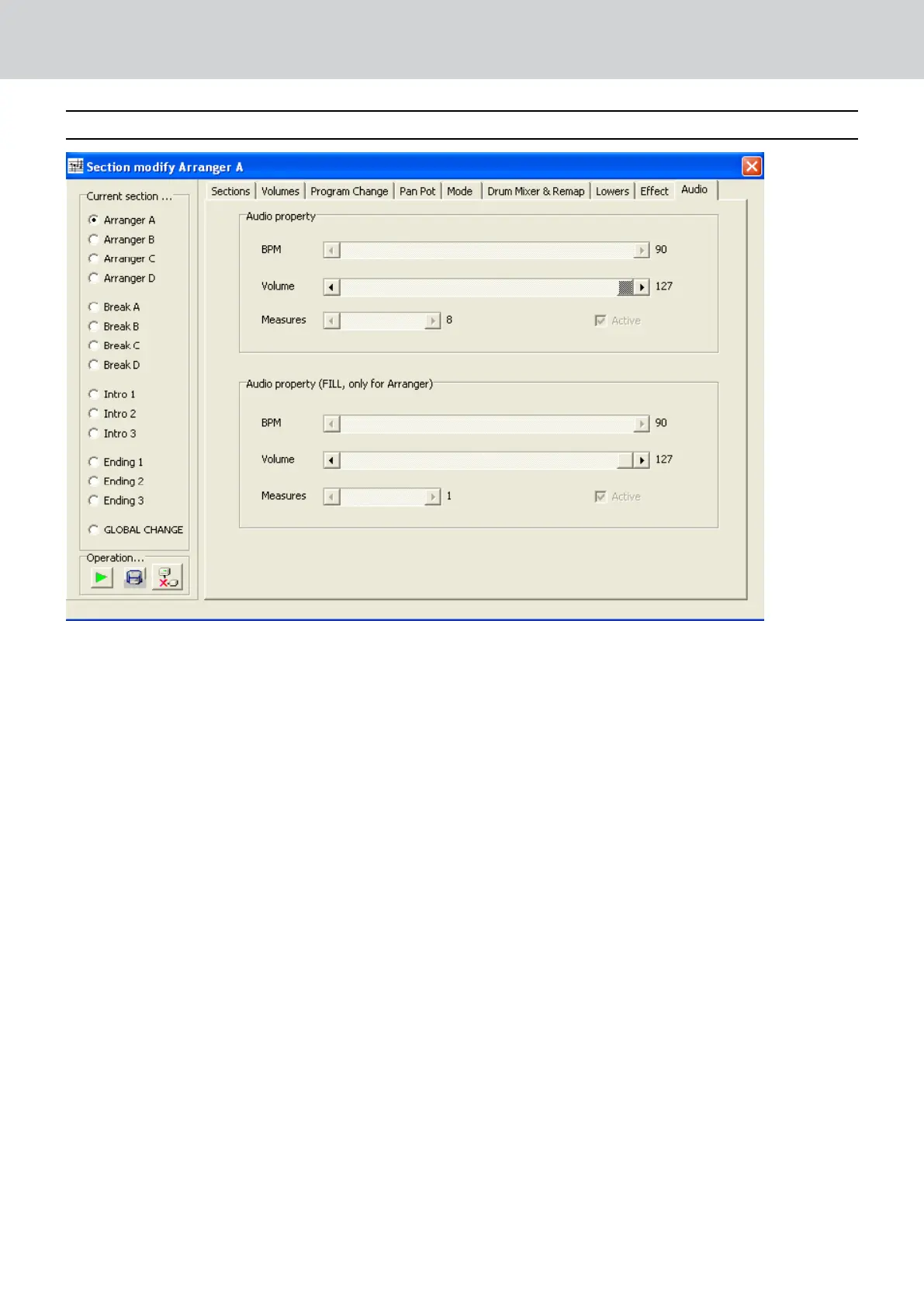
This view will appear only if on Audio Drum is used on the Style .
You can modify just the Volume value of the Audio Drum for any single section or all the sections together. See the
chapter “Audio Style Modeling” for further information.
SAVING STYLE PROCEDURE
▀
After the editing you can save all your data on Style (otherwise your work will be lost …).
Select “Section Page” and press STYLE SAVE. You can also press icon on the bottom left on the box
”Operation...” tool)
Use ”SEND TO AUDYA” in order to send style to Audya by USB connection. Style will be sent to USER STYLES
folder . You should choose your style sub folder family as you want (Ballad, Pop etc.).
Edit Style: Working with Audya, Sequencer and Style Compiler
After copied the Style to Audya may be necessary a phase of editing on the keyboard in order to achieve a good
musical result.
If you want to modify later some Midi parts of your Style while keeping this mix obtained into the keyboard
(Sounds, Levels, Effects...) then you should follow these instructions:
Step 1: Before the compilation your style was a Midi file - 0 format (called for instance “StyleTest.mid”) and was
placed on a certain folder (called for instance ”MyStyle”) .
Step 2: Run the Audya Style Compiler 2009 and compile the Midi file (“preserve setup” box must be enabled).
Now the Compiler has created 2 files: StyleTest.PAT and StyleTest.bin.
The .bin is a service file containing all the style parameters.
Step 3: Import on Audya the pattern StyleTest.Pat and apply all your modifications as volume, efx and so directly
on the Audya layout.


 To Next Page
 Loading...