Audio Style Modeling
12 KETRON • AUDYA
Save the changes by pressing SAVE button. By the way Audya saves the Style with the new parametrs into User
Style folder, but of course these parameters are different than the original ones.
Step 4: Send to PC the new ”StyleTest.PAT” pattern just modified and overwrite the previous original Pattern.
Step 5: Delete from the folder ”MyStyle” on your PC the file StyleTest.BIN, which corresponds to the old original
parameters of the Style.
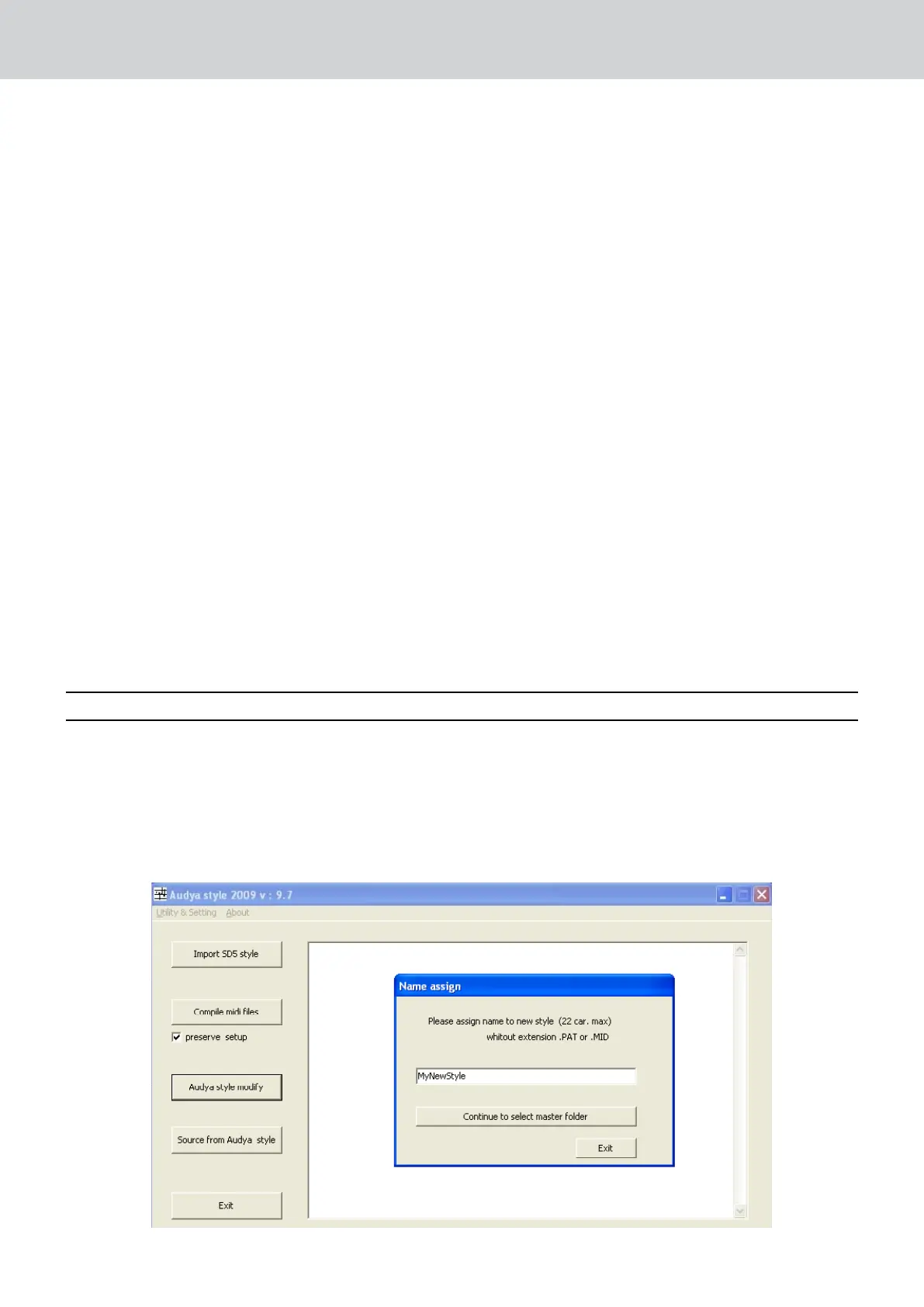
Step 6: Open the Audya Style Compiler and press Audya Style Modify.
Select the new StyleTest.PAT previously imported from Audya after modifications and press STYLE SAVE.
Audya Style Compiler has created now a new StyleTest.BIN having the same parameters of the Style”StyleTest.
PAT recently edited on Audya.
Step 7: Now using your sequencer you can apply any modification required to the Midi parts of your style
”StyleTest.Mid”. At the end you can Save it as StyleTest.MID.
Step 8: Recompile the Midi file ”StyleTest.mid” by pressing Compile Midi files.
Audya Style Compiler has now updated the Midi file with the notes changes and with the new parameters exactly
as previously mixed into Audya.
Creating a Midi file from Pattern
Here how extract a standard Midi file from on Audya Style pattern.
1) Press Source from Audya Style
2) Select the Pattern and open it. The Midi file will be automatically generated into the same folder when the
Pattern is located.
AUDIO STYLE MODELING
The Audio Style Modeling is a innovative feature of Audya that permits to create your own style with few steps on a
quick and easy manner.
The core of this powerfully feature is the new huge Bank Library supplied with the 3.0A OS Update. Part of the
Style may be affected / replaced by a Bank template.
There Audio Style Modeling can be controlled from the Audya Style Compiler 2009 or from the internal Style View
menu of the keyboard.


 To Next Page
 Loading...