-16-
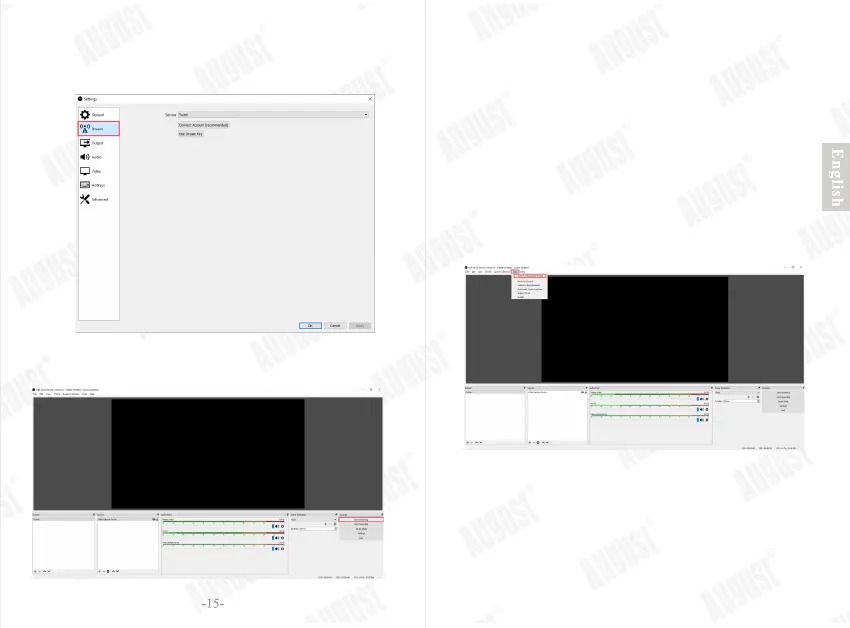
4.3 Streaming
Step 1: Click ‘Settings’ to open the ‘Settings’ window. Click the
‘Streaming’, then enter according information for
streaming. Click on ‘OK’.
Step 2: Click on the ‘Start Streaming’ to start streaming.
4.4 Quick Start Guide
Step 1:Run the auto-configuration wizard
When you load OBS Studio for the first time you should
see the Auto-Configuration Wizard. If you're new to OBS
or just want to get started as quickly as possible, follow the
steps to get good starting settings for your setup. If you only
see the main OBS Studio window, you can access the
Auto-Config Wizard in the Tools menu at the top. This
wizard will automatically test your system and attempt to
find settings that your PC can handle. This includes streaming
or recording, resolution, bitrate, encoder, streaming provider
and more. You can always modify the settings manually later.


 To Next Page