5
Getting started
Positioning the Webcam
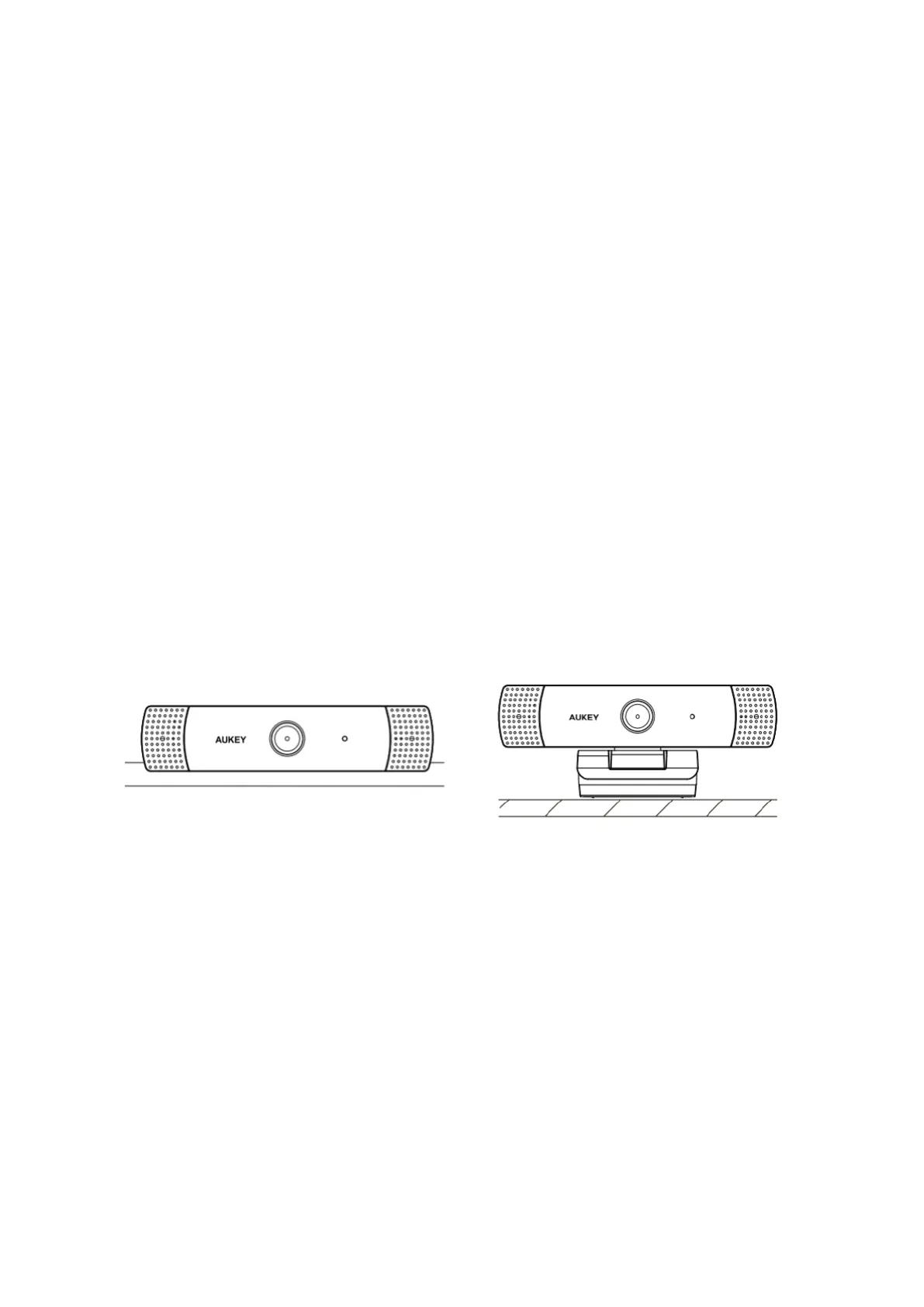
On a flat-screen computer monitor or laptop screen: Both parts of the attached
clip/stand should be aligned vertically downward from the back of the camera. Rest the
rubber padded bottom of the webcam on the top edge of the screen, with the narrow
front lip just over the front of the screen. The rubber pad of the clip/stand should be
touching the back of the screen. The camera can be tilted up or down (ensure that both
rubber pads are still in contact for a secure fit).
On a desk or other flat surface: The plain plastic side of the attached clip/stand should
be on the surface (below the camera). Angle the two clip/stand hinges for the most
stable position, with the webcam tilted up or down for the best view.
Connecting the Webcam
1. Connect the webcam’s built-in USB cable to your PC’s USB port (the camera will then
appear in the ‘Devices and Printers’ section of the ‘Control Panel’).
2. Open the video chat or recording software you want to use and begin a video call or
video recording. While the camera is active, the blue LED indicator light will be on.
Product care
1) Ensure camera and mount are firmly fixed in place or stable before use to avoid falls.
2) Keep away from liquids, extreme heat, and strong magnetic fields.
3) Ensure the operating temperature is within the range: 0°C - 45°C (32°F - 113°F).
4) Avoid touching the lens surface. It may be cleaned with a cotton swab or lens-
cleaning cloth. If any dirt is difficult to remove, a non-abrasive glasses lens cleaner
may be used. Do not use corrosive solutions.


 To Next Page