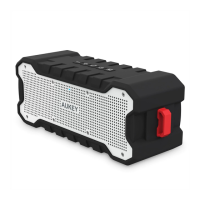
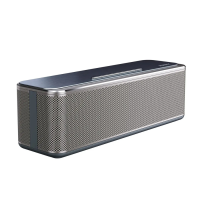
This document describes the SK-M7 Wireless Portable Speaker, covering its functions, usage, and troubleshooting.
Product Overview
The SK-M7 speaker features several controls and ports:
- Call button: Used for managing phone calls.
- Play/Pause button: Controls media playback.
- Volume + / Next Track: A long press increases volume, a short press skips to the next track.
- Volume - / Previous Track: A long press decreases volume, a short press goes to the previous track.
- LED Indicator: Provides visual feedback on the speaker's status.
- Power Switch (ON/OFF): Turns the speaker on or off.
- Line in: An auxiliary input for connecting external audio devices.
- Line out: An auxiliary output.
- USB Charging Port: Used for charging the speaker.
- Mic: Built-in microphone for calls.
Charging
The speaker comes partially charged from the factory. It is recommended to fully charge it before first use.
To charge, connect the speaker to any active USB port or adapter using the provided USB charging cable. A full charge takes approximately 4 hours. The red LED indicator turns off once charging is complete.
Battery Status:
If the battery is low, a voice prompt will sound every 20 seconds, and the speaker will automatically turn off. Recharge the battery as instructed.
Charging and Pairing:
Even if the power switch is "OFF" during charging, the speaker will automatically enter pairing mode, indicated by alternating blue and red LED flashes. This is normal. The LED indicator will turn solid red within 10 minutes.
Pairing (for mobile phones, tablets, laptops)
- Proximity: Place the SK-M7 speaker within 3ft (1m) of your device.
- Power On: Turn the power switch to "ON". You will hear a crisp sound, and the speaker will automatically enter pairing mode, with blue and red LED lights flashing alternately.
- Device Pairing Mode: Put your device into pairing mode and search for the speaker.
- Connect: Once "Aukey SK-M7" appears on your device, select it to connect. If prompted for a PIN or pass code, enter "0000".
- Successful Pairing: Upon successful pairing, you will hear a short beep, and the blue LED light will flash slowly. On some devices, you might need to select "Use as Audio Device (stereo)" or a similar option in the device's audio menu.
Notes on Pairing:
- If pairing is not completed within 3 minutes, turn off the speaker and try again.
- The speaker will automatically connect to the last paired device when that device enters pairing mode.
- For computer use, ensure you have downloaded the latest wireless driver for your operating system.
Audio Playback
Wireless Playback:
The maximum operating range for the SK-M7 speaker is 33ft (10m). Moving out of this range will cause the speaker to lose connection; you will need to move back within range and reconnect.
Auxiliary (AUX) Playback:
- Connection: Turn on the SK-M7 Wireless Portable speaker and connect it to your PC or notebook using the 3.5mm audio cable via the 3.5mm Line in jack on the speaker.
- Priority: When an audio cable is connected to the Line-in jack, the speaker will switch to Aux-in mode, which has higher priority, disconnecting any Bluetooth connection.
- Volume Control: When playing audio through Aux, you can adjust the volume from the speaker, but track selection (previous/next) must be done from your connected device.
- Computer Setup: For some computers, you may need to visit the audio control panel to manually set the speaker as the default audio device.
Note on Line Out:
The 'Line out' socket provides pre-amp volume, meaning the output will be almost inaudible with most headphones. To use it effectively, you would need an in-line amplifier or to connect it to equipment with its own amplifier (e.g., a hi-fi system with an auxiliary input). This function is not particularly useful for direct headphone connection.
Functions Introduction
- Turning the speaker on / off: Slide the power switch to the 'ON' or 'OFF' position.
- Adjust the Volume: Long press the volume +/- button to increase or decrease the volume.
Music Control
- Next/Previous Track: Short press the +/- button.
- Pause/Resume: Press the ">||" button once to pause, and press it again to resume.
Answering a Call
- Answer: Press the call button once to answer a call, or answer directly from your phone.
- End: During a call, press the call button once to end the call, or end it directly from your phone.
- Reject: When a call is incoming, hold and press the call button for 2 seconds to reject the call.
LED Indicator Instruction
The LED indicator provides visual status updates:
- Pairing mode: Blue and Red LED lights flash alternately.
- Connected to a device: Blue LED flashes slowly.
- Charging: Solid red LED.
- Fully charged: Red LED turns off.
FAQ and Trouble Shooting
-
Q: Why isn't my speaker pairing with my iPad?
- A: Ensure the SK-M7 speaker is powered on and in pairing mode (alternating blue and red light flashes). Also, make sure your iPad is in pairing mode.
-
Q: Why can't my speaker play audio via Aux?
- A: Ensure the Line in jack is properly connected to the speaker. Try connecting and disconnecting the 3.5mm audio cable a few times. Make sure the speaker is turned on. For some computers, you might need to set the speaker as the default audio device in the audio control panel.
-
Q: Can I use the speaker while it is charging?
- A: Yes, but to ensure long-term battery performance, it's recommended to avoid using the speaker while charging.
-
Q: The music sometimes cuts off while playing.
- A: The speaker's operation range can be affected by obstructions like walls or pillars. To maintain a stable connection, avoid obstructions and/or shorten the distance between the speaker and your device.
-
Q: I turn on the speaker, but I cannot see any LED lights coming on?
- A: Ensure the unit is charged. If it's fully charged and still no lights appear, or if you cannot charge the unit, contact customer support for warranty coverage.
Warranty and Support
- Customer Support: For assistance, email support@aukey.com with details. Responses are typically provided within 24 hours.
- Warranty: The device comes with a 24-MONTH warranty from the original purchase date for manufacturer defects. If a defect occurs, contact the seller directly to initiate the return and warranty process. Do not return the product without seller/Aukey authorization.
- Statement: After-sale service is only provided for products purchased directly from Aukey or an Aukey authorized distributor. If purchased from a different seller, contact them for exchanges or requests.

 Need help?

 To Next Page
 General