This document is a user manual for a digital projector, providing instructions for installation, operation, and maintenance.
Function Description
The projector is designed to display video, music, pictures, and text files from various input sources onto a screen or wall. It supports both horizontal placement and ceiling-mounted installation. The device offers multimedia playback capabilities and can synchronize with mobile phone screens for mirroring content. Specific models may include Android OS with Wi-Fi and Bluetooth connectivity, allowing for direct streaming and app usage.
Important Technical Specifications
While detailed technical specifications like resolution, brightness, and contrast ratio are not explicitly listed in the provided pages, the manual highlights several functional aspects:
- Input Ports: HD Port, USB Port 1, TF Card slot, VGA, Audio Output Port.
- Output: OUT 5V/MirrorLink.
- Supported Video Formats (Multimedia Version): MP4, RMVB, AVI, RM, MKV.
- Supported Audio Formats (Multimedia Version): MP3, WMA, OGG, AAC, FLAC, APE, WAV.
- Supported Image Formats (Multimedia Version): JPG/JPEG, BMP, PNG.
- Supported Text Formats (Multimedia Version): TXT.
- Wireless Connectivity (for Mirror Screen function machine): Wi-Fi for Android and iOS screen mirroring.
- Wired Connectivity (for Mirror Screen function machine): USB cable for Android and iOS screen mirroring (requires original USB/Lightning cable).
- Android OS (Luna X version): Built-in Wi-Fi and Bluetooth, pre-installed apps like YouTube, Netflix, Amazon Prime, Browser, Google Chrome.
Usage Features
The projector offers a range of user-friendly features:
Installation and Setup:
- Placement: Can be placed on a horizontal surface or mounted using a hanging bracket (not supplied).
- Focus Adjustment: Features a Focusing Ring to adjust picture definition.
- Keystone Correction: Includes a Keystone Correction Ring to correct image distortion.
- Screen Alignment: Instructions are provided for adjusting the projector's position to align with the screen, including handling left/right offsets, vertical offsets (using a front adjuster), and angle offsets.
- Projection Mode: Users can change the projection mode (e.g., for ceiling-mounted or rear projection) via settings.
Input Source Switching:
- Multiple Inputs: Supports HD, AV, VGA, USB, and TF card inputs.
- Switching Methods: Input sources can be switched using the "S" key on the operation panel, the "INPUT" key on the remote control, or via the main screen's floating window (for multimedia version).
Multimedia Playback:
- Content Categories: Dedicated sections for playing Video, Music, Picture, and Text files.
- Navigation: Users can navigate through storage devices (USB, TF) and select files or folders using the "<" and ">" keys on the operation panel.
- Preview: Image and video content can be previewed by hovering the cursor over the selected file for over 3 seconds.
Projection Settings (Multimedia Version):
- Image Settings:
- Image Mode: "Standard," "Brief Report," "User," "Video" modes to fit various projection needs.
- Projection Mode: "Preposition," "Postposition," "Hanging Preposition," "Hanging Postposition" for different installation modes.
- Color Temperature: "Standard," "Cool," "User," "Warm" for different color preferences.
- Projection Ratio: Adjusts image scaling.
- Noise Reduction: Sets the noise reduction strength.
- Audio Settings:
- Audio Mode: "Standard," "Music," "User," "Sports," "Video" modes, with bass and treble ratio adjustments.
- Balance: Adjusts gain difference between left and right sound channels.
- Automatic Volume: Automatically adjusts volume to an appropriate range.
- Surround: Sets surround sound effect.
- Time Settings:
- Clock: Sets system time.
- Shutdown/Startup Time: Configures automatic shutdown and startup times.
- Sleep Timing: Sets system sleep time to save energy.
- Automatic Sleep: Enables/disables automatic sleep when no screen change occurs.
- General Settings:
- Menu Language: Sets system language (Chinese Simplified as default).
- Menu Duration: Enables/disables menu display time.
- Software Upgrade: Allows updating software via USB storage device.
- Restore Settings: Restores factory default settings.
- Software Version: Displays current software version.
Mobile Phone Screen Synchronization (Mirror Screen function machine):
- Android (Wireless):
- Requires Android device to support Multi-Screen/Wireless display.
- Select "Screen Mirroring" input source, then "Android" on projector.
- Connect Android device to the projector's Wi-Fi (RKcast-XXXXXX, password: 12345678).
- Activate Multi-Screen function on Android device and select RKcast-XXXXXX to connect.
- Recommendations: 100Mbit+ bandwidth, mobile device within 1 meter of projector.
- Android (Wired):
- Select "Screen Mirroring" input source, then "iPhone" (despite being for Android wired connection, this is the instruction given).
- Enable "USB Debugging" in Android Developer options.
- Connect Android device to projector's USB port using the ORIGINAL USB cable.
- Tap "OK" on the "Allow USB debugging" prompt.
- Note: Some devices may only transfer display without audio.
- iOS (Wireless - Cellular Data):
- Select "Screen Mirroring" input source for iOS.
- Connect iOS device to the projector's Wi-Fi (RKcast-XXXXXX, password: 12345678).
- Swipe up on iOS device, tap "Screen Mirroring/AirPlay Mirroring," and search for the projector.
- iOS (Wireless - Router Wi-Fi):
- Connect iOS device to the projector's Wi-Fi (RKcast-XXXXXX, password: 12345678).
- Visit http://192.168.49.1 in a browser on the iOS device, go to "WiFi AP > Scan," select your router's Wi-Fi, enter password, and connect.
- Once the router's Wi-Fi is displayed on the projector's Screen Mirroring interface, connect the iOS device to the same router Wi-Fi.
- Swipe up on iOS device, tap "Screen Mirroring/AirPlay Mirroring," and search for the projector.
- iOS (Wired):
- Select "Screen Mirroring" input source for iOS.
- Connect iOS device to the projector's USB port using the ORIGINAL lightning cable.
- Select "Trust" on the "Trust This Computer?" pop-up.
Remote Control (Multimedia Version):
- Functions: Power Switch, Input Source, Menu, OK, Navigation (Move Left/Right/Up/Down), Return, Volume Down/Up, Mute.
- Care: Avoid dropping, treading on, or splashing liquids on the remote. Keep away from heat sources, direct sunlight, and damp rooms.
Android OS (Luna X specific features):
- Home Page: Displays pre-installed apps like YouTube, GooglePlay, My Apps, Netflix, Kodi, etc.
- Settings: Access Network (Wi-Fi, Bluetooth), System sounds, Apps, Display, Flip Mode, Auto Shutdown, Date & time, Language.
- Mouse Mode: Long press "Menu Button" for 3 seconds to switch to mouse mode for easier navigation and text selection. Press again to return to regular mode.
- On-screen Keyboard: Available for typing in regular mode using remote keys.
- Miracast: Direct access from the home page.
Maintenance Features
The manual provides important safety and maintenance guidelines to ensure the projector's longevity and performance:
Safety Considerations:
- Enclosure: Do not open the enclosure to avoid electric shock; repairs should only be done by qualified professionals.
- Voltage Warning: Internal components carry dangerous voltage; avoid contact.
- Moisture/Rain: Do not expose to rain or moisture to prevent fire or electric shock.
- Ventilation: Ensure adequate ventilation; do not block intake or exhaust holes.
- Temperature/Humidity: Avoid hot, humid, dusty, or smoky sites.
- Airflow: Do not install near direct blowing warm/cool air-condition wind to prevent moisture condensation or temperature increase.
- Power Cord: Use with caution, avoid bending; unplug after use.
- Foreign Objects: Prevent paper clips, scraps, metal objects, or liquids from entering the projector. If an object falls inside, immediately turn off power and seek professional help.
- High Temperature: Be aware that areas near the outlet will be hot during/after projection; avoid touching. Do not peep at the lens to prevent eye injury.
- Wall Clearance: Maintain at least 30cm distance from walls for performance and reliability.
Cleaning:
- Cabinet: Unplug power cord; use a wet cloth and neutral detergent for smudges. Avoid strong detergents or solvents.
- Lens: Use an air brush or lens paper; be careful not to scratch.
- Ventilation/Loudspeaker: Regularly clean with a soft brush to prevent overheating from blocked dust. Avoid rigid accessories.
Moving:
- Protection: Use soft package materials and attach the lens cover.
- Vibration: Avoid severe mechanical vibration.
Shutdown:
- Methods: Use the remote control, the control panel, or the soft key on the Port (for smart Android version).
- Energy Saving: Unplug the power cord after shutdown.

 Need help?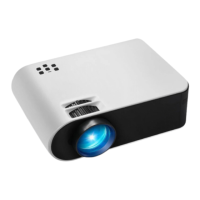

 To Next Page
 General