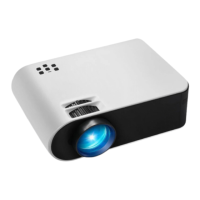
Wi-Fi Connection only for Android Version (Luna X)
Start Using
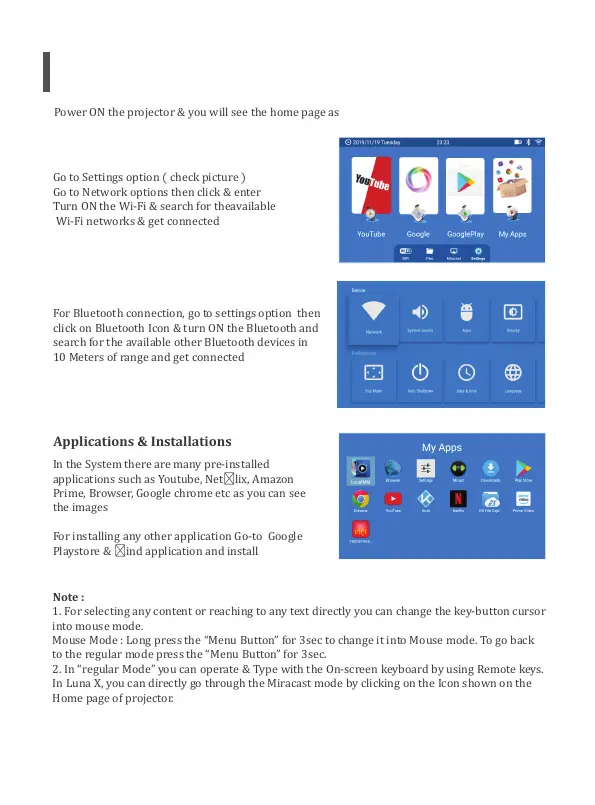
Power ON the projector & you will see the home page as
shown in the images (right side)
Go to Settings option ( check picture )
Go to Network options then click & enter
T
urn ON the Wi-Fi & search for theav
ailable
Wi-Fi networks & get connected
For Bluetooth connection, go to settings option then
click on Bluetooth Icon & turn ON the Bluetooth and
sea
rch for the available other Bluetooth devices in
10 Meters of range and get connected
Applications & Installations
In the System there are many pre-installed
applications such as Youtube, Net
rowser, Google chrome etc as you can see
or installing any other application Go-to Google
ind application and install
Note :
1. For selecting any content or reaching to any text directly you can change the key-button cursor
into mouse mode.
Mouse Mode : Long p
ress the “Menu Button” for 3sec to change it into Mouse mode. To go back
o the regular mode press the “Menu Button” for 3sec.
regular Mode” you can operate & Type with the On-screen keyboard by using Remote keys.
you can directly go through the Miracast mode by clicking on the Icon shown on the
•
•
•
•


 To Next Page
 Loading...