!
!
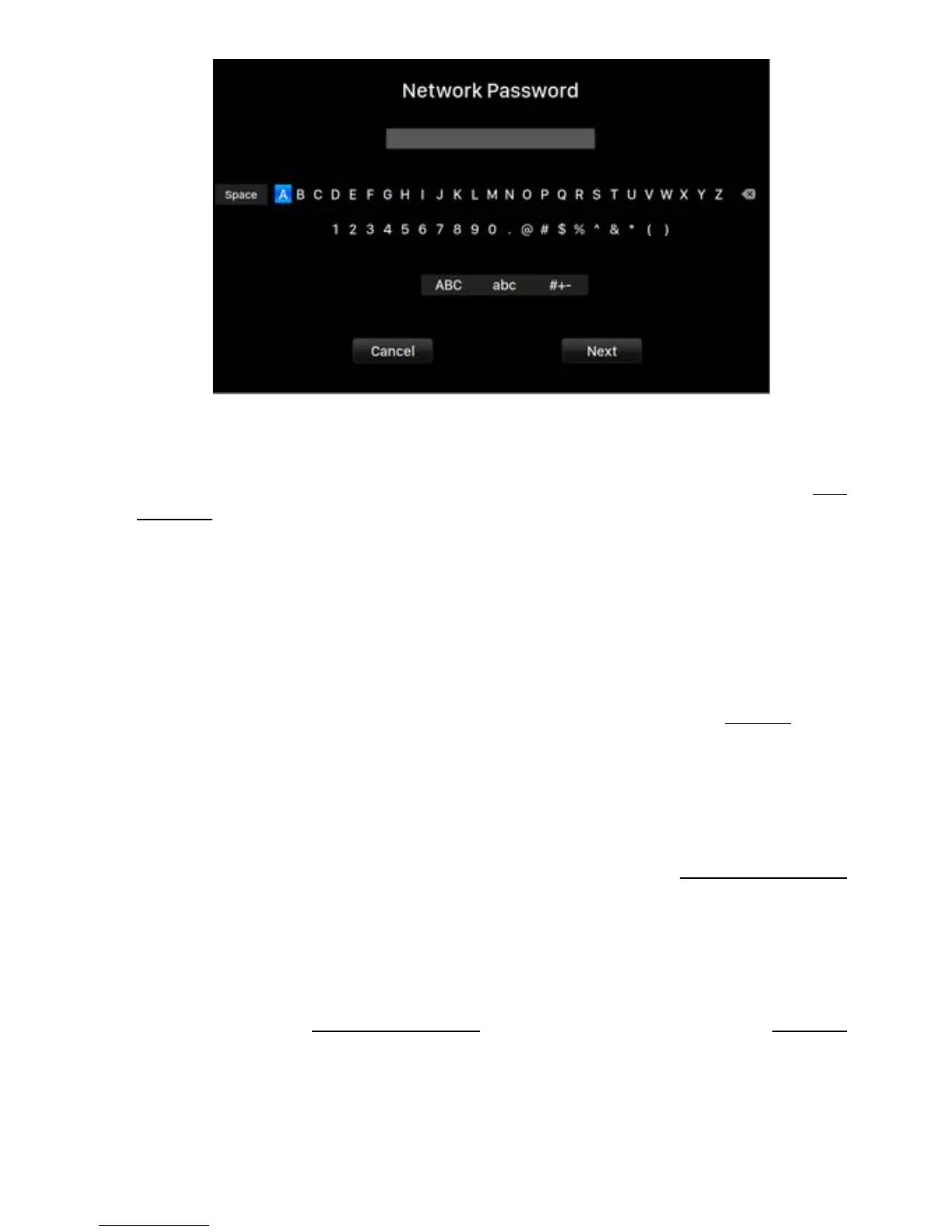
!Use!the!‘Up’!and!‘Down’!buttons!to!select!characters,!and!the!‘Play/Pause’!button!
to! confirm! your! input.! (Toggle! capital/lowercase/special! characters! on/off! using!
‘ABC’,! ‘abc’,! and! ‘#+-‘.)! Select! ‘Next’! when! the! password! is! entered,! then! ‘Join'
Network’.!!
!
!
Your!ARIES!G2!will!display!a!loading! symbol!while!it!attempts!to!establish!a!Wi-Fi!
connection.!When!the!connection!is!successful!the!Home!Menu!is!displayed,!now!
with!the!ARIES!G2’s!IP!address!shown!instead!of!the!‘Wi-Fi!Hotspot’!information!as!
before.!
!
If!your!Wi-Fi!network!is!not!visible!(hidden!SSID),!you’ll!need!to!select!‘Other…’!when!
the! Wi-Fi! l is t! is! shown,! and! manually! enter! the! Wi-Fi! network! name,! encryption!
method,!and!network!password!(if!needed.)!!
!
• Use'the'lightning'web'control'interface'
!
On! your! computer! or! mobile! device,! a! Wi-Fi! n etwork! called! ‘AURALiC-Lightning’!
should! be! available! in! your! network! settings.! Joi n! this! network! to! establish! a!
temporary! connection! with! your! ARIES! G2.! (This! is! an! open! network! without! a!
password,!but!it!is!only!a!temporary!network,!and!it!will!be!disabled!once!your!ARIES!
G2!has!connected!to!your!home!network.)!!
!
Once!connected!to!‘AURALiC-Lightning’,!open!a!web!browser!and!enter!‘10.5.5.1’!
into!the!address!bar.!The!Lightning!web!control!interface!is!now!available:!



 To Next Page