- 7 -
Once the Aurender has been connected to the home network and an external USB drive with music content as
shown in Step 2, ensure the iPad is connected to the same wireless router as the Aurender by accessing the WiFi
settings of the iPad (1), and selecting the proper WiFi network (2).
STEP 3: Update the Aurender's System
Software to the latest version
Open the Conductor App, and wait for the app to connect to the Aurender. If you only have one Aurender located
on the network, the app will automatically connect; in the case of multiple Aurender's, you will need to specify
which Aurender you wish to connect to. The first time you connect to the Aurender from the iPad app, you will be
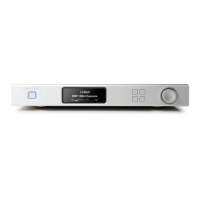
prompted to enter a 6-digit passcode (4). This 6-digit passcode will be displayed on the Aurender's AMOLED front
panel.
Once the 6-digit passcode has been entered, tap the "Settings" icon (5), which looks like a gear, and is located just
below the search bar at the top right corner of the app.


 To Next Page
 Loading...