Rev. 4.0 13ELE2000 Page 2 /14
Operation
General
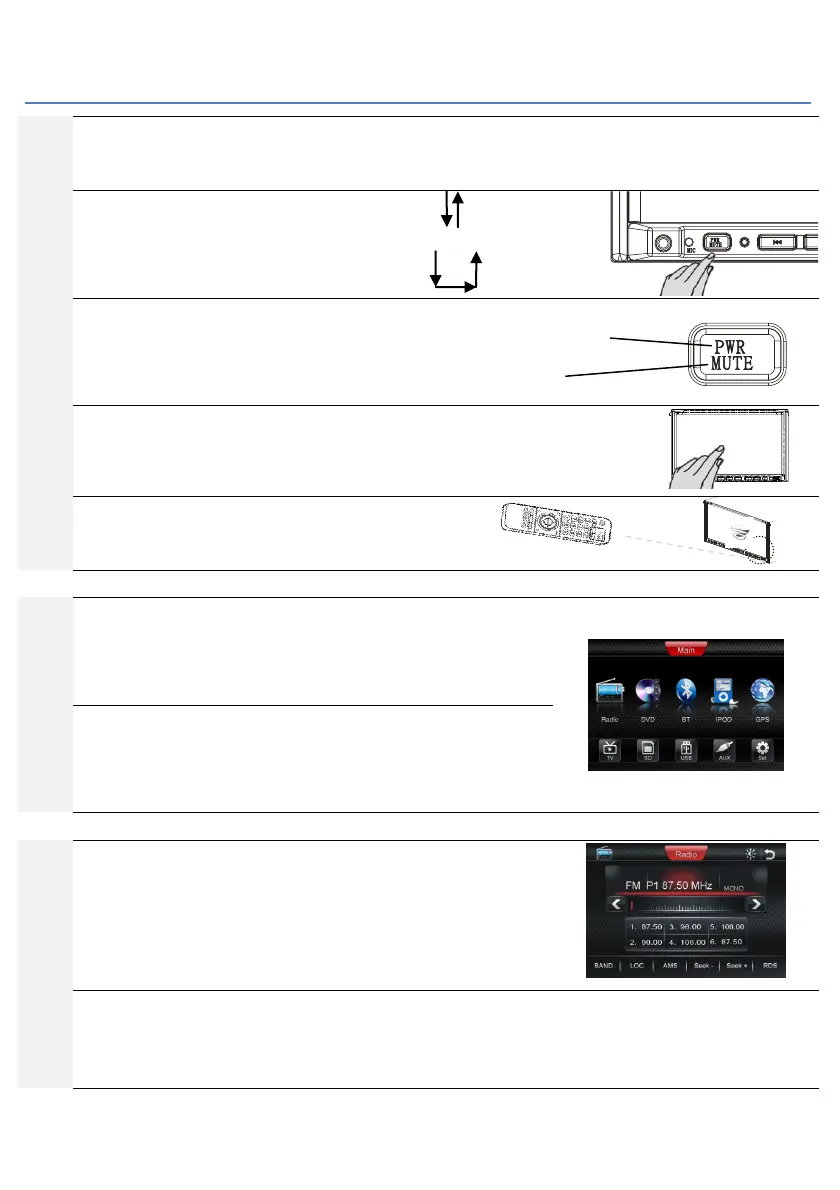
Functions on the 13ELE2000 can be accessed by many means. To do an operation such as selecting AV source or changing
channel, the buttons on the lower edge of the front panel, the touch screen or the IR remote control unit can be used.
Powering on
To power on the unit, depress power button briefly and
let go. To power off the unit, depress and keep holding it
down. Many buttons on the front panel have two modes
of activation: “Short press” and “Press and hold”.
Dual mode buttons
When the unit is powered on, the ‘PWR MUTE’ button has
dual functions: Short press toggles between mute and
normal listening. Pressing and holding the same button
will power off the unit.
Touch screen
The screen of the unit presents a graphical user interface
(GUI). Many functions can be called by gently tapping the
corresponding display feature on the screen e.g. an icon.
IR remote control
In addition, a separate IR remote control transmitter is
provided. This needs two AAA batteries to operate.
Source selection screen
The source selection screen is shown to the right. One way to call up this GUI
menu is to tap the arrow icon on the top-right corner of the display. On screens
that this arrow icon is not available, the user may use “SRC/NAV” button to
cycle through the sources.
Screen (GUI)
To pick the desired function, tap the icon on the GUI. Function such as “Radio”
or “GPS” navigation can be selected from the screen shown here. It is
noteworthy that to make such selection, we can also use the SRC button on the
bottom of the facia and on the IR remote control.
General
In the GUI icons are labelled. Find the ‘>’ on the top pane of the screen. Tap this
to auto-seek the next higher frequency. The middle pane presented 6 presets.
Tap and hold one of these to store a radio channel, single tap to listen to the
preset channel. RDS symbols such as “AF” and “TA” the reader may consult page
9 of this manual.
FM radio- RDS
Radio Data System RDS is available in many countries. RDS functions such as AF and TA if enabled by the user the status will be
shown on the top bar (next to “MONO” in the photo above). RDS is only available in FM bands. The abbreviations for these RDS
functions are listed in a dedicated section within this booklet.
Power off: Press and hold
Mute: Short press
Directly tapping items
presented on the GUI



 To Next Page
 Loading...